
Assigning Articles to Team Members
Assignments let you give article work a clear owner. You can ask a teammate to write a new article, update an existing one, or review a draft — all from inside HelpSite.
Assignment Types
There are three types of assignments:
Write — Ask a teammate to create a new article from scratch
Update — Ask a teammate to make changes to an existing article
Review — Ask a teammate to review a draft before it gets published
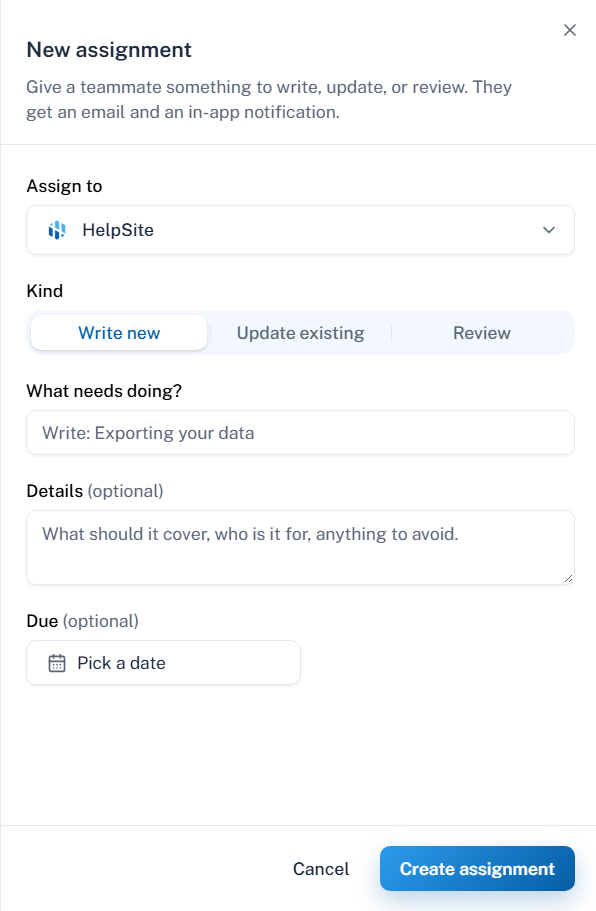
How to Create an Assignment
Go to Assignments in the left navigation, or open an article and select Assign from the More actions menu.
Click New Assignment.
Select the assignee and the assignment type.
For Update and Review assignments, search for and link the article.
Add a description of what needs to be done.
Set a due date if needed.
Click Create.
The assignee will receive an in-app notification and an email letting them know they have been assigned something.
Note: Only users with access to the article editor will appear in the assignee list.
The Assignments Page
All assignments live in one place under Assignments in the left navigation. The page has three tabs:
Assigned to me — work you need to complete
I requested — assignments you created for others
All — every assignment on the site
You can filter by status: Open, Done, Declined, or All.

Assignment Statuses
Open |
Active and waiting to be completed |
Done |
Marked as complete by the assignee |
Declined |
The assignee declined the request |
Assignments can be reopened after they are marked Done or Declined.
Due Dates
You can set a due date when creating an assignment. The due date is visible to both the assignee and the requester on the Assignments page.
Why This Matters
Makes it clear who is responsible for each piece of work
Keeps article updates, reviews, and new writing organized in one place
Makes handoffs between team members easier
Improves content ownership and quality