How to Clear Your Browser Cache and Cookies
Clearing your browser cache and cookies removes temporary files and stored data that may prevent pages from loading correctly. This process helps your browser display the most up-to-date version of any website.
Follow the steps for your browser below:
Clear Cache in your Browser
Google Chrome
-
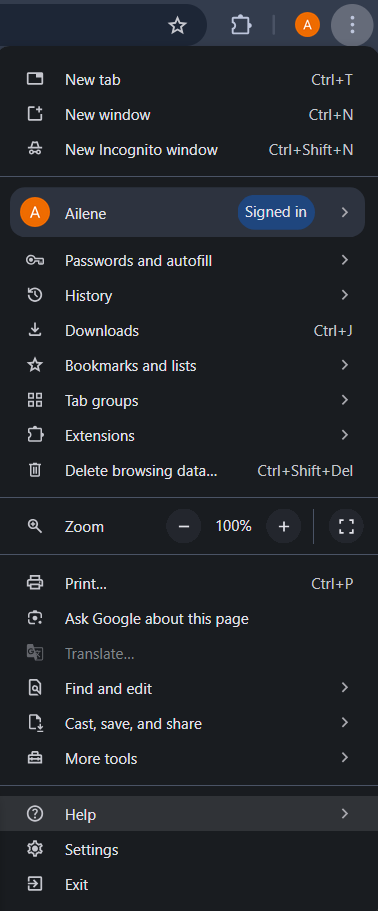
Click the three dots in the top-right corner.
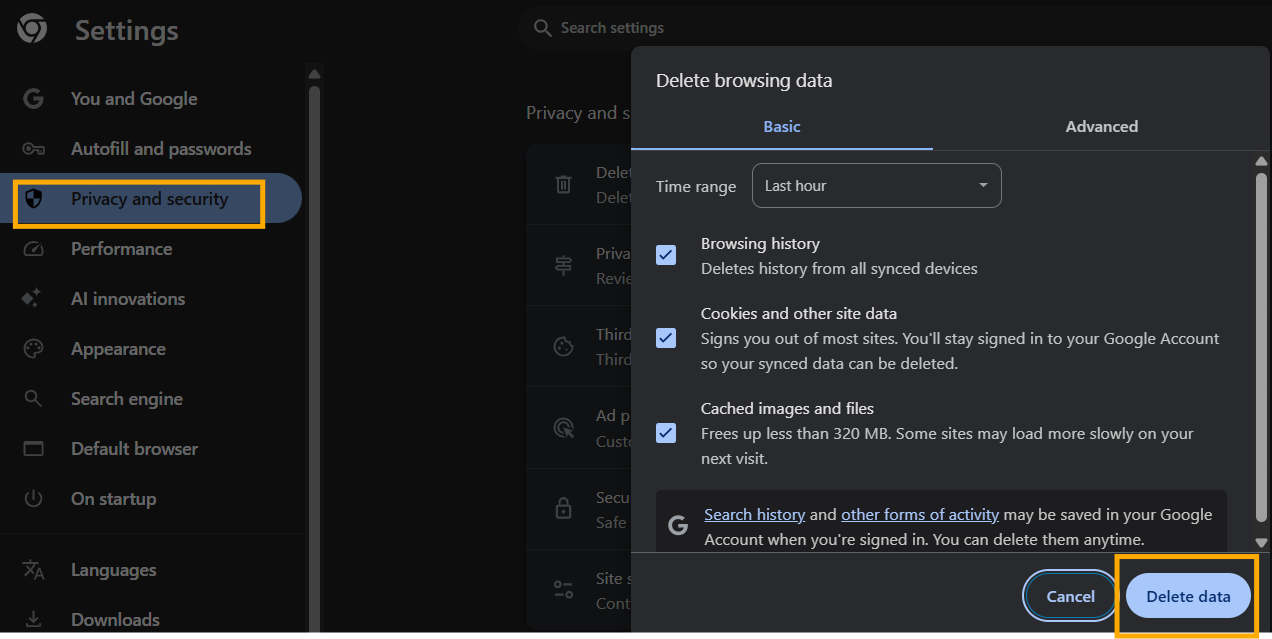
Go to Settings → Privacy and Security → Clear browsing data.
Choose Cached images and files (you can uncheck the others).
Click Clear data, then refresh your page.
Microsoft Edge
Click the three dots in the top-right corner.
Go to Settings → Privacy, search, and services.
Under Clear browsing data, click Choose what to clear.
Select Cached images and files, then hit Clear now.
Safari (Mac)
In the menu bar, click Safari → Preferences → Advanced.
At the bottom, check Show Develop menu in menu bar.
From the menu bar, click Develop → Empty Caches.
Refresh your page to see the latest version.
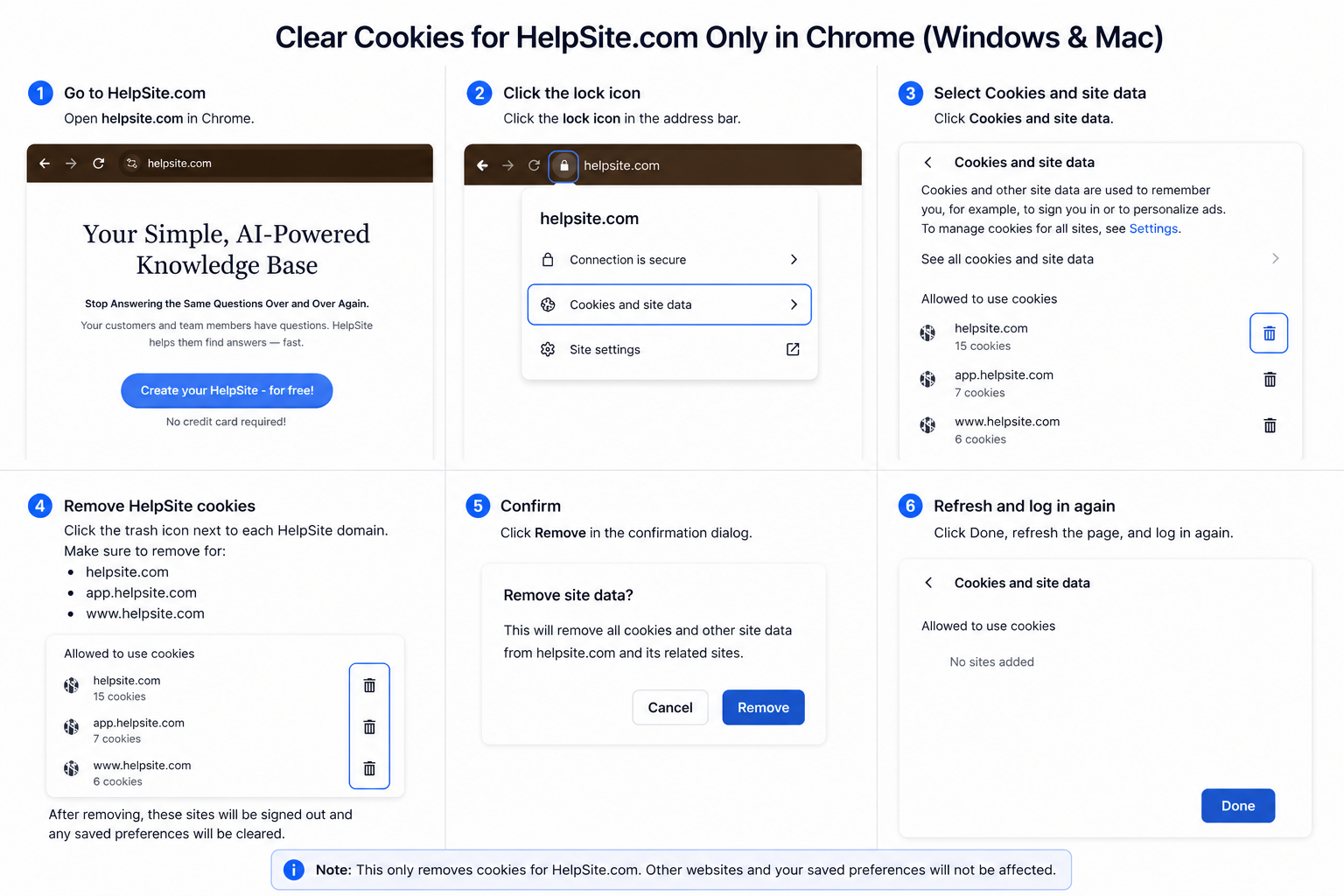
Clear cookies for HelpSite only
If you're running into issues, you don’t need to clear all cookies. You can remove data just for HelpSite.
Chrome / Edge (Windows & Mac):
Go to helpsite.com
Click the lock icon in the address bar
Select Site settings or Cookies
-
Remove all entries for:
Refresh the page and log back in