
Customizing Your HelpSite with Themes
Themes let you change the look of your HelpSite using structured layouts and style settings, without changing your existing content.
With Themes, you can preview layouts and adjust colors and fonts directly in the editor. Your articles and categories remain unchanged.
Note: Theme customization is available on all plans. Full custom HTML/CSS layout control is available on the Pro plan and above.
How It Works
Select a Theme
Open your HelpSite editor.
Go to Customize site > Design.
Browse the available layouts.
Click the theme you want to use.
Hover your mouse on your chosen Theme and select Customize.
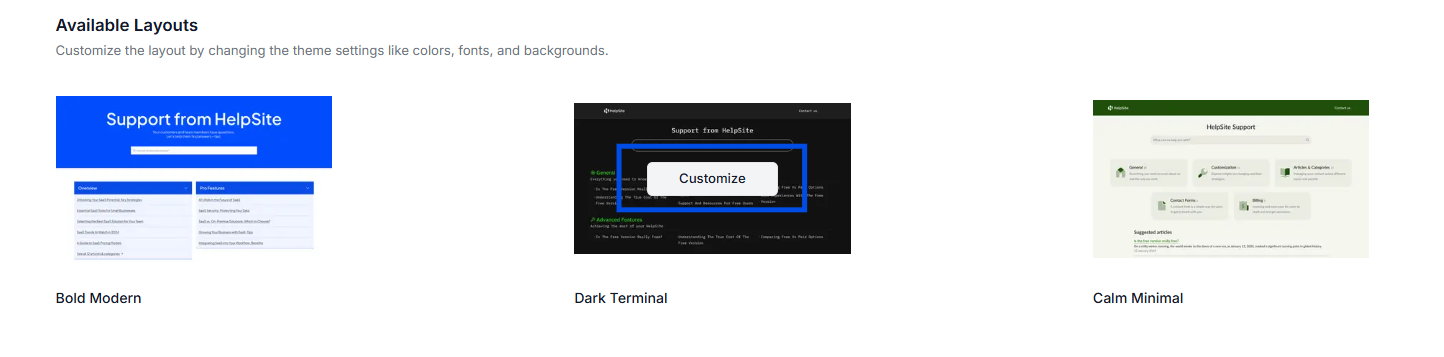
You'll be taken to the theme preview page where you can adjust settings and see your changes before publishing.
Available Themes
HelpSite currently includes four theme layouts:
Default HelpSite Theme — The standard HelpSite design.
Calm Minimal — A clean layout with simple spacing and a lighter visual style.
Dark Terminal — A dark-themed layout designed for readability and focus.
Bold Modern — A high-contrast layout with stronger visual hierarchy.
Customize Your Theme
Site Wide Settings
Use the Site Wide settings to customize the overall appearance of your HelpSite. You can:
Change your site's colors
Select your preferred font
Enter custom HEX or RGB color values

Changes are applied across your HelpSite preview automatically.
Pages Preview
The Pages section lets you preview how your HelpSite will look based on your selected theme and customizations. Use this area to review layout and spacing, typography, color selections, and overall appearance. This preview updates as you make changes.

Undo and Redo Changes
If you'd like to revert or reapply recent changes, use the Undo and Redo buttons.
Preview Your Theme
When you're ready to review your entire HelpSite experience, click Preview. This opens a full preview of your site so you can see how your theme and customizations appear before publishing.

Publish Your Theme
To make your selected theme live on your HelpSite:
Review your changes.
Click Use on Live Site.
Your selected theme and customizations will immediately be applied to your published HelpSite.
What Stays the Same
Applying a theme does not affect your content. Existing articles and categories remain unchanged — only the visual appearance is updated.
Responsive Design
All HelpSite themes automatically adapt to different screen sizes, providing a consistent experience across desktop, tablet, and mobile devices.