
Check HelpSite's system status
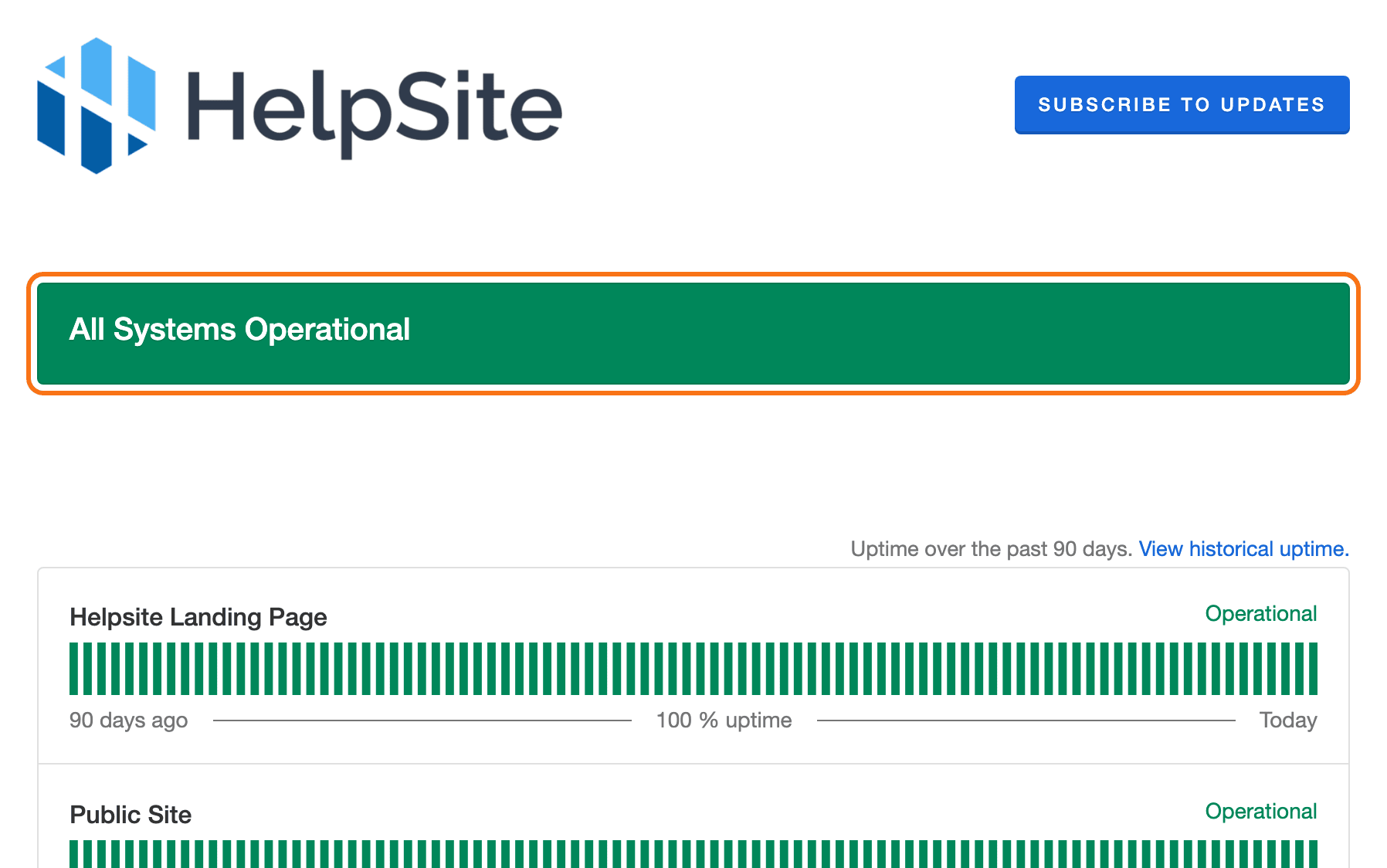
HelpSite's status page at helpsite.statuspage.io shows whether each part of HelpSite is working, lists incidents, and lets you subscribe to updates.
How do I check HelpSite's status?
- Go to helpsite.statuspage.io.
- Read the banner at the top. All Systems Operational means everything is working.
- Check the status of the part you're having trouble with (see the table below).
- Scroll to Past Incidents to see recent problems and how they were fixed.
| Component | What it covers |
|---|---|
| Public Site | Your help center's home, category and search pages |
| Article Pages | Article pages on your help center |
| Helpsite Dashboard | The HelpSite app at app.helpsite.com |
| Helpsite Public API | The HelpSite REST API |
| Helpsite Landing Page | The helpsite.com website |
How do I get status updates?
- On the status page, click Subscribe to Updates.
- Choose how you want updates: by email, or in Slack or Microsoft Teams.
- For email, enter your address and click Subscribe via Email.
- Confirm your subscription from the email the status page sends you.
You'll then get a message when an incident is reported, updated or resolved, and before planned maintenance.
When should I check the status page?
- The HelpSite app is slow or won't load.
- You can't log in.
- Your customers say your help center isn't loading.
- A feature stops working for no clear reason.
If the status page shows everything working and the problem continues, clear your browser's cache (see Clear your browser cache and cookies), then contact HelpSite support.