
Getting Started with HelpSite's AI Chatbot
Have you ever found yourself scrolling through a help center, looking for an answer that might be buried in one of several articles? The HelpSite AI Chatbot is here to save you time. Just ask and get a clear answer pulled directly from the knowledge base, with links to source articles included.
This guide walks you through using the chatbot for the first time.
Where to find the chatbot
The AI Chatbot button appears on your site's article pages when the feature is enabled. Look for the chat icon in the bottom right corner of any article.
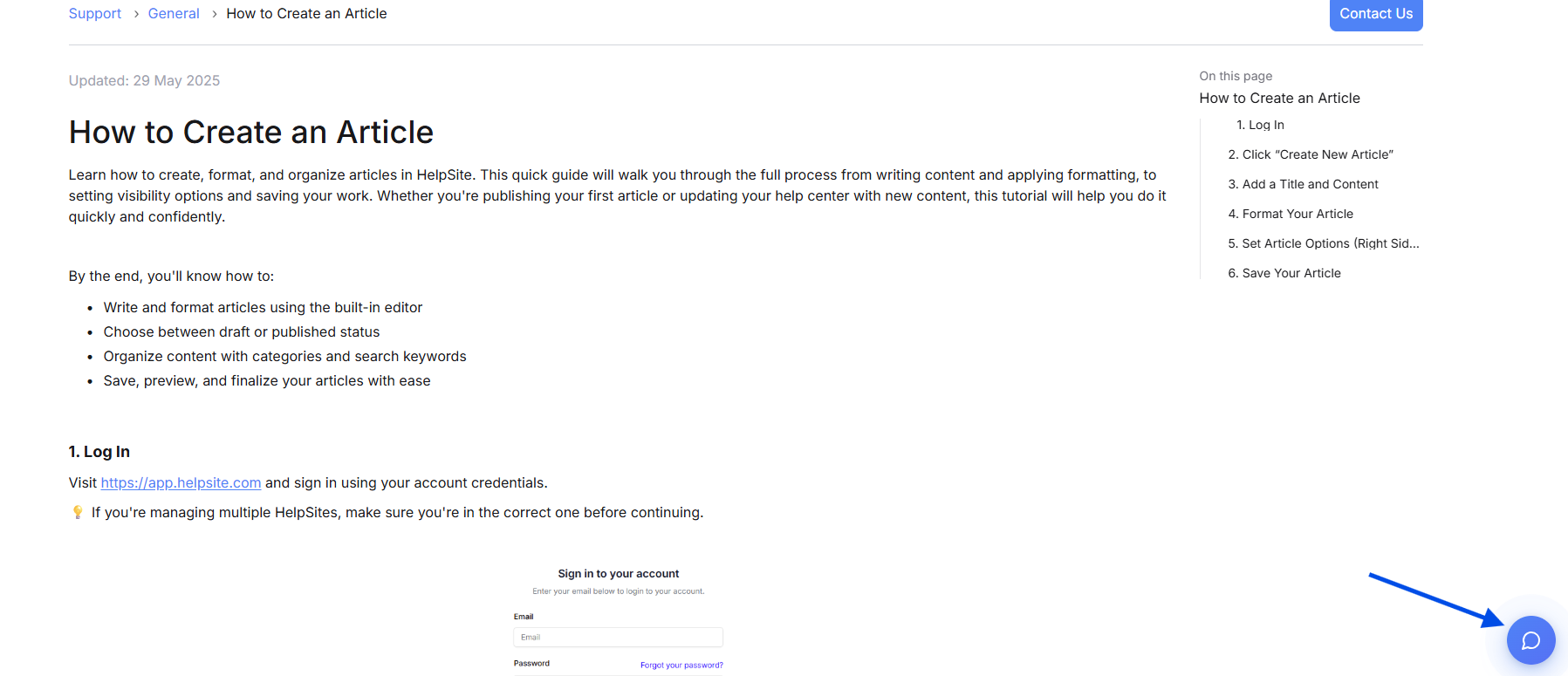
Pro tip: The chatbot works best when you're on an article page. It uses the knowledge base content to give you accurate, relevant answers.
Step 1: Click the chat button
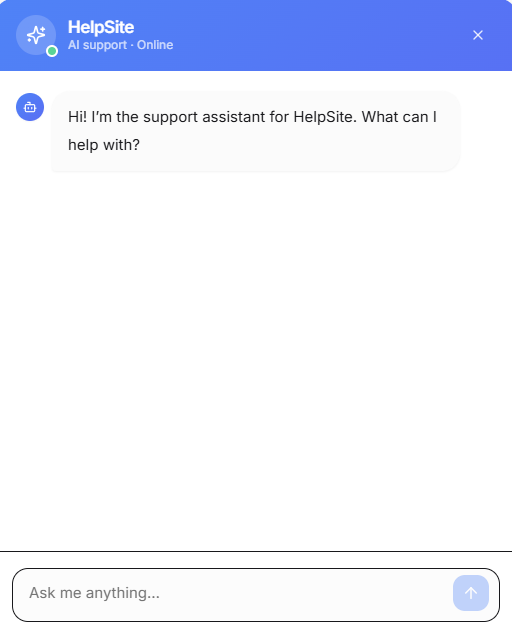
Find the chat icon at the bottom right of your screen. Click it to open the chatbot panel.
The panel slides in from the right side of your screen. You'll see:
A greeting message from the assistant
A text field where you can type your question
A send button
Step 2: Ask your question
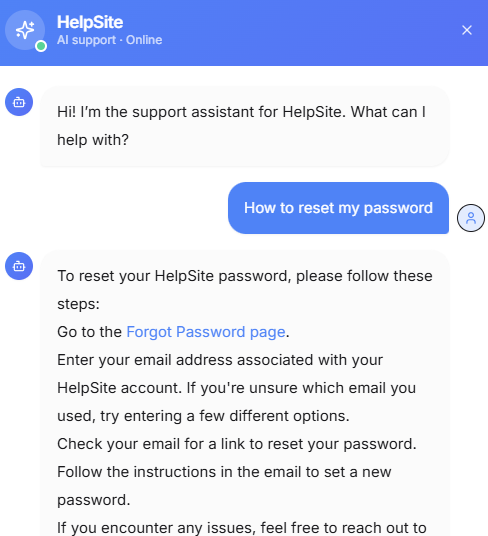
Type your question in plain language. You don't need to use exact keywords—just ask like you would a real person.
Examples:
"How do I reset my password?"
"What payment methods do you accept?"
"Can I change my plan mid-cycle?"
Step 3: Get your answer
The chatbot will search your knowledge base and return an answer in just a few seconds. The response will include:
A clear, direct answer to your question
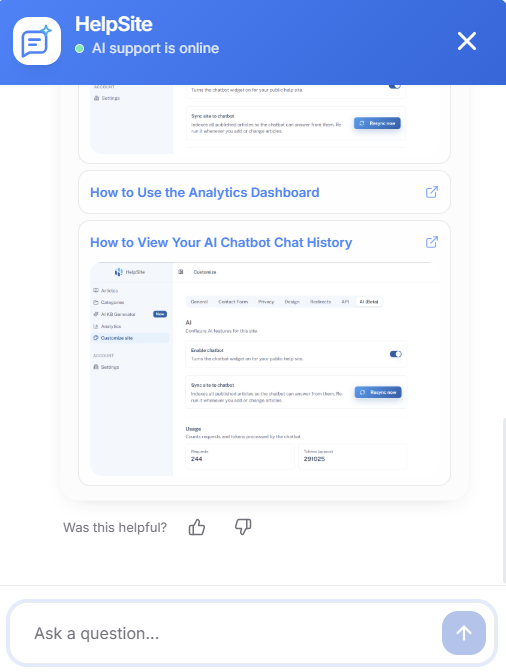
Source links showing which articles the answer came from
You can click those links to read the full article if you want more detail
Step 4: Keep asking
Don't see what you need? Ask a follow-up question. The chatbot keeps your conversation in context, so you can ask related questions and build on what you've learned.
What the chatbot can and can't do
The chatbot shines at:
Quick answers to common questions
Finding the right article when you're not sure what to search for
Follow-up questions that build on earlier answers
The chatbot may not be able to help with:
Complex issues that need human support (you'll get a note to contact support)
Real-time account data (like your current plan or billing status)
Issues outside your site's knowledge base
When the chatbot can't help, you'll see a prompt to contact support or get in touch—use that to escalate to a real person.
Rating Chatbot Responses
After a chatbot response, you'll see a Was this helpful? prompt with a thumbs up and thumbs down option. Tapping either one records your rating against that conversation. It takes one tap and does not interrupt the conversation.
If you go quiet for around 15 minutes, the chatbot will send a closing message letting you know the conversation is wrapping up. It also includes an optional Take a short survey button if you want to share more detailed feedback. The survey is entirely optional — you won't be prompted again if you don't engage with it.
Your chat history is saved
Every conversation you have with the chatbot is saved to your account. That means you can come back later, review past answers, and pick up where you left off.
Learn more: How to View Your Chat History
Pro tips for better answers
Be specific. "How do I change my billing contact?" gets better results than "How do I change my account?"
Ask follow-up questions. If the first answer doesn't fully address your issue, ask for clarification.
Check the source links. Sometimes the full article has extra context that answers won't.
Getting help when you need it
If the chatbot doesn't answer your question—or if you'd prefer to talk to a human—look for the Contact support or Get help button in the chatbot panel.