
How to build your knowledge base with AI KB Generator
This article walks you through building a knowledge base with the AI KB Generator, from your first setup question to importing finished articles.
Before you begin
Make sure you have:
A HelpSite site created, the AI KB Generator works on one site at a time
Admin or editor access to that site
Your website URL, documents, Google Drive files, or other content ready if you're using them as sources, optional
Step 1: Start the AI KB Generator
You can start the AI KB Generator two ways:
Right after creating a new site, where it's offered as the recommended next step
Anytime from your dashboard, under the Knowledge navigation menu
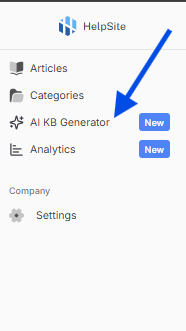
You can skip it during onboarding and come back to it later. Nothing is lost by skipping.
Step 2: Tell us about your knowledge base
Answer a few quick questions about your knowledge base:
Audience: who your articles are for, customer-facing or internal
Industry or what you do: a short description of your product
Product or site URL: for tone and context
Tone: friendly, professional, or concise
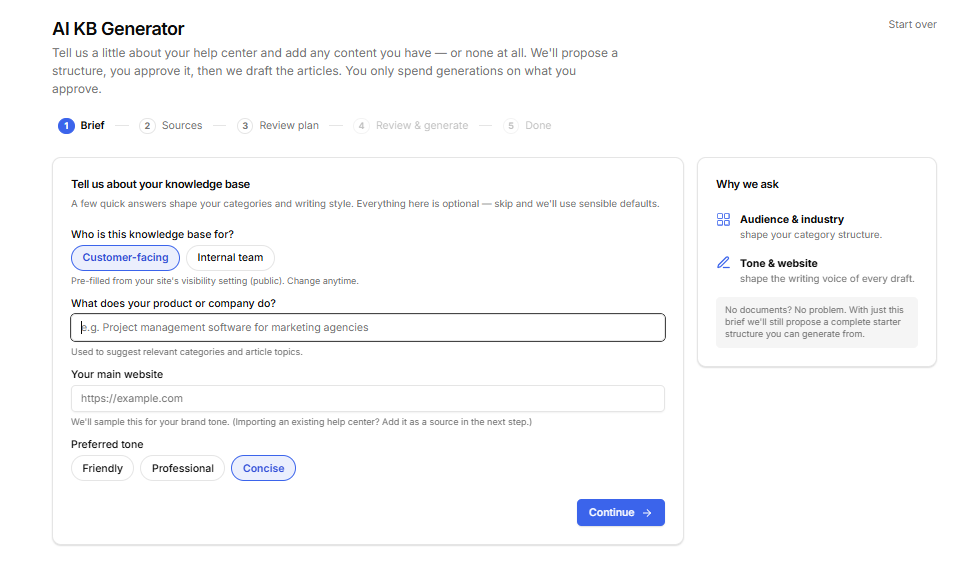
All of these fields are optional and can be skipped. If you skip them, the AI KB Generator uses reasonable defaults.
Step 3: Add your sources
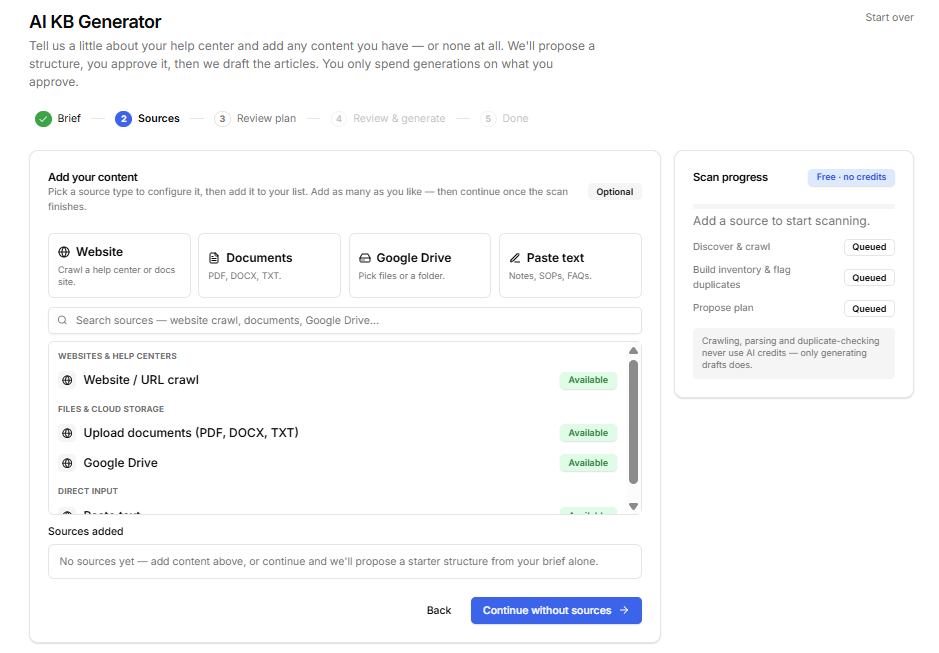
Add any combination of sources, or skip this step entirely to start from scratch:
Website: crawl your existing website or help center to pull in pages
Documents: upload PDF, Word (.docx), or plain text files
Google Drive: connect Google Drive and select existing files to use as source material
Paste: paste text directly into the generator
Each source you add appears in a list, and you can remove any of them before continuing.
Step 4: Review your source inventory
Once your sources are added, the AI KB Generator scans them and shows you what it found: page and document titles, word counts, and flags for anything that looks low-content or empty.
This step doesn't use any AI credits, so it's free to review and re-run.
Step 5: Review and edit the proposed plan
Next, the AI KB Generator proposes a full plan: categories, article titles, and an article type, how-to, conceptual, FAQ, or troubleshooting, for each one. Possible duplicates are flagged here too.
Before anything is written, you can:
Rename or merge categories
Edit article titles and types
Move articles between categories
Remove or uncheck anything you don't want generated
This plan review is also free and doesn't use any AI credits.
Step 6: Preview your free sample drafts
Once you approve the plan, the AI KB Generator writes a few sample articles for you to preview first, so you can check the writing style and quality before generating everything else.
If a sample isn't quite right, use the feedback box to tell the AI what to fix, rather than starting over.
For example, you might ask it to shorten the intro or add more detail to the steps.
Step 7: Generate and review the rest
Once you're happy with the samples, you can generate the rest of your approved articles.
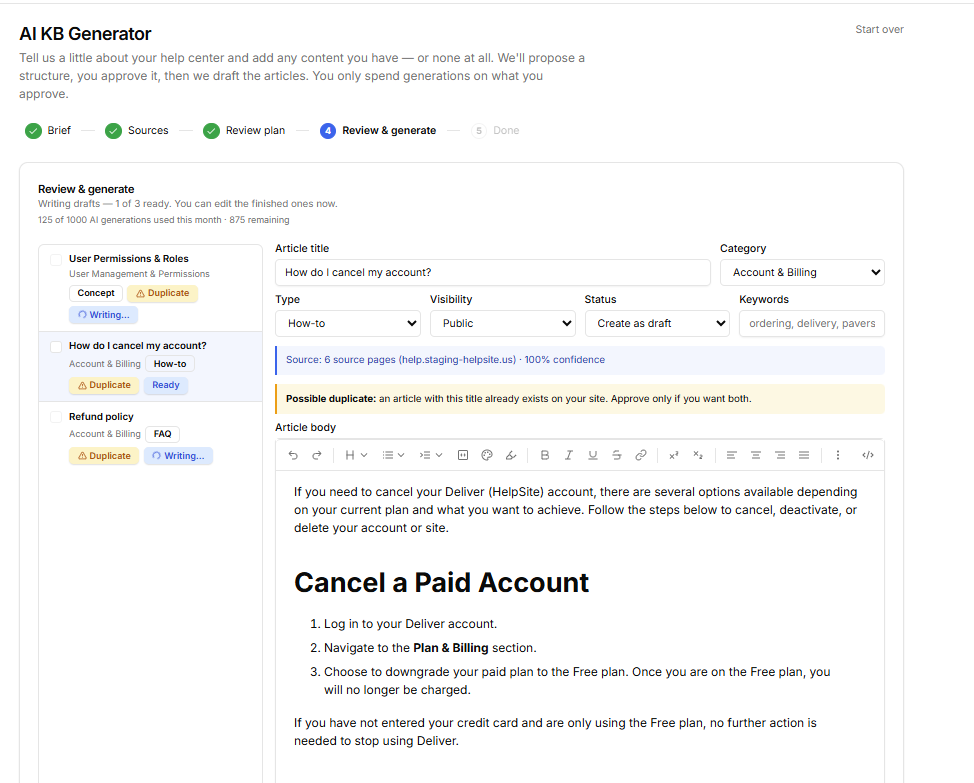
Each article opens in a full editor where you can:
Edit the title, category, article type, and body text
Use Revise to give feedback and have the AI update a specific draft
Approve or skip individual articles
Bulk-approve everything that's ready
Nothing is added to your knowledge base until you approve it here.
Step 8: Create your articles
When you're ready, create your approved articles.
The AI KB Generator sets up any new categories automatically and creates each article as a draft in your knowledge base.
After this step, you'll see how many articles were created and across how many categories, along with links to review them on your Articles page or view your live knowledge base.
Troubleshooting
A source failed to import:
Other sources will still process normally. Check the source's status in the inventory step and try re-adding it.My website wasn't fully captured:
Very large sites may not be captured in a single crawl. Try narrowing the starting URL, or add the missing pages as separate sources.An older .doc file didn't extract cleanly:
Convert it to .docx and re-upload.A draft doesn't sound right:
Use Revise on that draft and describe what you'd like changed, rather than regenerating from scratch.
Related articles
AI KB Generator
AI KB Generator credits and billing
Learn next: AI KB Generator credits and billing