
How to Import Your Existing Help Center into HelpSite
Already have a help center somewhere else? HelpSite lets you bring all your articles over in just a few minutes, with no manual copy-pasting required.
You can import from a live help-center URL or upload an export file, and your content comes in exactly as-is, with no AI rewriting. This works whether you are brand new to HelpSite or you already have a site set up and want to bring in content from another platform.
Who is this for?
This feature is for anyone switching to HelpSite from another platform, including Zendesk, Intercom, Help Scout, Freshdesk, HelpJuice, Document360, or Notion, or anyone who has articles in a CSV file they would like to bring in. It does not matter if you are just getting started or if you already have an existing HelpSite — the import tool is available to both.
Getting started
If you are new to HelpSite
When you create a new site, you will be taken to a setup page where you can choose how to fill it:
Import your existing help center: copies your articles exactly as they are

Generate it with AI: writes new articles from your source materials
Start from scratch: begin with sample content and build from there
Select Import your existing help center to begin the import wizard.
If you already have a HelpSite
You can access the import tool any time from your site's settings. Navigate to your site, open Settings, and look for the Import option to get started.
Step 1: Choose your platform
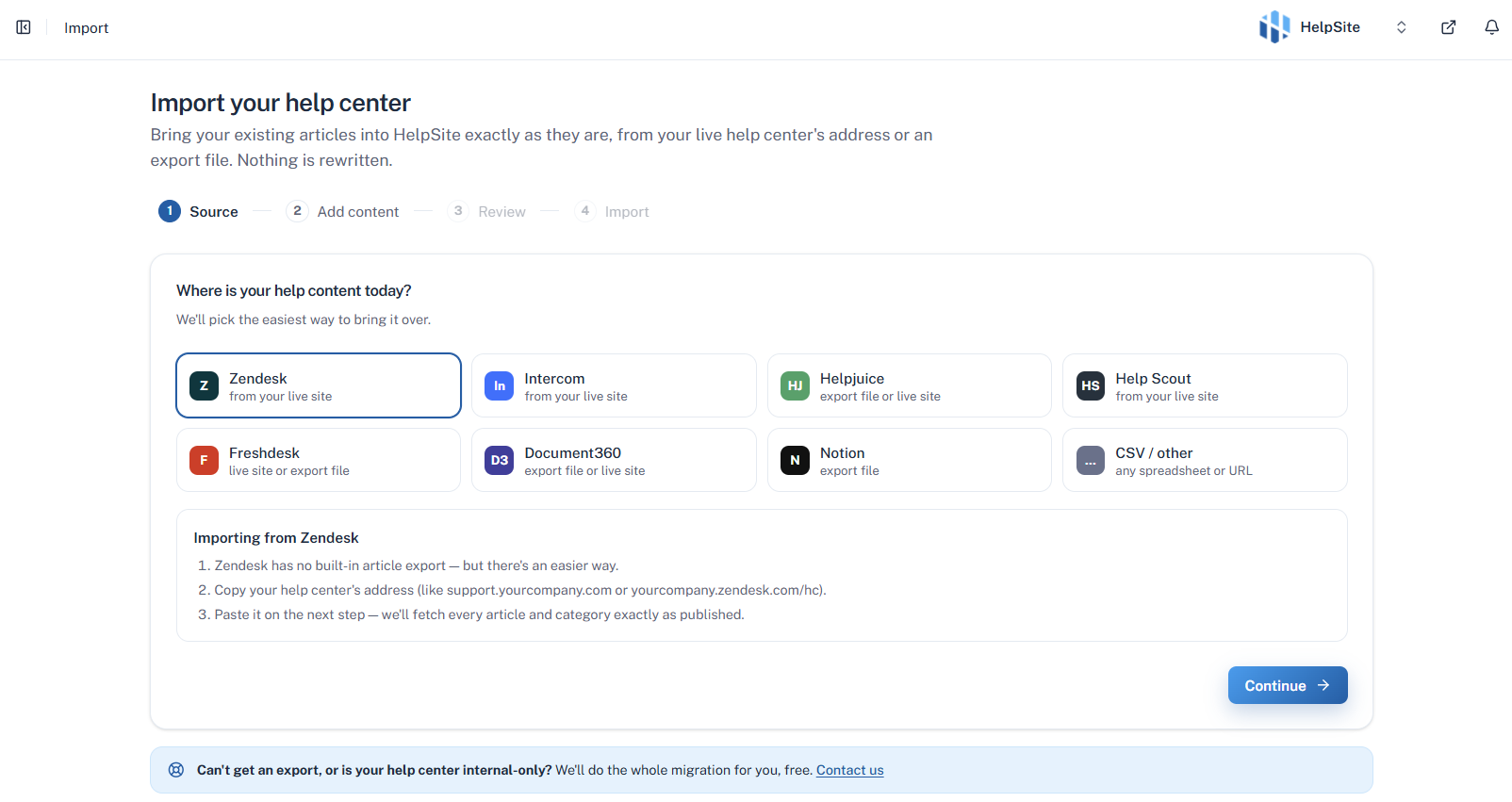
Select the platform you are migrating from. This helps HelpSite show you the right export instructions and import method. Supported platforms include Zendesk, Intercom, HelpJuice, Help Scout, Freshdesk, Document360, Notion, and more. You can also choose CSV or other if your platform is not listed.
Step 2: Add your content
You have two ways to bring in your content:
Option A: Copy from your live site (URL import)
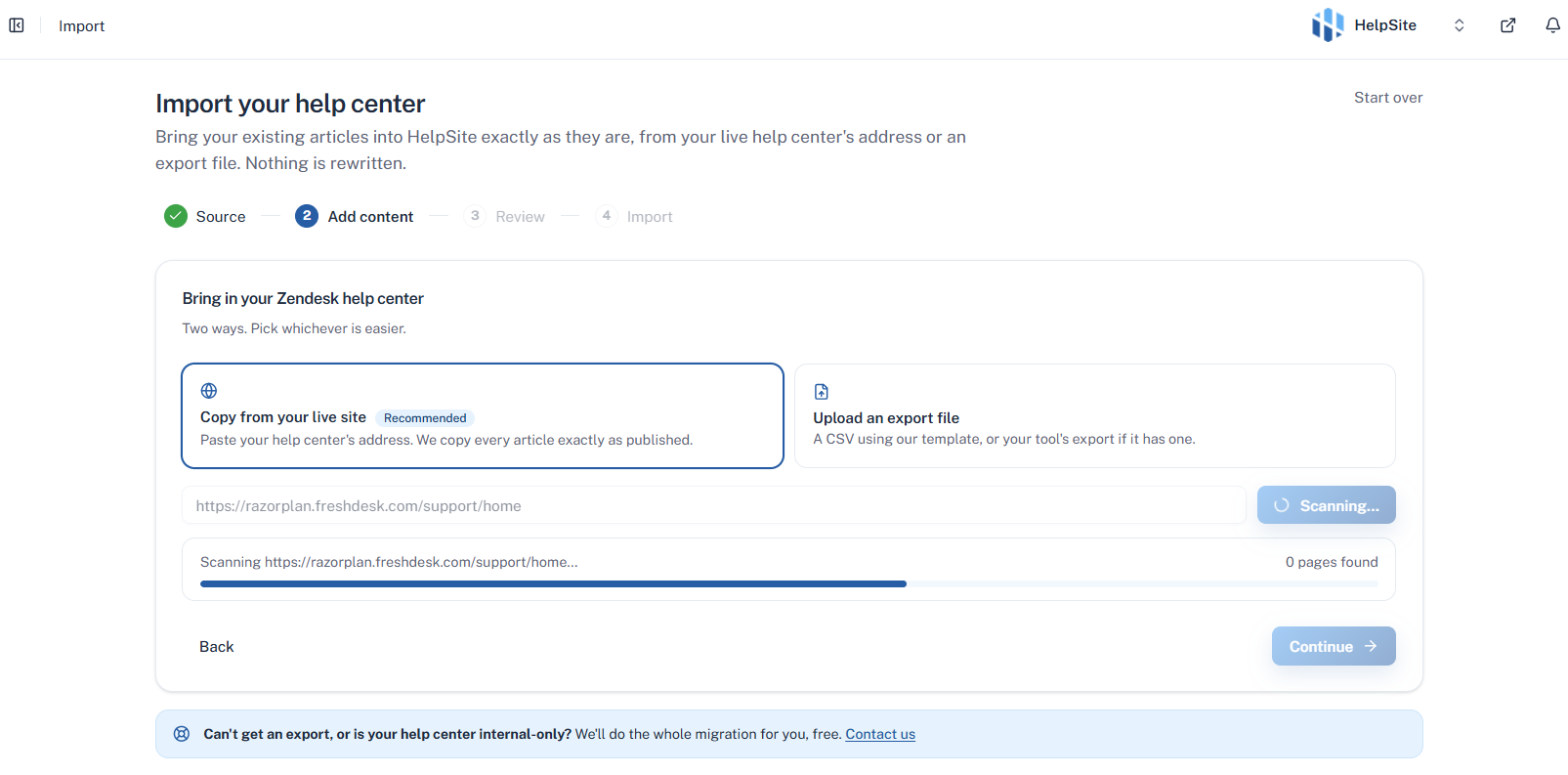
Paste the URL of your public help center and HelpSite will scan and copy every article automatically. This is the easiest option if your platform does not offer a self-serve export. Note that this requires your help center to be publicly accessible. Password-protected or login-walled sites are not supported via URL import.
While scanning, you will see a progress indicator showing how many pages have been found.
Option B: Upload an export file (CSV import)
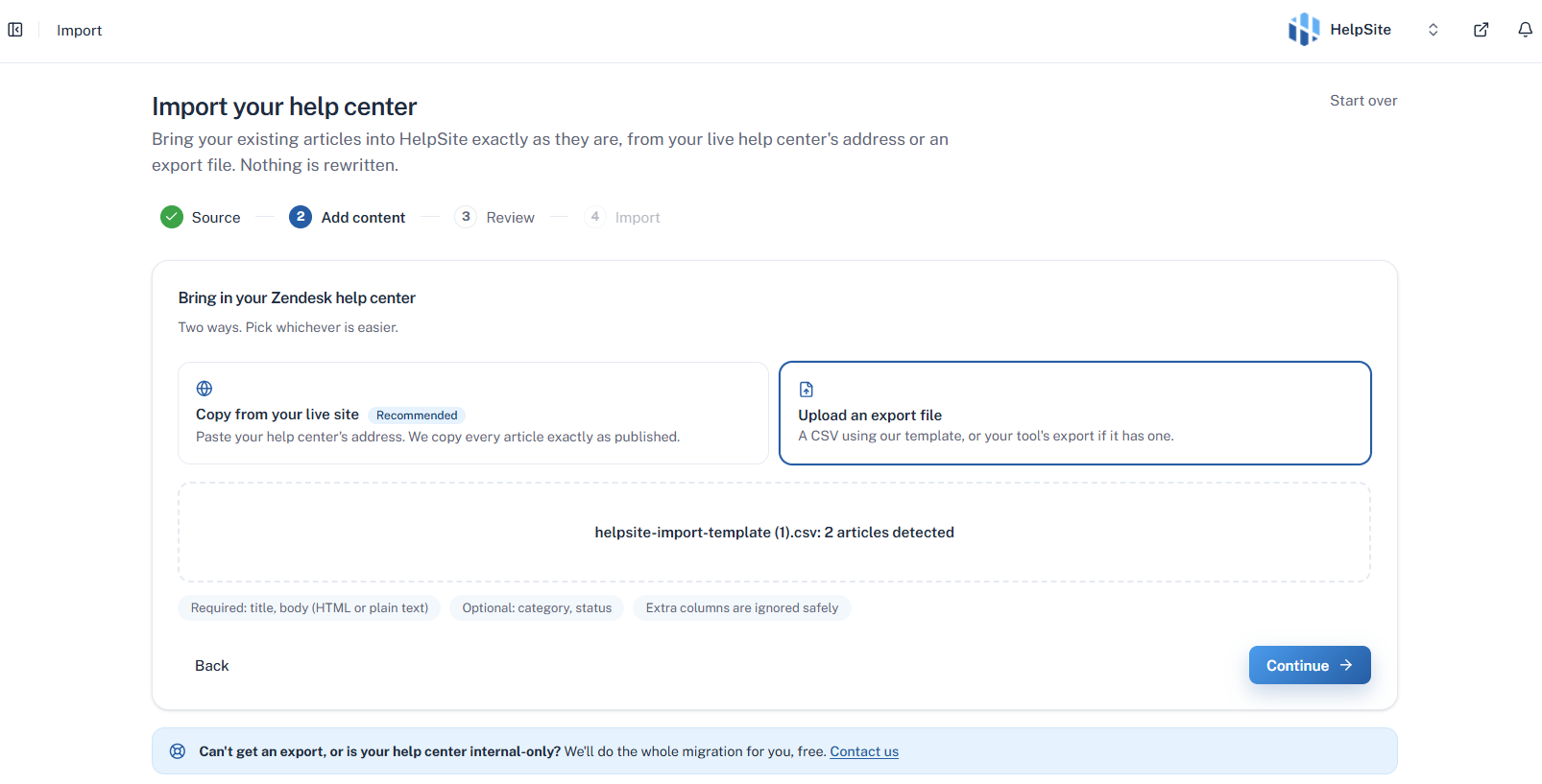
Download an export from your current platform and upload it as a CSV file. Your CSV must include at minimum a title and body column. Category and status columns are optional, and any extra columns are ignored.
HelpSite will auto-detect your column headers and suggest the right mapping. You can adjust the mapping on the next step if needed. A sample CSV template is available to download if you want to format your data manually.
File size limit: CSV files up to 20 MB are supported.
Step 3: Review your import
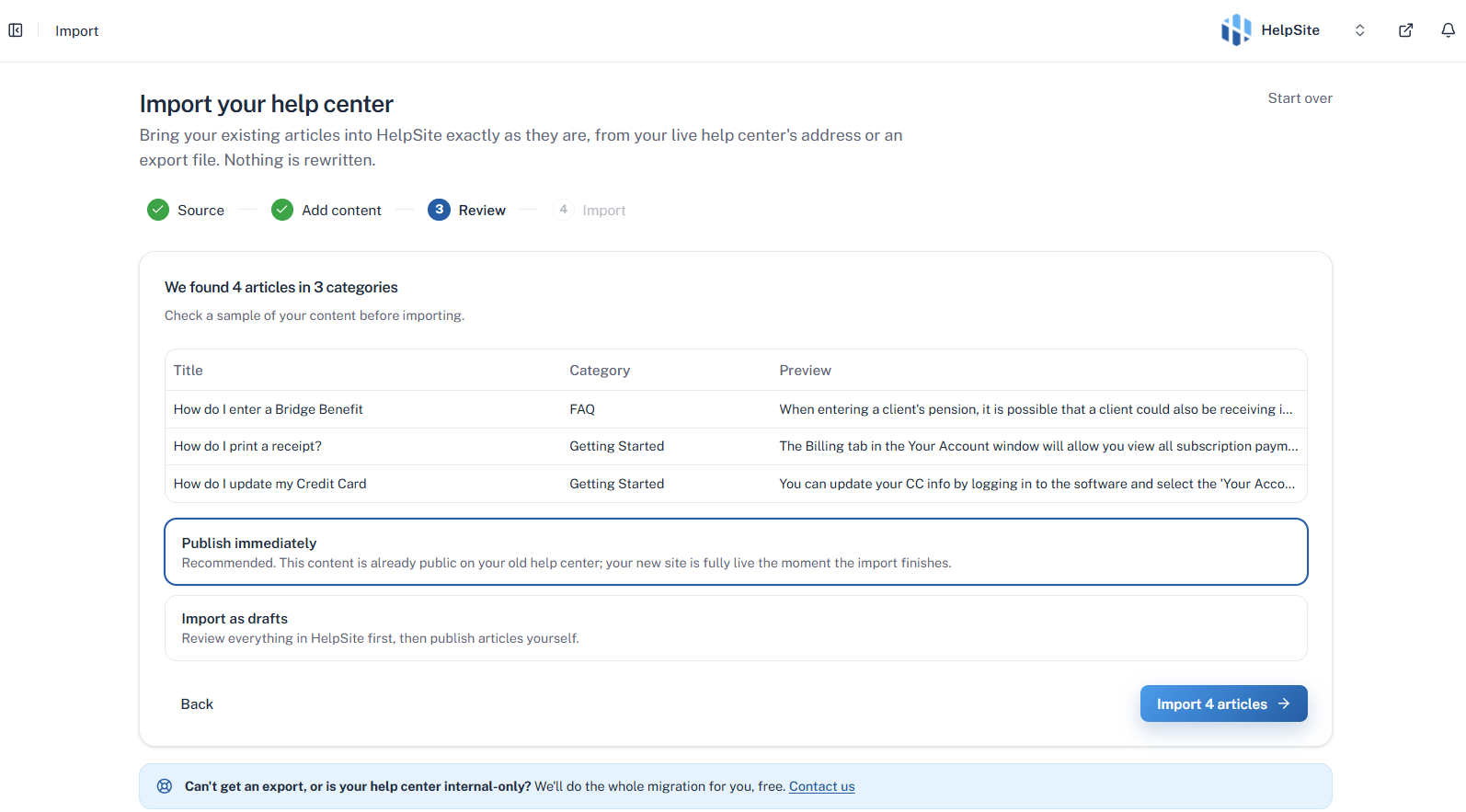
Before importing, you will see a summary of what was found, including the number of articles and categories detected. For CSV imports, you can adjust how your columns map to HelpSite fields and preview the first few rows of your data.
You will also choose a publish mode:
Publish immediately: articles go live right away (recommended, since your content was already public on your old site)
Import as drafts: articles are saved privately so you can review them before publishing
Step 4: Import
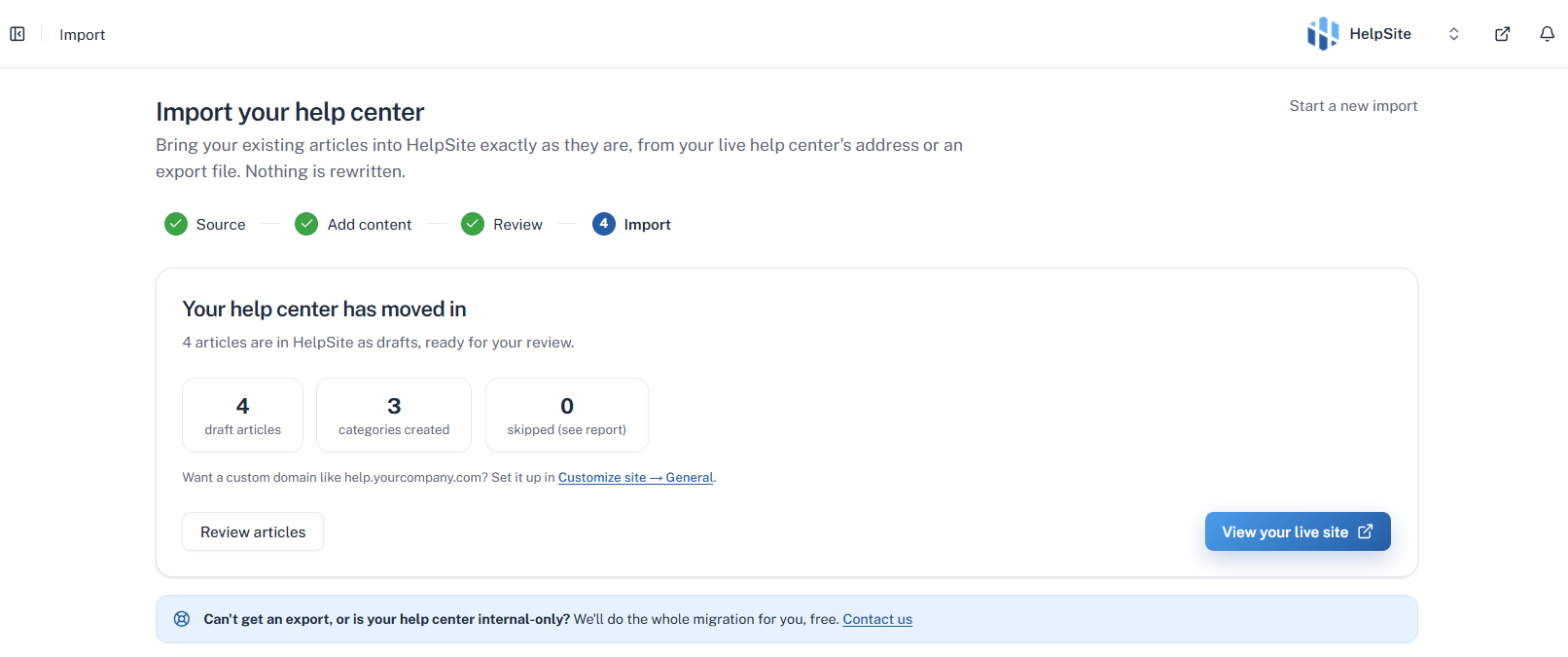
HelpSite will import your articles and create any categories needed. You will see a progress indicator while it runs. When it is done, you will get a summary showing how many articles were imported successfully.
If any rows or pages could not be imported, you will be able to download a skipped-rows report so you can address those manually. The import continues even if individual rows fail, so a partial failure will not stop the whole job.
Once complete, you can view your live site or go straight to reviewing your articles.
Tips & notes
Running the same import again will not create duplicates. HelpSite checks for existing articles by title and category.
Images in your articles will point to their original URLs in this version. Re-hosting images to HelpSite is coming in a future update.
If your help center is internal-only or you cannot get an export file, our team will migrate your content for you, for free. Contact us and we will take care of it.
Need help?
If you run into any issues during your import, reach out to our support team and we will be happy to assist.