
How to add callouts to Articles (Tips, Warnings & More)
Callout blocks are tinted, icon-led boxes that highlight the lines readers must not miss — a warning before a destructive action, a tip that saves time, or a note with extra context. They're especially useful in procedure articles and SOPs.
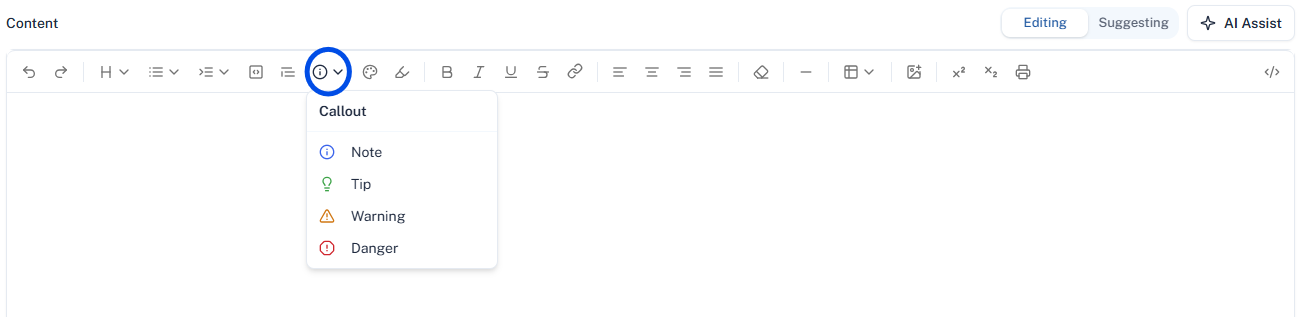
HelpSite supports four callout types:
Note - neutral context or background information
Tip - a helpful shortcut or best practice
Warning - something that could cause problems if missed
Danger - a critical action with serious consequences
How to add a callout in the editor
Place your cursor in the paragraph you want to wrap, or select a block of text.
Open the Callout dropdown in the toolbar (next to the Quote button) and pick a type: Note, Tip, Warning, or Danger.
The paragraph is wrapped in a tinted box with an icon and a title line. Edit the title or leave it empty — an empty title is hidden on the published page.
To change the type, click inside the callout and pick a different type from the dropdown. To remove it, pick Remove — the text stays, the box is gone.
Keyboard shortcut
On a new line, type a GitHub-style alert shorthand and press Enter to create a callout instantly. All five variants work: > [!NOTE], > [!TIP], > [!IMPORTANT], > [!WARNING], and > [!CAUTION].
What you can put inside a callout
A callout can hold paragraphs, lists, links, and images. You cannot nest one callout inside another.
Callouts via the API and MCP
Callouts created through the API or MCP server round-trip safely — they survive being opened and re-saved in the editor.
Write a callout in HTML using a div with class hs-callout and a data-type of info, tip, warning, or danger. Optionally start with a title paragraph:
<div class="hs-callout" data-type="warning">
  <p class="hs-callout-title">Refunds over $100</p>
  <p>Never refund over $100 without approval.</p>
</div>
When creating articles through the MCP server using Markdown, GitHub alert syntax is automatically converted to callouts.
Callout text is fully indexed by search and the AI chatbot — it's treated like any other article content.