
Change where contact form messages are sent
Contact form messages go to the email address in your site's Contact Form settings. Admins can change it in Customize site > Contact Form, and each site has its own address.
When you create a site, the address is set to your own email.
How do I change the contact form email address?
- If you have more than one site, choose the site in the site switcher at the top of the page.
- In the sidebar, click Customize site.
- Click the Contact Form tab.
- In Email address for contact form submissions, enter the address where messages should go.
- Click Save.
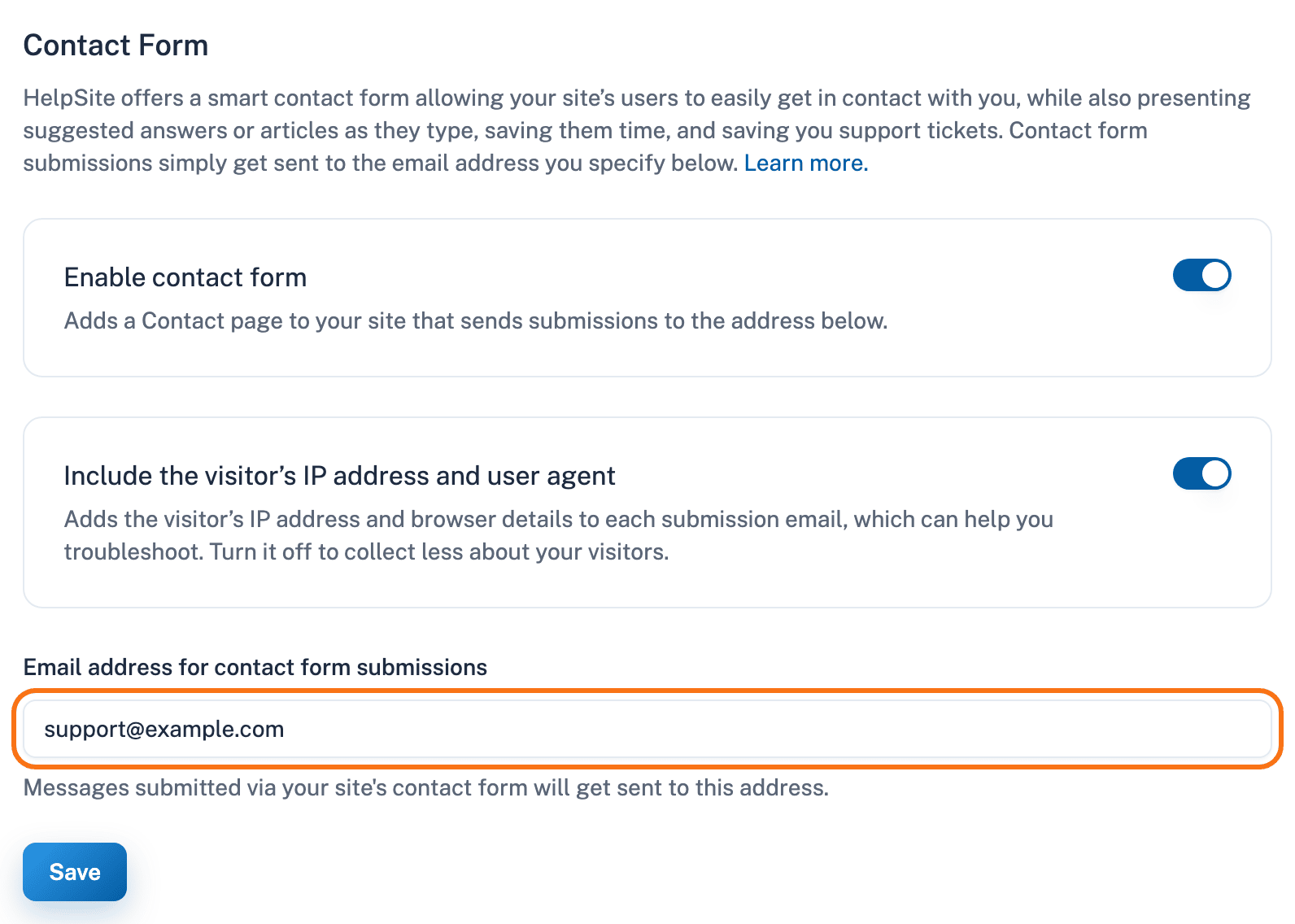
New messages go to the new address from then on. To check, send a test message from the contact page on your help center (/contact).
Can I send messages to more than one address?
Yes. Enter the addresses separated by commas, for example support@example.com, sam@example.com.
Where else can I find this setting?
- In the sidebar, click Settings, then the Sites tab.
- Click the Site actions menu (⋮) on the site's row.
- Select Customize.
- Click the Contact Form tab.
This address is only for contact form messages. To change the email you log in with, see Change your name, email or password.