
Change your name, email or password
You change your name, login email and password in Settings > My Account, in the My Profile section. Each team member manages their own profile.
How do I change my name, email or password?
- In the sidebar, click Settings. It opens on the My Account tab. You can also click your name at the bottom of the sidebar, then My Account.
- In My Profile, change Full Name (at least 3 characters) or Email, or type a new password in New Password.
- In Current Password (required to confirm changes), enter the password you log in with now.
- Click Save changes.
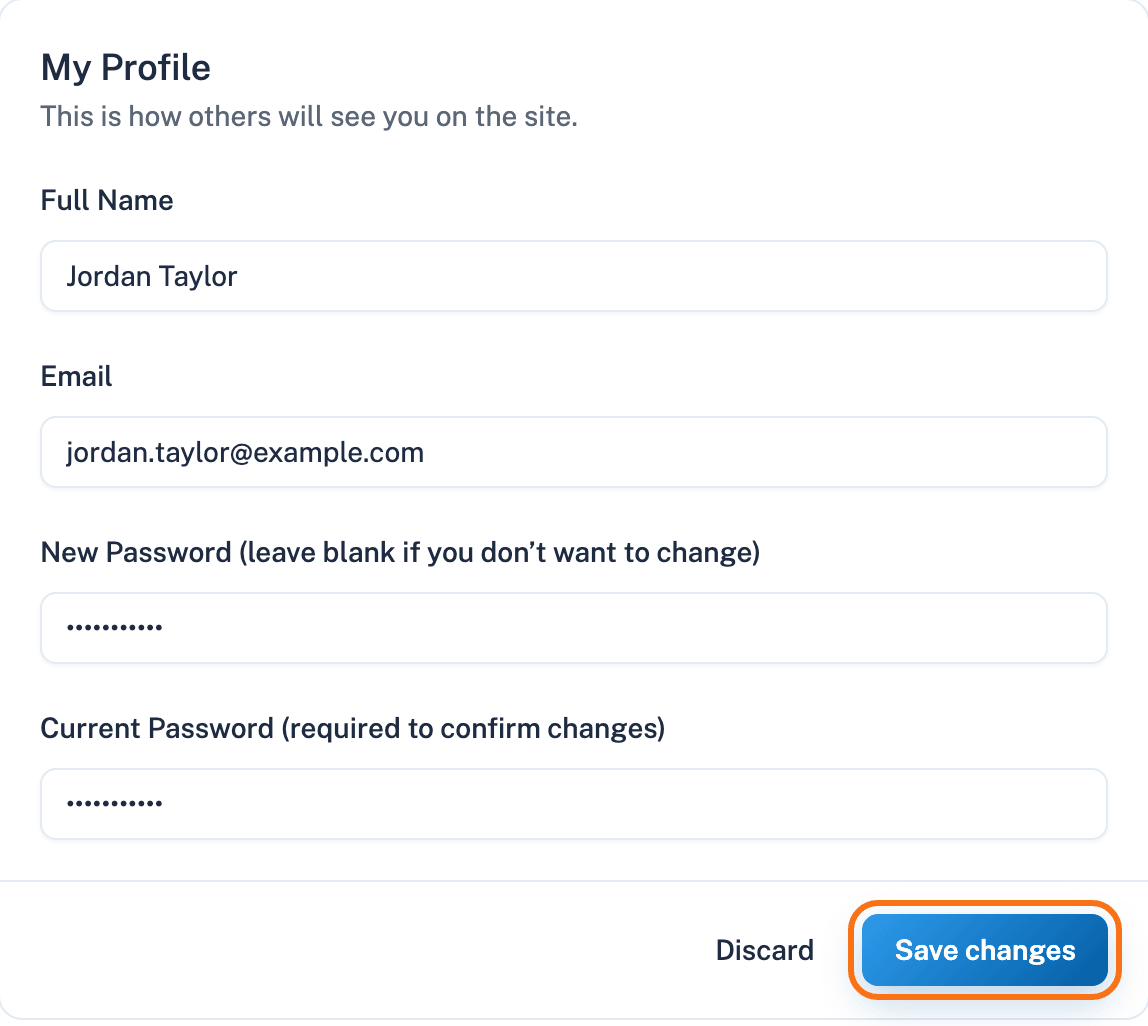
A Profile Updated message confirms the change. After a password change you stay logged in. To undo edits you haven't saved, click Discard.
What happens when I change my email?
HelpSite sends a confirmation email to the new address, with the subject "Verify Your Email to Get Started with HelpSite". Click Confirm my account in that email to finish the change. Until you do, you keep logging in with your old email.
You can change your email up to 3 times a day.
What are the password rules?
A password needs at least 8 characters. To change it, you need your current password. If you've forgotten it, follow Reset a forgotten password instead.
What if I don't have a password yet?
If you signed up with only your email, you log in with email links until you choose a password. In that case the field reads Password (optional: you log in with email links until you set one) and there's no Current Password field. Type a password and click Save changes to set one.