
HelpSite MCP Server — Setup & User Guide
Using Claude with HelpSite MCP
This article explains how a normal HelpSite user can connect Claude to HelpSite using our MCP connector, authorize access, and start using tools to manage sites and articles.
What you can do with the connector
View your HelpSite sites
View and search your articles
Create and update articles (with the correct permissions)
Create a new site (requires explicit confirmation to avoid accidents)
Supported plans
Plus — supported
Enterprise — supported
If you are on a different plan and see an “MCP access is not available on your current plan” message, you’ll need to upgrade to a supported plan.
Before you begin
Make sure you have:
A Claude Pro plan
Access to HelpSite MCP connector details
Permission to add custom connectors in Claude
You need a HelpSite account.
You need access to the HelpSite dashboard for your account.
If you are not an admin on the account, you may be limited to read-only actions.
Step 1 — Log out (recommended if you had issues before)
If you previously tried connecting and the session feels “stuck”, log out first:
https://app.helpsite.com/logout
Step 2 — Open Claude settings (make sure you are in pro plan)
Click your profile on the buttom left, click Settings.
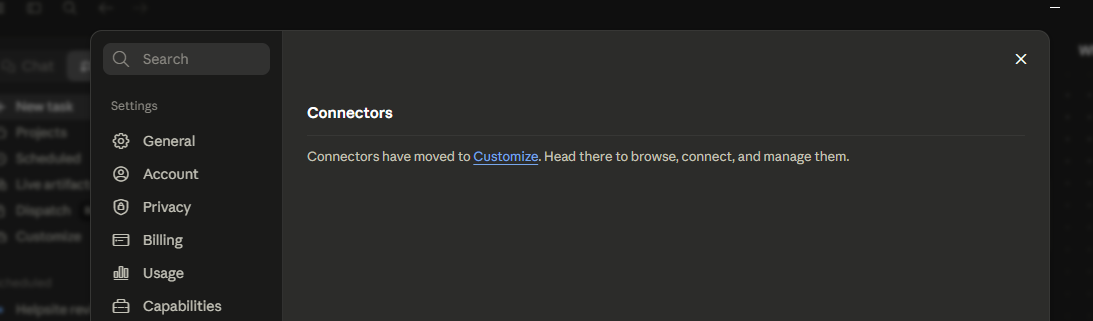
Click Connectors then Customized
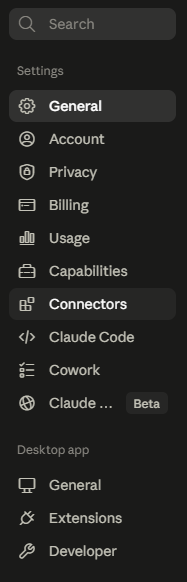
Click Customized
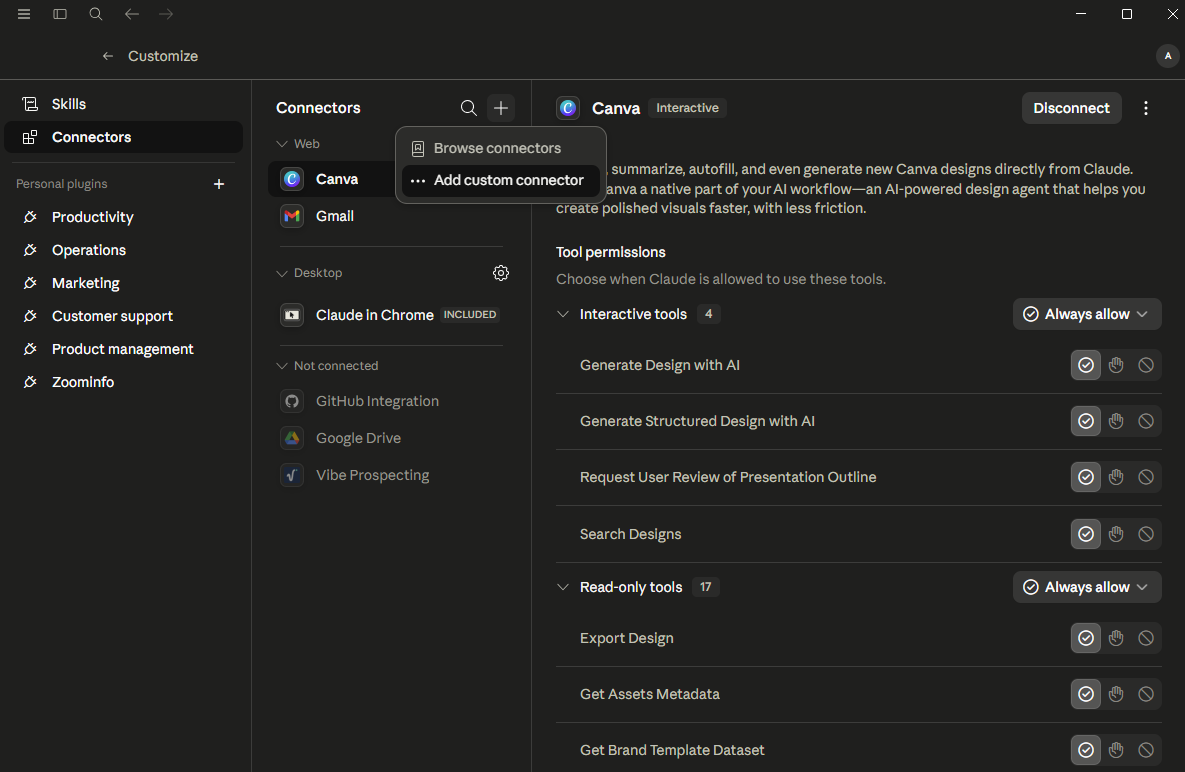
Click Add a Custom Connector
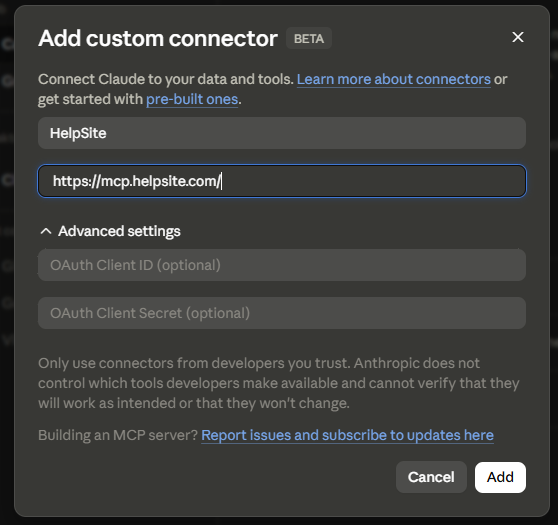
Name the HelpSite Connector (customizable)
When asked for the server URL, use:
https://mcp.helpsite.com/mcpClick Add.
Step 3 — Authorize HelpSite (OAuth)
A browser window will open to the HelpSite login screen.
Sign in with your HelpSite user email + password.
You’ll then see a consent screen with Approve / Deny.
Click Approve to grant Claude access.
Return to Claude — the connector should now show as connected and tools should be available.
Example prompts to try in Claude
List your sites
Prompt: “List my HelpSite sites.”
Get details for a specific site
Prompt: “Get details for the first site in the list.”
List articles for a site
Prompt: “List the latest articles for that site.”
Search for an article
Prompt: “Search my articles for ‘billing’ and show the results.”
Create an article (admins / write scope required)
Prompt: “Create a draft article titled ‘How to reset your password’ with clear steps.”
Troubleshooting
“Connected but no tools”: Disconnect, log out using the link above, then reconnect so OAuth runs again.
Plan doesn’t allow MCP: Your account may not have MCP enabled. Upgrade to a supported plan (Plus or Enterprise) or contact your HelpSite admin/support.
Permission denied for write actions: You may need to be an admin on the account (or have the correct role) to create/update content.
Security note
Claude only gets access after you approve the OAuth consent prompt. You can revoke access at any time by logging out and/or disconnecting the connector.
Learn Next: What you can ask AI tools to do with HelpSite MCP