
Build your knowledge base with the AI KB Generator
The AI KB Generator takes you from a short brief to a set of reviewed articles in five steps. Open AI KB Generator in the sidebar to start. It works on the site you have open, and anyone who can edit that site can use it.
How do I build a knowledge base with the generator?
1. Brief
- In the sidebar, click AI KB Generator.
- Under Who is this knowledge base for?, select Customer-facing or Internal team.
- In What does your product or company do?, describe it in a sentence.
- In Your main website, enter your site's address. The generator samples it for your tone.
- Select a Preferred tone: Friendly, Professional or Concise.
- Click Continue.
2. Sources
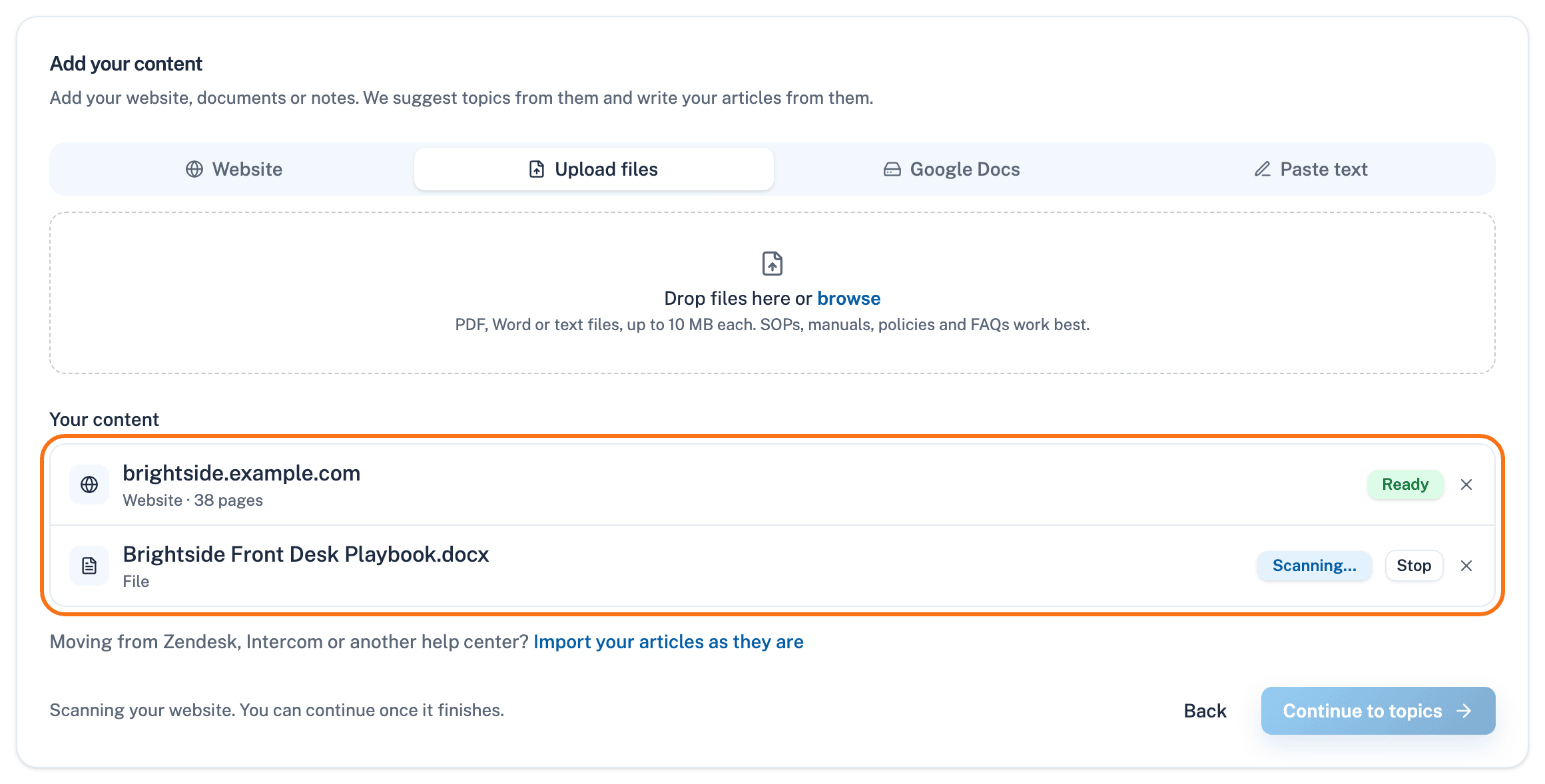
- Add content from any of the tabs:
- Upload files: drop PDF, Word (.docx) or text files, up to 10 MB each.
- Google Docs: paste links to Docs, Sheets or Drive files, one per line, each shared as "Anyone with the link", then click Add link.
- Paste text: paste notes, SOPs or FAQs, then click Add text.
- Website: enter your website or help center address, choose Up to 100 pages or Up to 250 pages, then click Add website.
- Check Your content. Each source shows Waiting, Scanning…, Ready, Failed or Stopped.
- Click Continue to topics. With no sources, the button reads Continue without content, and Use my brief confirms.
3. Review topics
The generator shows Here's the knowledge base we recommend: categories with article topics under each.
- To rename a category, hover over it and click its pencil icon. Untick a category or topic to leave it out.
- To change a topic's title, type or category, hover over it, click its pencil icon, make the change and click Save.
- Check anything marked Possible duplicate. These match an article already on your site and are left out unless you tick them.
- Click Looks good, generate 3 samples.
Click Suggest topics again for a fresh set. If you add sources later, Update topics appears so the topics include them. The bar above the button shows how many generations you have left this month.
4. Review & generate
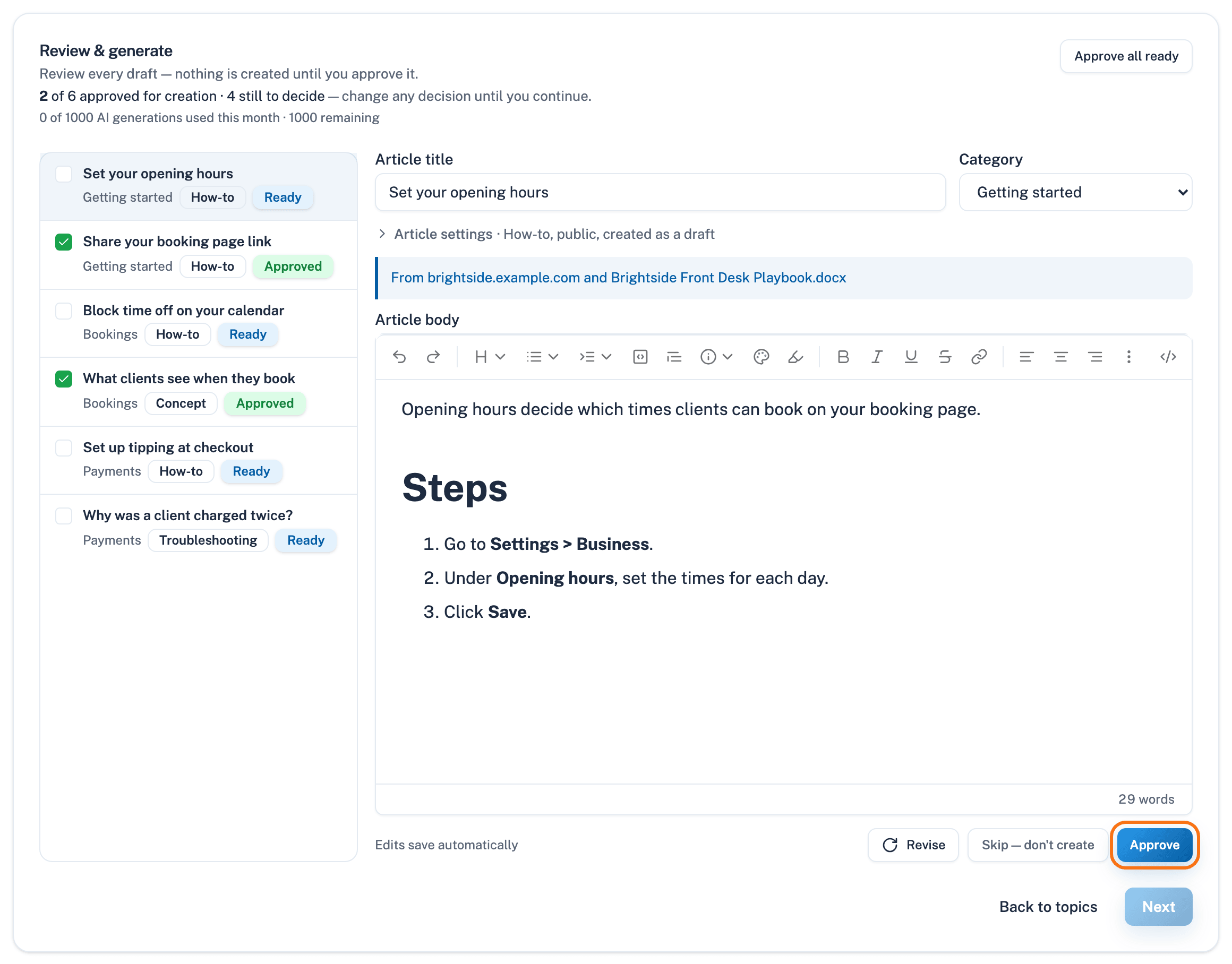
- Read the 3 samples. Click a draft in the list to open it.
- Edit the Article title, Category, Type, Visibility, Status, Keywords or Article body. Edits save automatically.
- To have the AI rework a draft, type in What should the AI improve? and click Revise with feedback.
- When you're happy with the style, click Generate remaining to write the rest. Drafts appear in the list as they're written.
- For each draft, click Approve or Skip — don't create. Approve all ready approves every draft that's ready.
- Click Next.
5. Done
HelpSite creates the approved articles and any new categories, then shows Your knowledge base is ready with how many articles and categories it created. Click Review all articles to check them on the Articles list and publish the drafts. See Create and publish an article.
What if I'm on a trial?
A trial writes 3 sample articles. To write more, click Add card & generate: your trial then writes more articles, and nothing is charged until the trial ends. See How the AI drafting allowance works.
Can I start again?
Yes. Click Start over at the top of the generator. It discards this session's sources, topics and drafts, and keeps any articles already created. After the Done step, click Generate another knowledge base — start over from the brief.
Troubleshooting
- A source shows Failed: the others still work. Click the X next to it to remove it, then add it again or try a different format.
- An older .doc file won't upload: save it as .docx and upload it again.
- Your website wasn't fully read: the scan stops at the page limit. Choose Up to 250 pages, or add the missing pages' content as files or text.
- A draft doesn't sound right: use Revise with feedback on that draft and say what to change.
- This month's AI articles are used: you've reached your monthly allowance. It resets next month.