
Create and publish an article
To write an article, click New Article on the Articles page, add a title and content, choose a category, then set Status to Published and save. HelpSite keeps your work as a draft while you type, so nothing goes live until you publish it.
How do I create an article?
- In the sidebar, click Articles.
- Click New Article.
- Type a title in Article Title. It needs at least 5 characters.
- Write the article in the Content box. The toolbar above it adds headings, lists, links, images, videos and tables.
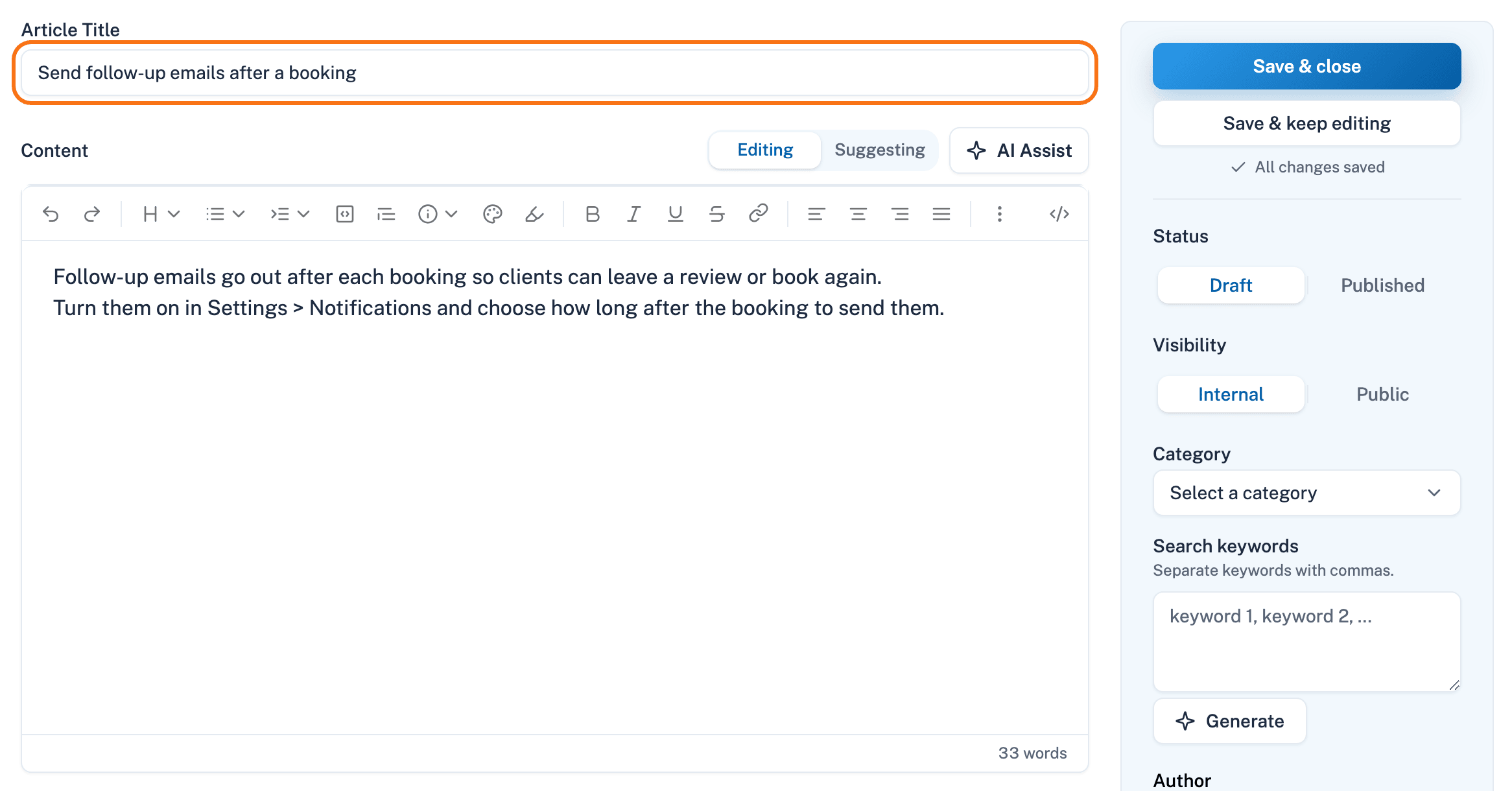
Once the article has a title and some content, HelpSite saves it as a draft and a Draft created message appears. From then on it saves your title and content automatically about every 10 seconds.
How do I publish the article?
- In the panel on the right, choose a Category. An article needs a category before you can publish it.
- Set Visibility to Public so visitors can read it, or Internal to keep it for your team.
- Set Status to Published.
- Click Save & close to publish and go back to your articles, or Save & keep editing to publish and stay in the editor.
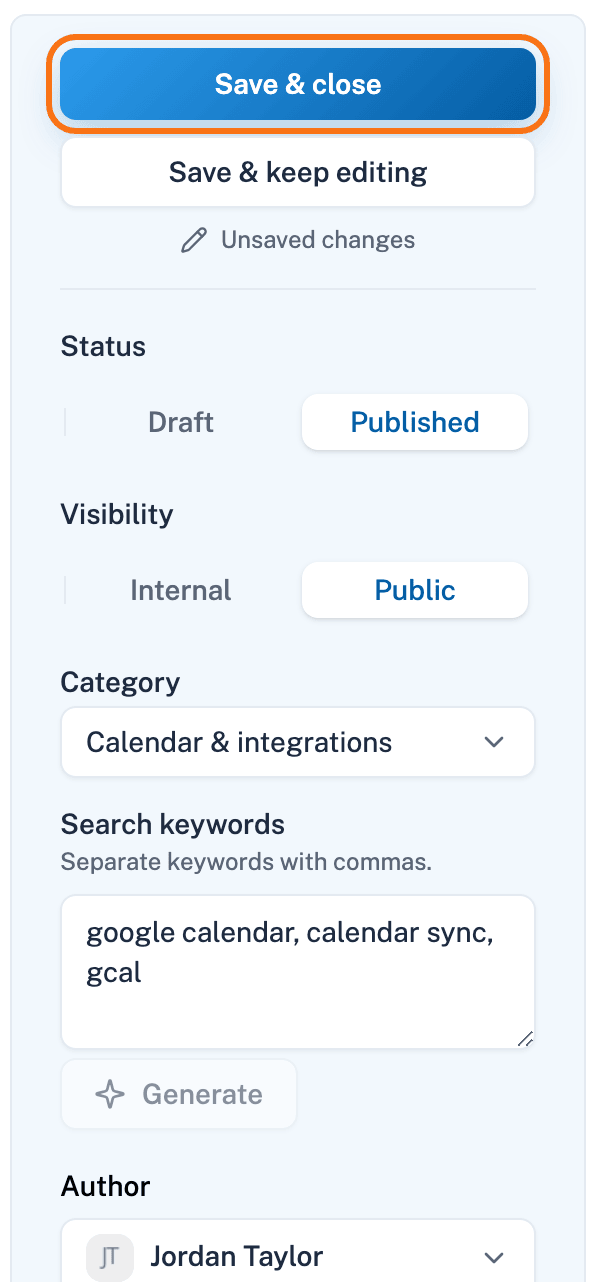
The article is now live on your help center. A View link appears next to Article Title so you can open it on your site.
A new article starts as Internal once its draft is saved. Check Visibility before you publish if visitors should see it.
What else is in the right-hand panel?
- Search keywords: extra words that help people find the article in your help center search. See Improve search results with search keywords.
- Author: the team member the article is credited to.
- Created and Updated: when the article was created and last saved, and by whom.
- More actions: Request review, Assign update, Preview on site, View drafts & version history, Change URL… and Duplicate.
- Delete Article: deletes the article. This can't be undone.
Status, Visibility, Category, Search keywords and Author are saved only when you click one of the Save buttons. Autosave covers the title and content.
Can AI help me write an article?
Click AI Assist above the Content box to have AI draft the article for you. Read and correct what it writes before you publish. See Use AI Assist to draft an article.
What happens when I edit a published article?
Your changes go into a private draft. Visitors keep seeing the published version until you click Publish & close or Publish & keep editing. See Edit a published article as a draft.