
Upload a profile photo
Your profile photo appears next to your name in HelpSite, such as in the team list, the menu at the bottom of the sidebar and on articles you edit. You add it in Settings > My Account > Profile photo.
How do I upload a profile photo?
- In the sidebar, click Settings. It opens on the My Account tab. You can also click your name at the bottom of the sidebar, then My Account.
- Under Profile photo, click Upload photo.
- Choose a JPG, PNG, WebP or GIF image under 20 MB.
- In Crop your photo, drag the photo to reposition it and use the Zoom slider.
- Click Save photo.
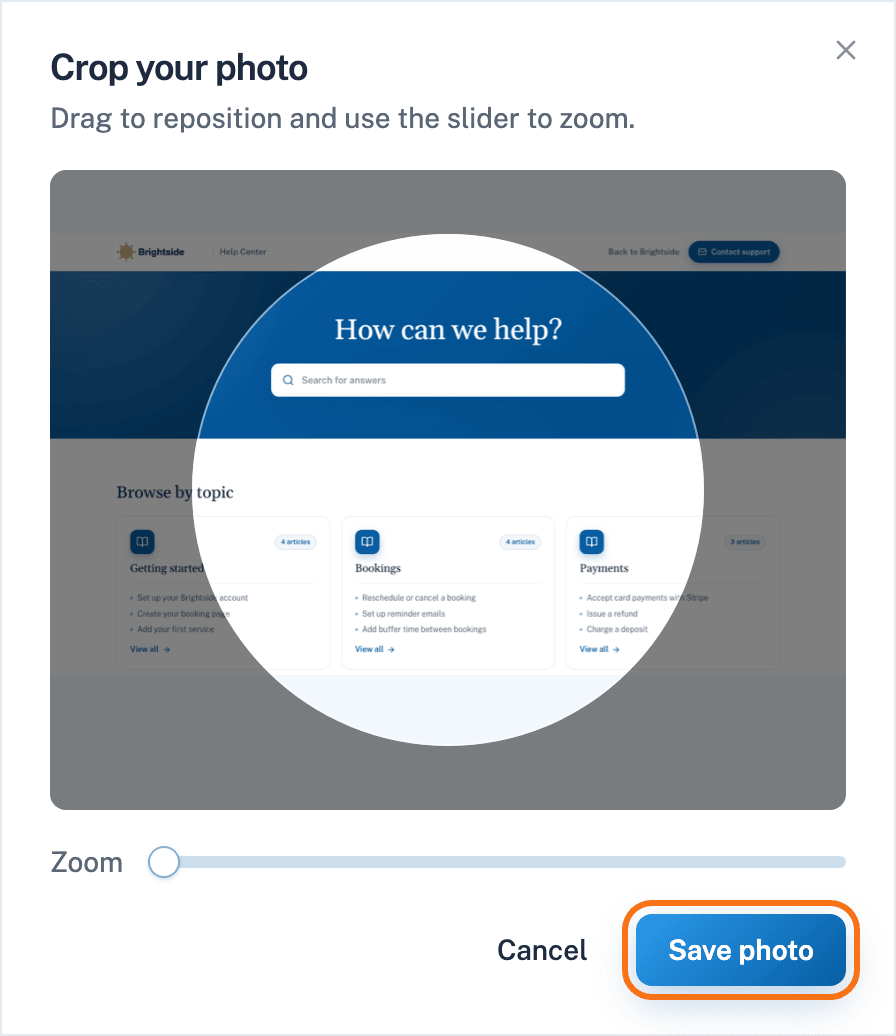
The photo saves straight away, and HelpSite shows Profile photo updated. HelpSite crops it to a circle and resizes it before upload, so large photos are fine.
How do I change or remove my photo?
- To use a different photo, click Change photo and repeat the steps above.
- To remove it, click Remove. It's removed straight away, and HelpSite shows your initials instead.
Where does my photo appear?
Inside HelpSite: the team list, your name at the bottom of the sidebar, the article Author picker, version history, notifications and assignments. Your photo isn't shown on your public help center.