
Suggest edits to an article
Suggesting mode lets you propose changes to an article without changing the published version. Your edits show in the article as a suggestion, and a reviewer accepts or rejects each change.
Not every plan includes suggesting. Reviewing suggestions works on every plan. See Pricing.
How do I suggest an edit to an article?
- Open a saved article in the editor.
- Above the editor, next to Content, switch from Editing to Suggesting. A green bar appears above the editor.
- Make your changes. Added text is underlined in green and removed text is crossed out. You can change the title too.
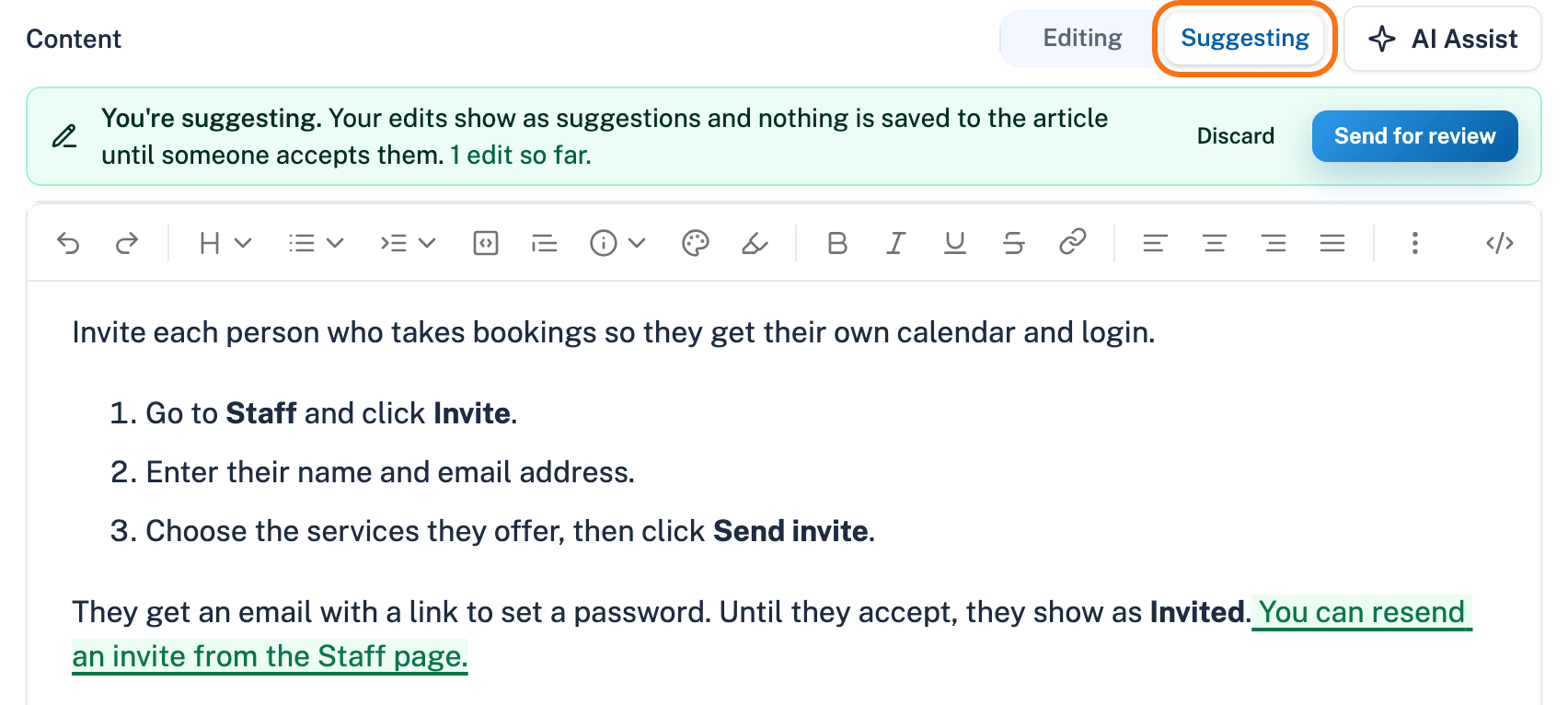
- Click Send for review in the green bar.
- Optional: choose a Reviewer (optional) and add a Note for the reviewer (optional) that says what changed and why.
- Click Send.
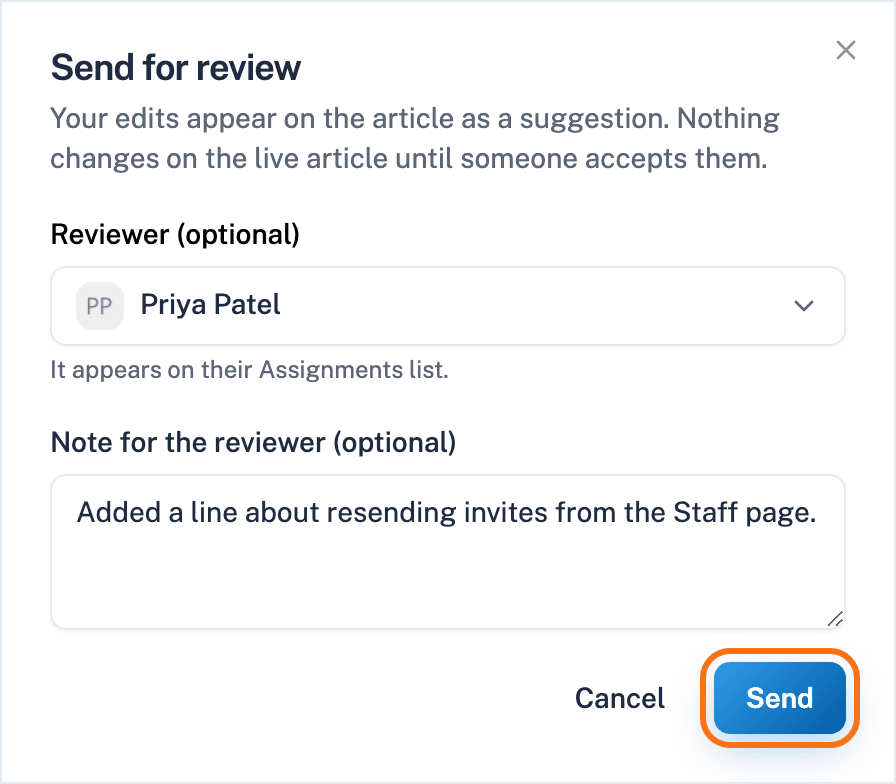
Your changes now appear in the article as a suggestion. The published article stays the same until someone accepts them and publishes.
What happens while I'm in Suggesting mode?
- Autosave and the save buttons are turned off, so nothing you type reaches visitors.
- The green bar counts your edits so far. Send for review is greyed out until you make one.
- A changed title shows under the title field as Suggested title, with the old title struck through. The article keeps its title until someone accepts it.
- Click Discard to clear your suggestions and put the article back the way it was, or Stop suggesting if you haven't made any.
Suggesting appears only on articles that have been saved, not on a new one.
Who is notified when I send a suggestion?
- If you choose a reviewer and your account has Assignments, the review appears on their Assignments list and they get an email.
- If you choose a reviewer and your account doesn't have Assignments, they get an in-app notification.
- If you don't choose a reviewer, the article's author and the people who last edited it get an in-app notification. If none of them can still edit the site, the account's Admins do.
In every case, the article shows a label such as 1 suggestion in the Articles list, so anyone on your team can see it's waiting for review. You can also choose yourself as the reviewer to come back to it later.