
Review suggested edits
When someone suggests changes to an article, the changes show inside the article in the editor. You accept or reject each one, and accepted changes go into the article's draft until you publish. Anyone who can edit the site can review suggestions, on every plan.
How do I find suggestions waiting for review?
- In the Articles list, a label such as 2 suggestions appears next to the article.
- If you were chosen as the reviewer, the review is on your Assignments list when your account has Assignments, or in your notifications when it doesn't.
- If no reviewer was chosen, the article's author and the people who last edited it get a Suggested changes notification. Clicking it opens the editor on that suggestion.
How do I accept or reject a suggested change?
- Open the article in the editor. Suggested changes show inline, in a different color for each person or tool.
- Click a change to open its card. The card shows who suggested it, when, and any note they left.
- Click Accept or Reject.
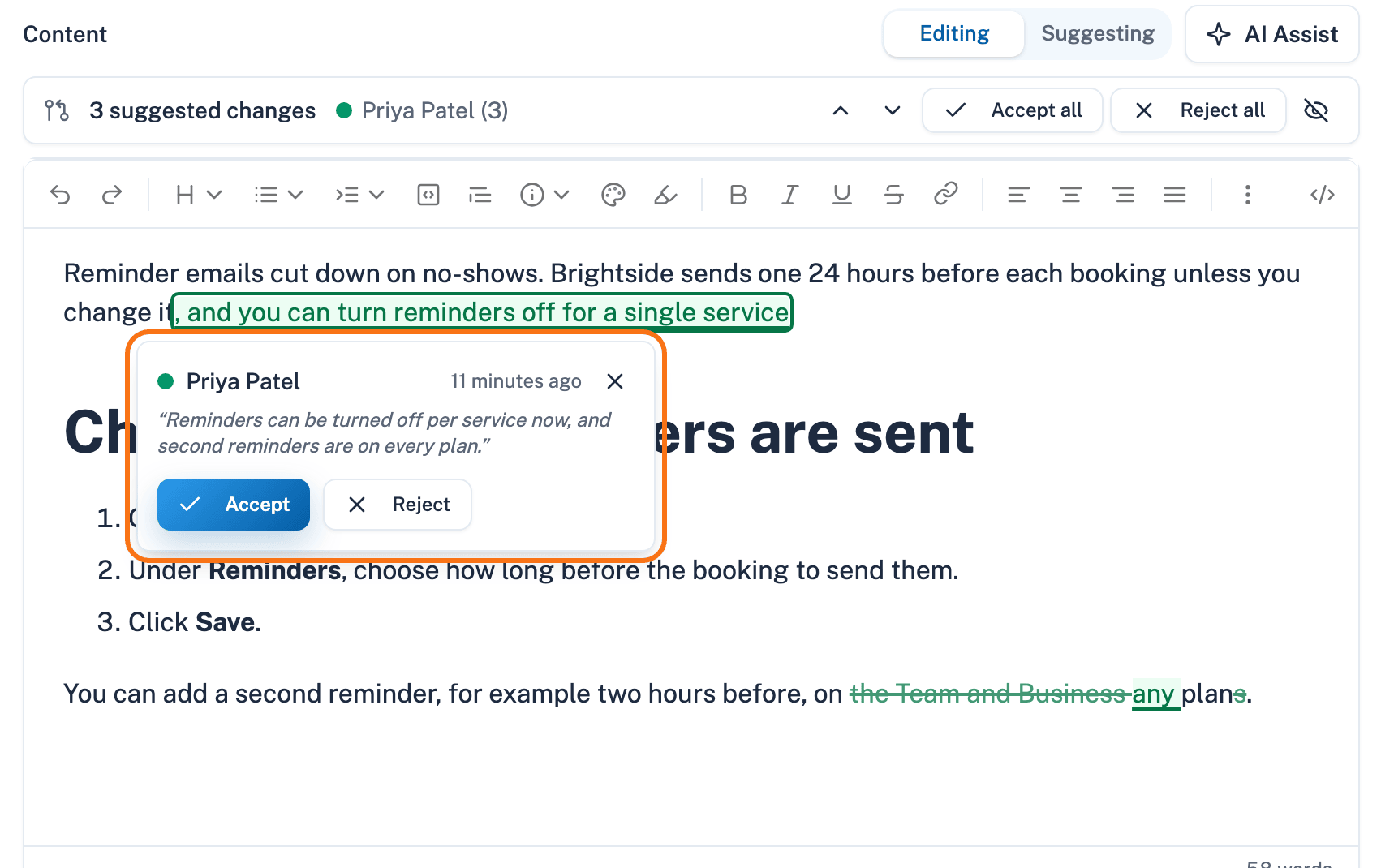
The bar above the editor counts the suggested changes left. Use its up and down arrows to step through them, or click Accept all or Reject all to decide them together. The eye icon hides the suggestions so you can read the article without them.
A suggested title appears above the editor with its own Accept and Reject buttons.
What happens after I accept a change?
On a published article, accepted changes go into the article's draft. Visitors keep seeing the published version until you click Publish & close or Publish & keep editing. On an article that isn't published yet, accepted changes are saved to it straight away.
When every change in a suggestion has been accepted or rejected, the suggestion closes on its own. Version history keeps the earlier version of the article, so you can restore it. See Restore an earlier version of an article.
What does Conflict mean on a suggested change?
A change is marked Conflict when two suggestions change the same words, or when the article was edited in the same place after the suggestion was made. Decide conflicts one at a time: accepting one version drops the other. Edits to different parts of the same article don't conflict, so you can accept all of them.
Can suggestions come from outside HelpSite?
Yes. Scripts and AI tools connected with an API key that has Suggest edits access can send suggestions to an article. They show with the tool's name and, when the tool sends one, a link to where the change came from. When you use AI Assist on an article that already has text, its draft also arrives as a suggestion labeled AI Assist. You review all of these the same way.
To set this up, see Create an API key, Use the HelpSite REST API and Connect Claude, ChatGPT, Cursor or another AI tool with MCP.