
Set up redirects
A redirect sends visitors and search engines from an old address on your help center to a new one, so old links keep working. You add redirects yourself under Customize site > Redirects, one at a time or many at once, and every redirect is a permanent (301) redirect.
Not every plan includes redirects. See Pricing.
When do I need a redirect?
-
You moved from another help center tool. Your old articles had addresses like
/hc/en-us/articles/215714403. Redirect each one to its new HelpSite article. - You deleted or merged an article. Redirect its address to the article that replaces it.
Renaming an article doesn't need one. Article addresses start with the article's ID, so old links keep working after a title or URL change. See Change an article's URL.
How do I add a redirect?
- In the sidebar, click Customize site, then the Redirects tab.
- On the Add one tab, enter the old address in Redirect From. Use the path only, starting with
/, such as/hc/en-us/articles/215714403. - Enter the destination in Redirect To: a path on your help center, such as
/articles/1234-reset-your-password, or a full web address. - Click Create Redirect.
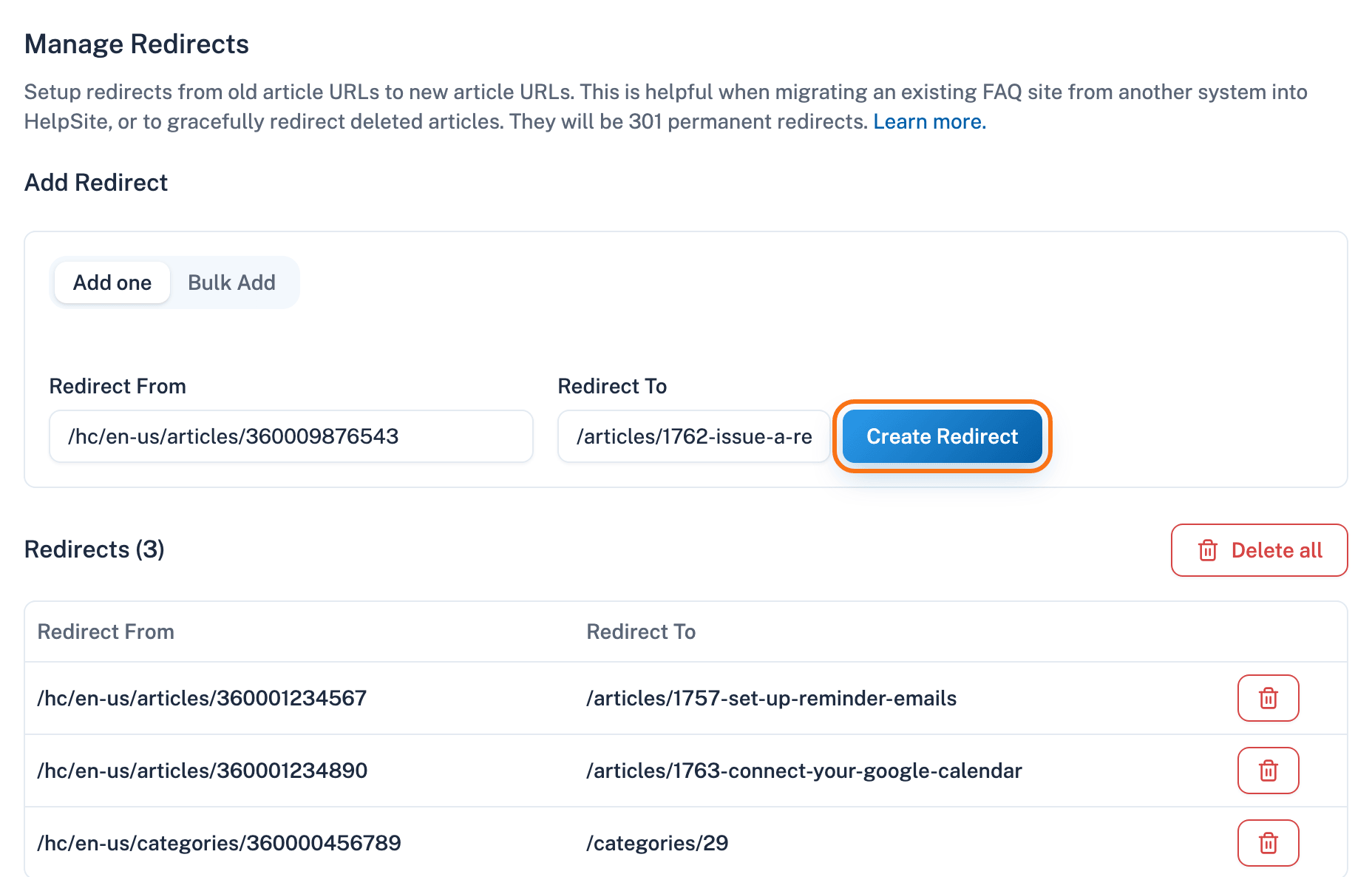
The redirect works straight away and appears in the Redirects list below the form.
How do I add many redirects at once?
- In a spreadsheet, put the old paths (each starting with
/) in the first column and the destinations in the second. Don't add a header row. - Select and copy all the rows.
- In Customize site > Redirects, click the Bulk Add tab.
- Paste the rows into Paste from spreadsheet.
- Click Bulk Add.
HelpSite skips any row that doesn't have exactly two columns, whose old path doesn't start with /, or whose old path already has a redirect, without listing them. Compare the count in the Redirects list with your spreadsheet to check every row went in.
How are old addresses matched?
- Only the path counts. Anything after
?or#is ignored, and a trailing slash or percent-encoding makes no difference. - A redirect wins even when a page still exists at the old address, so you can redirect a live article.
- A redirect from an article's address, such as
/articles/1234-old-title, also catches that article under any other title in its address. - Redirects work only on your help center's own domains. To keep links from an old help center working, first point its domain at HelpSite as your custom domain. See Set up a custom domain.
How do I delete a redirect?
- In the Redirects list, click the trash icon on the redirect's row.
- Click Delete to confirm.
To remove every redirect on the site, click Delete all above the list, then Delete all again. Visitors following those old addresses get a page-not-found error instead.