
Change an article's URL
An article's URL normally follows its title. To set your own, open the article, click More actions > Change URL… and type a new one. The old address keeps working and redirects to the new one.
How is an article's URL made?
Every article URL starts with the article's ID, followed by words from its title, for example /articles/1234-reset-your-password. HelpSite finds the article by the ID, so the words after it can change without breaking links.
When the URL follows the title, renaming the article changes the words in its URL. Setting your own URL keeps it the same however often you change the title.
How do I change an article's URL?
- Open the article in the editor.
- In the right-hand panel, click More actions, then Change URL….
- In URL, edit the part after the ID. Use lowercase letters, numbers and dashes, with at least one letter.
- Click Save URL.
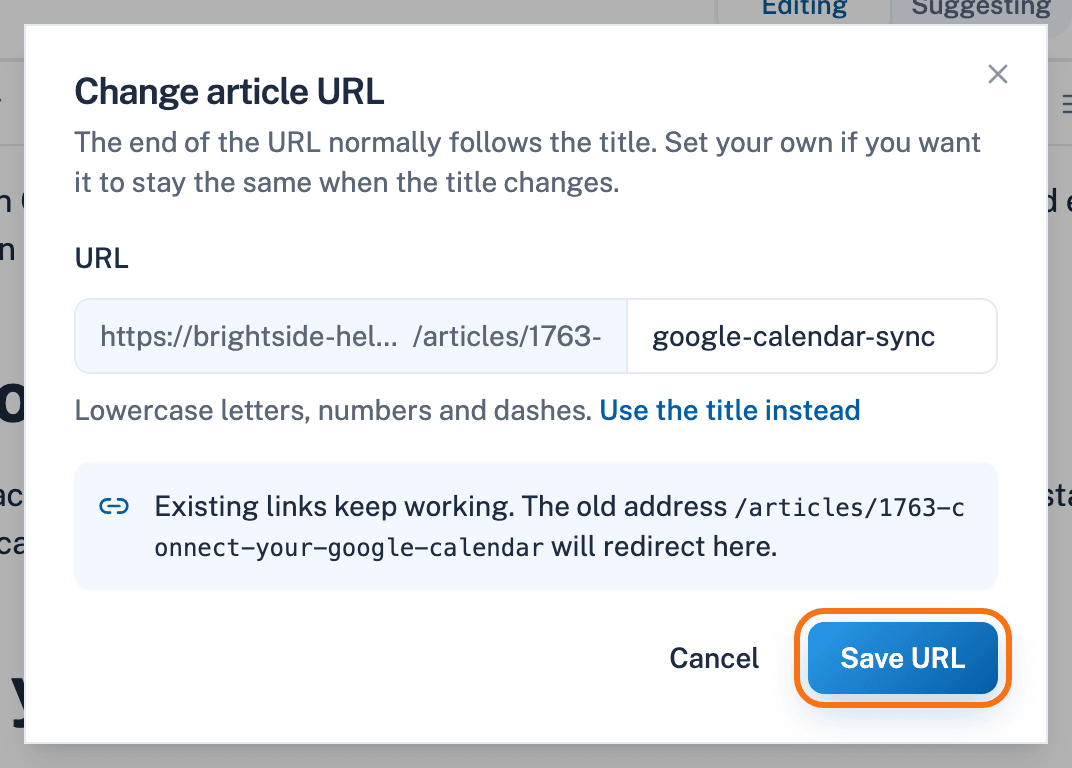
A URL changed message confirms it. The new URL is live straight away, even if the article has unpublished changes waiting in a draft.
What happens to the old URL?
It redirects to the new one. Links in other articles, emails, bookmarks and search results keep working, because the ID at the front of the URL stays the same. Search engines are told the article has moved permanently.
How do I make the URL follow the title again?
- Open More actions > Change URL….
- Click Use the title instead.
- Click Save URL.
Why can't I save my URL?
- It's already used: two articles on the same site can't share a URL. Choose different words.
- It's only numbers: add at least one letter, so the URL isn't mistaken for an ID.
- It's empty: enter some words, or click Use the title instead.
URLs can be up to 100 characters. Spaces and other characters turn into dashes as you type.
Can I redirect an address that doesn't have an article ID?
Yes, for example links from a help desk you used before HelpSite. Set those up in Customize site > Redirects. See Set up redirects.