
Set up single sign-on with JWT
JWT single sign-on lets people who are signed in to your own website or app read your private help center without a HelpSite login. Your server creates a signed JSON Web Token (JWT) for each person, and HelpSite lets them in while the token is valid.
It needs code on your server. For a private help center without code, see Make your help center private.
Who can sign in with a JWT?
Anyone your server gives a valid token can read the help center, including articles with Internal visibility. Token holders can't edit anything. Team members can still log in with their HelpSite login, and anyone who edits articles needs one; invite them on the Team tab.
How do I turn on JWT sign-in?
- In the sidebar, click Customize site.
- Click the Privacy tab.
- Under Private, select Requires a JWT (JSON Web Token) for SSO.
- Optional: in Login URL (optional), enter the page on your site where people sign in.
- Click Save.
- When the page reloads, copy the Secret Key. Your server signs tokens with it.
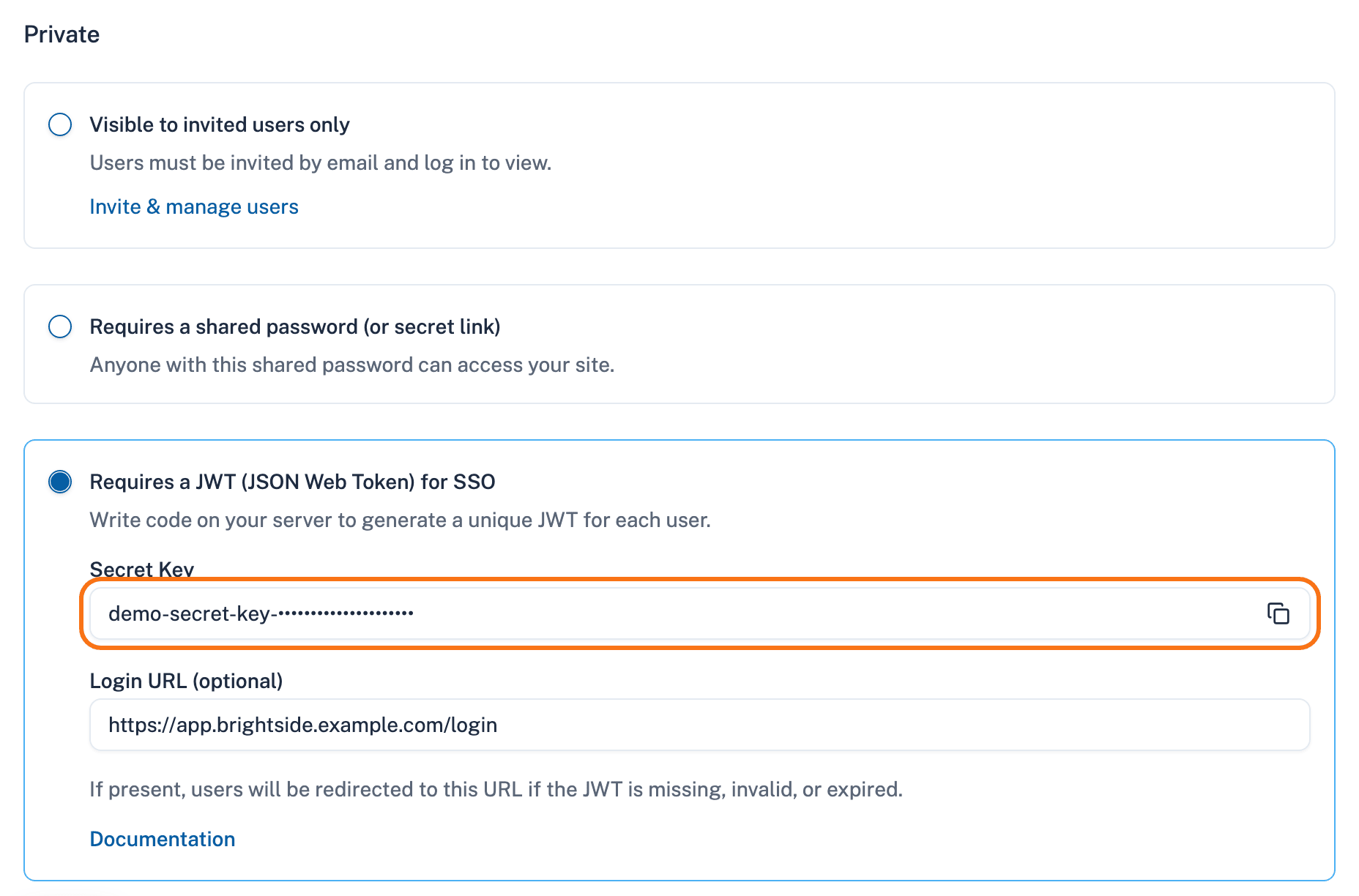
Keep the Secret Key on your server, never in code that runs in the browser. Anyone with the key can create tokens that open your help center.
What goes in the token?
Sign the token with the HS256 algorithm and your Secret Key. The payload needs these fields:
{
  "aud": "yoursubdomain",
  "iat": 1764057600,
  "exp": 1764144000
}-
aud: your site's subdomain, the part before.helpsite.comin HelpSite URL on Customize site > General. Use the subdomain even if you have a custom domain. It can be a string or a list; HelpSite reads the first entry. -
iat: when you issued the token, as a Unix timestamp in seconds. It can't be in the future. -
exp: when the token stops working, as a Unix timestamp in seconds. HelpSite refuses the token from that moment, with no grace period, so set it as far ahead as you want people to stay signed in. A token withoutexpnever expires, so always include it.
jwt.io lists JWT libraries for most server languages and decodes tokens when you're debugging.
How do I pass the token to HelpSite?
In a link
Add ?jwt= and the token to any help center address, for example https://help.yourcompany.com/?jwt=YOUR_JWT or https://yoursubdomain.helpsite.com/articles/123?jwt=YOUR_JWT. HelpSite keeps the token in a cookie until it expires and removes it from the address bar, so people can move around the help center. The same link works in an iframe; see Embed your help center in an iframe.
In a cookie on your own domain
If your help center uses a custom domain under your own domain, your site can set the token in a cookie instead:
- Name:
helpsite_jwt - Value: the token
- Domain: your parent domain, for example
.yourcompany.com - Marked Secure, and not HttpOnly: HelpSite's pages read this cookie in the browser.
- Expiry: at the token's
expor later. The token'sexpdecides when access ends.
What happens when a token is missing or expired?
Without a valid token, visitors see a page saying the site requires them to log in. If you entered a Login URL, HelpSite sends them straight there instead, and in an iframe the whole browser window goes there. HelpSite adds two parameters to the Login URL:
-
from_url: the page the visitor asked for. Send them back to it, with a new token, after they sign in. -
jwt_error: alwaysmissing_jwt, whatever went wrong, so it doesn't tell you why a token failed. Decode the token on jwt.io to check its fields and expiry.
Can one token open more than one site?
Yes. A token signed for one of your JWT sites also opens your other JWT-protected sites in the same HelpSite account.
How do I reset the Secret Key?
Resetting the key stops every existing token working straight away.
- In Customize site > Privacy, select another option, such as Visible to invited users only.
- Click Save.
- Select Requires a JWT (JSON Web Token) for SSO again and re-enter your Login URL, which the first save cleared.
- Click Save.
- Copy the new Secret Key and update your server.