
Set an article's visibility to internal or public
An article's Visibility decides who can read it on your help center. Public articles are open to all visitors, Internal ones only to your team.
This lets one help center hold articles for customers and articles for your staff, searchable in one place.
How do I set an article's visibility?
- In the sidebar, click Articles, then the article's title to open it.
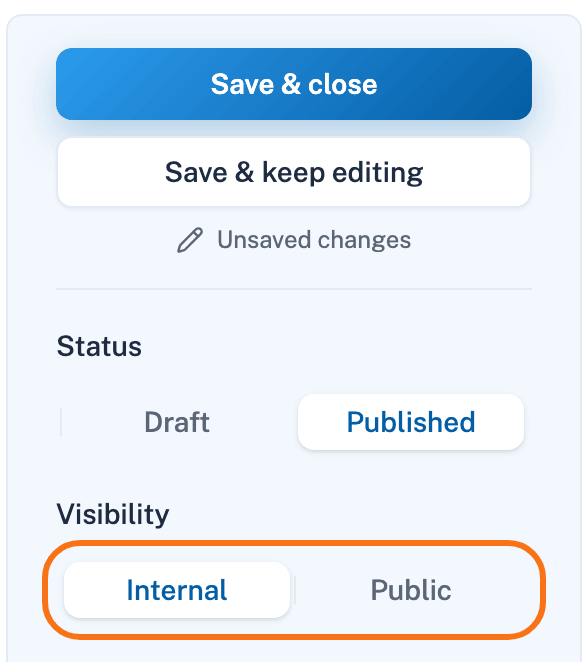
- In the editor's sidebar, under Visibility, select Internal or Public.
- Click Save & close. On a published article with changes, the button reads Publish & close, and the new visibility takes effect when you click it.
To change many articles at once, select them on the Articles list and use Visibility in the bar at the bottom. The list shows Public or Internal on each row, and you can filter by it. See Find, filter and bulk-edit articles.
Not every plan includes internal articles. See Pricing.
Who can see internal articles?
- Team members in your HelpSite account who are logged in, as long as their role includes this site. See Set team member roles and permissions.
- Visitors who sign in to your help center through single sign-on with JWT. See Set up single sign-on with JWT.
Everyone else, including visitors who use a shared password or secret link, doesn't see internal articles. They don't appear on the home page, category pages or in search, the article's address shows a page-not-found message, and search engines don't index them.
How does article visibility work with site privacy?
Article visibility works on top of the site's privacy setting in Customize site > Privacy. See Make your help center private.
- On a public site, or one protected by a shared password or secret link, internal articles are hidden from those visitors and shown to your team.
- On a site set to Visible to invited users only, everyone who can reach the site is already logged in, so internal and public articles behave the same.
For a third level of access, use a second site with its own privacy setting. See Create and manage multiple sites.
Why can't I see my internal articles on my help center?
Being logged in to the HelpSite app doesn't always log you in on your help center, especially on a custom domain. Log in from the help center itself: click Log in in its footer (Login on older themes). The link appears when the site has internal articles and you aren't logged in there.
If you still can't see an article, check that:
- the article is published, since drafts never show on your help center;
- you're logged in with a user in the same HelpSite account as the site;
- your role includes this site.