
Ask visitors for more information in the contact form
The HelpSite contact form has a fixed set of fields: topic, details, name, email and image attachments. You can't add fields, but you can change the labels and hints in the contact page template to ask for what you need, or link to a form of your own.
Not every plan includes custom HTML templates. See Pricing.
How do I change the contact form's labels and hints?
- In the sidebar, click Customize site.
- Click the Design tab.
- At the bottom of the page, click Advanced — edit the HTML & Liquid templates.
- Click Contact page.
- Select Use custom HTML. The editor shows your theme's contact page template.
- Change the text inside the
<label>tags. For example, changeDetailstoYour order number and what happened. - To show example text inside a box, add a
placeholderattribute, for example<textarea name="ticket[body]" id="ticket_body" placeholder="Order number, device, steps you tried">. - Click Save changes.
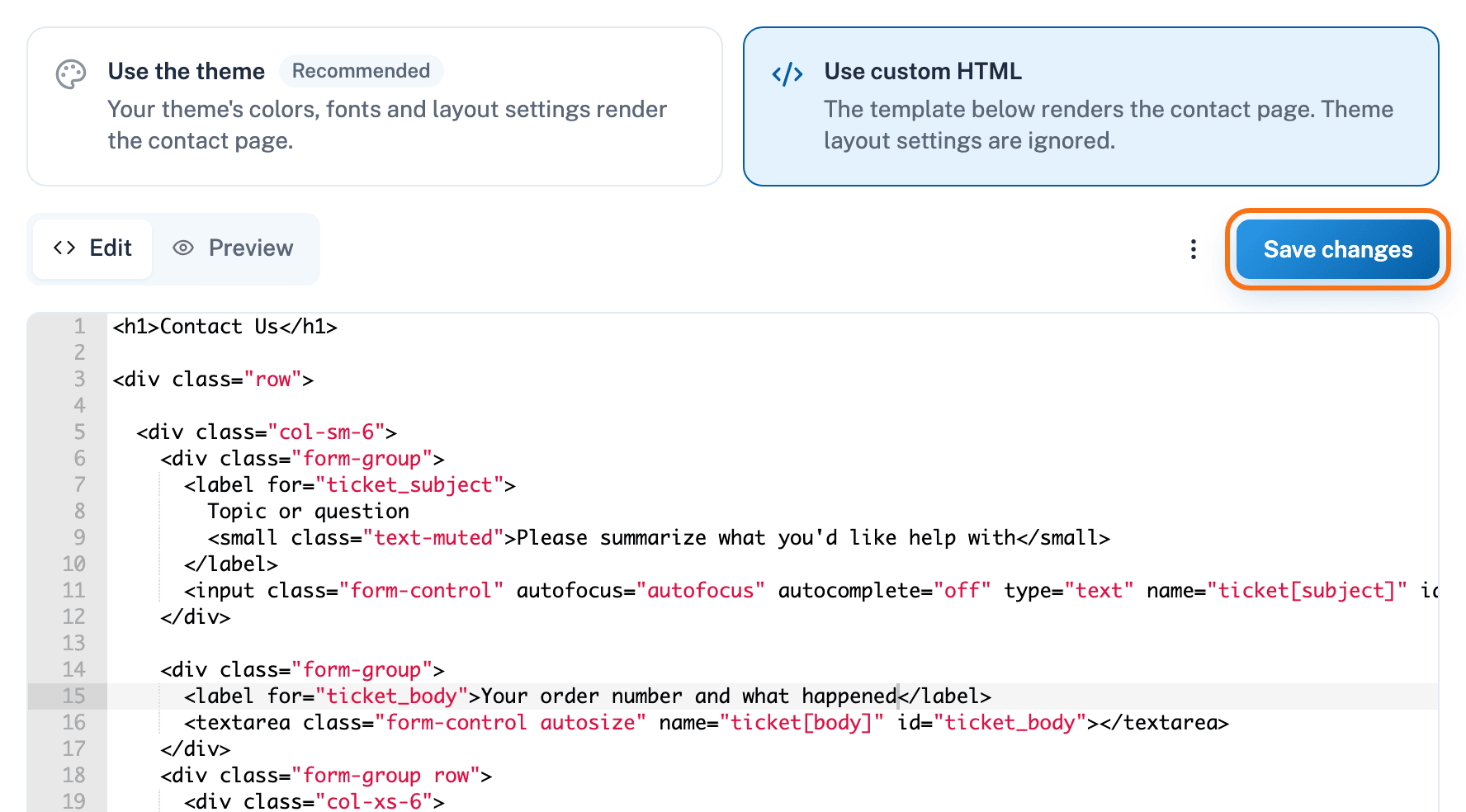
Your contact page now uses your template. To go back to the theme's version, select Use the theme and click Save changes.
Keep each field's name and id as they are. HelpSite only sends the topic, details, name, email and attachments, so a new input you add to the template never reaches you.
You can also add a sentence above the form saying what to include, such as an order number or the device someone uses.
Can I change the thank-you message?
Yes. In the same Advanced — edit the HTML & Liquid templates list, click Contact submitted, select Use custom HTML, edit the text and click Save changes.
How do I use my own form instead?
- Turn off the HelpSite contact form. See How the contact form works.
- In Customize site > Design, open Advanced — edit the HTML & Liquid templates and click Main layout.
- Select Use custom HTML.
- Add a link to your form's page where you want it, for example in the header.
- Click Save changes.
Link to a page where your form is hosted. Form embed codes that need a script don't run in HelpSite templates.