
Edit your help center's HTML and CSS templates
Each page of your help center is built from a template written in HTML and Liquid. You can replace your theme's template for any page with your own, to change the markup, add CSS or rewrite the text, under Customize site > Design.
Not every plan includes custom HTML templates. See Pricing.
Which templates can I edit?
-
Main layout: wraps every page. It holds the
<head>, header and footer. - Home page, Category page, Article page and Search results: the content of those pages, inside the Main layout.
- Contact page and Contact submitted: the contact form and the thank-you message after it's sent.
You choose per page. A page with a custom template ignores the theme's layout settings, and the other pages keep using the theme.
How do I edit a template?
- In the sidebar, click Customize site, then the Design tab.
- Click Advanced — edit the HTML & Liquid templates to open the list of templates.
- Click the template you want to change, for example Main layout.
- Choose Use custom HTML. The editor fills with your theme's template for that page, ready to change.
- Edit the HTML. Click Preview to see the page with your changes, and Edit to go back to the code.
- Click Save changes.
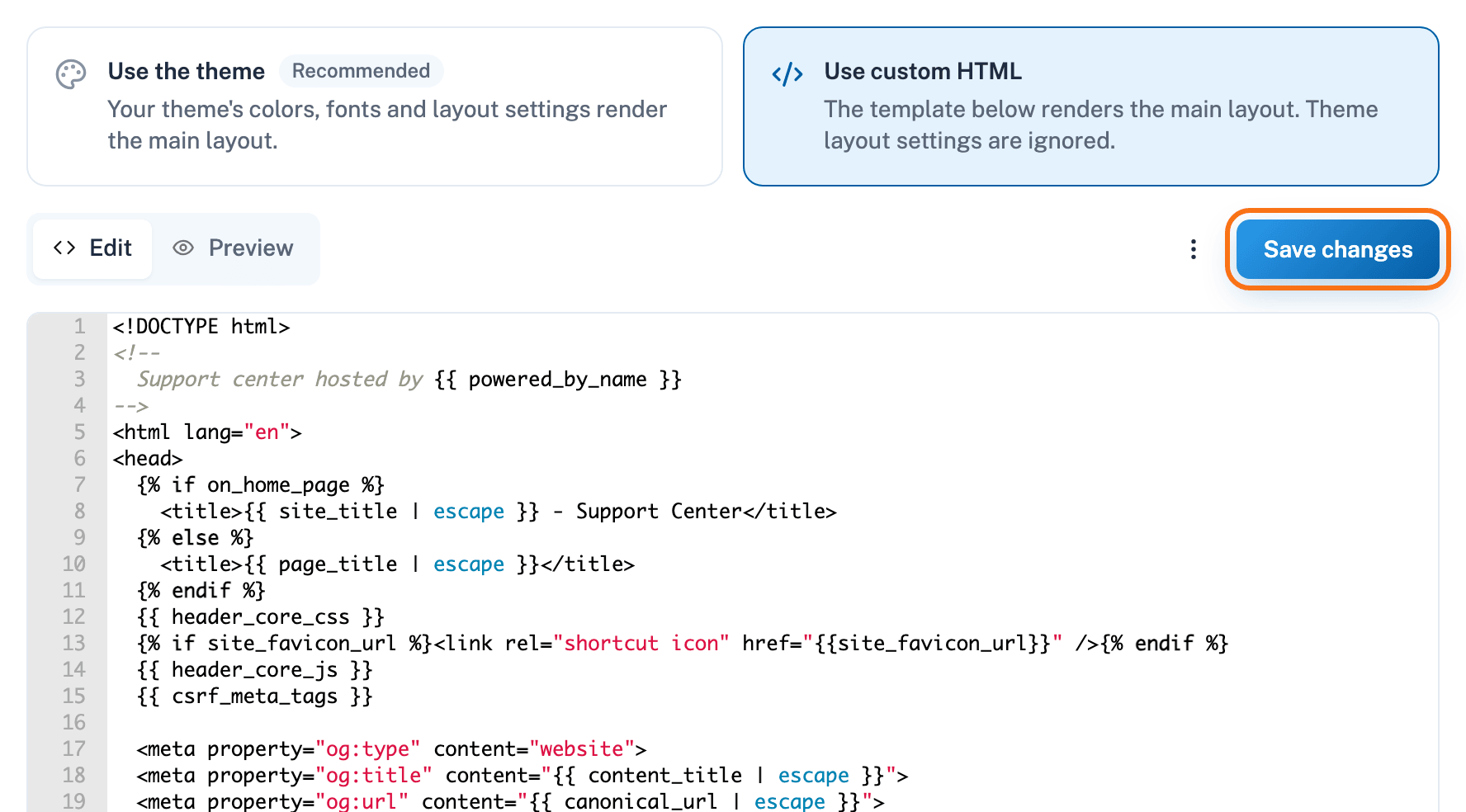
Your help center uses the saved template straight away. The tabs at the top of the editor switch between templates.
You can also open a page's template from the theme editor: click HTML & CSS at the top of its sidebar.
How do I add my own CSS?
Add a <style> block inside the <head> of the Main layout, after {{ header_core_css }} and {{ header_theme_css }}, so your rules load after HelpSite's and the theme's styles. CSS in the Main layout applies to every page. For example, to change the color of links:
<style>
  a { color: #0f766e; }
</style>
If a rule doesn't take effect, a more specific default rule is probably winning. Use your browser's developer tools to find the selector the theme uses, then write a selector at least as specific, or add !important.
What can I use in a template?
Templates use Liquid, so you can print values with {{ }} and add logic with {% if %} and {% for %}. Some values you can use:
| Value | What it holds |
|---|---|
{{ page_content }} |
The page's own content. Keep it in the Main layout, or pages show nothing. |
{{ site_title }}, {{ site_logo_url }}, {{ site_website_url }}
|
Your Company Title, logo and Main Website URL from the General tab. |
categories |
Your top-level categories, each with title, path and subcategories. |
on_home_page, on_category_page, on_article_page
|
True on that kind of page, for showing something on one kind only. |
contact_form_enabled |
Whether the contact form is on. |
{{ article.title }}, {{ article.text }}, {{ article.updated_at }}, {{ article.created_at }}
|
In the Article page template: the article's title, body and dates. |
Dates take Liquid's date filter. For example, {{ article.updated_at | date: "%B %d, %Y" }} shows a date like November 25, 2026.
To change words like the search box text or the form labels, see Change the built-in text on your help center.