
Change your site's name, logo and subdomain
You set your help center's name, logo and HelpSite URL on the General tab of Customize site. The name and logo show on every page of your help center, and the HelpSite URL is its address, like https://acme.helpsite.com.
How do I change my site's name and logo?
- In the sidebar, click Customize site. The General tab opens.
- In Company Title, type the name to show on your help center, usually your company or product name. It needs at least 5 characters.
- Under Logo, click the upload area or drag an image onto it. PNG, JPG, WebP and SVG files work, and a large image is scaled down to fit.
- Optional: under Favicon, upload the small icon browsers show in the tab, as a PNG or ICO file.
- Optional: in Main Website URL (Optional), enter your main website's address. Your help center links to it.
- Click Update Site.
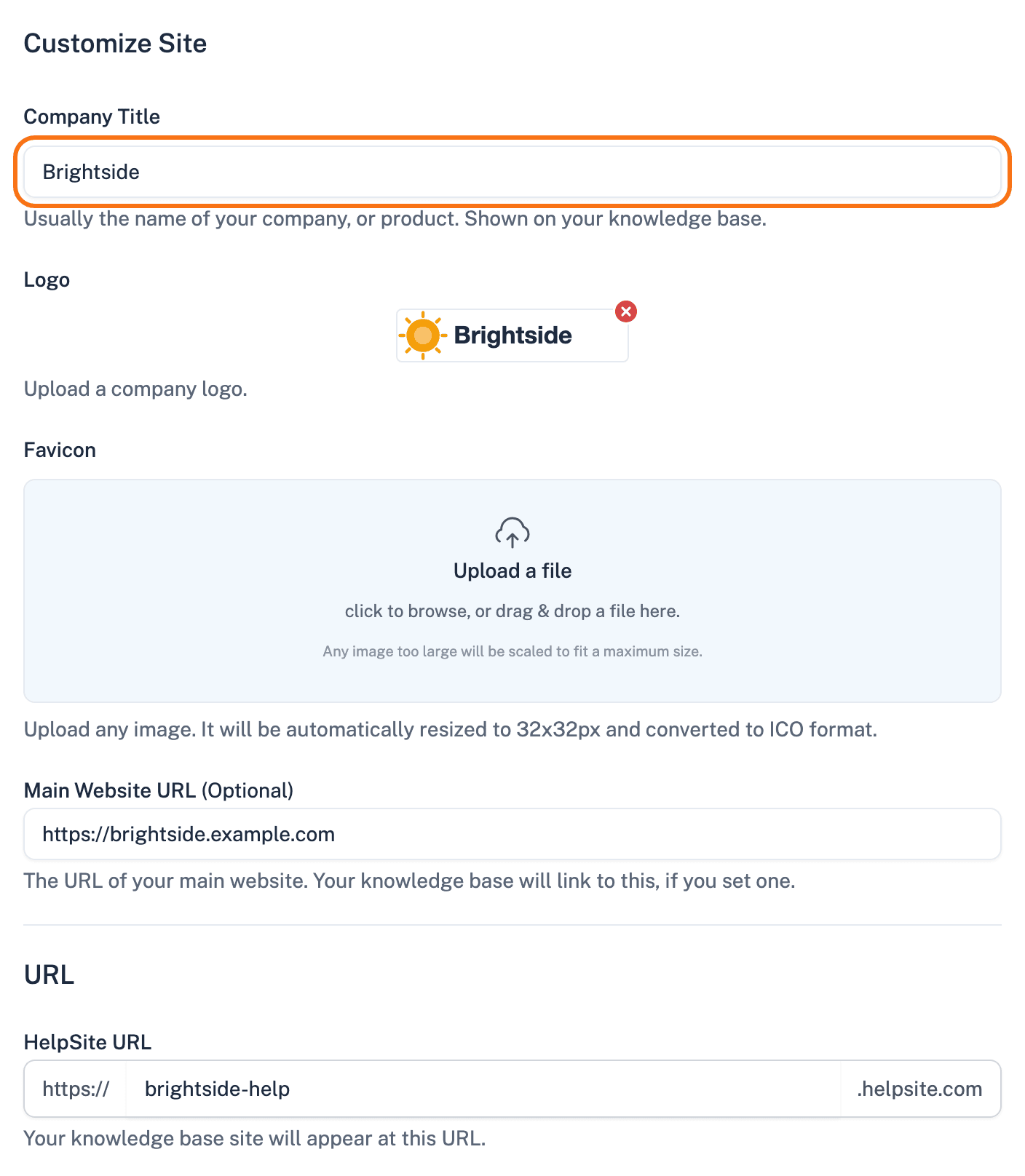
The new name and logo show on your help center the next time a page loads. To remove the logo, click the remove button on its preview, then click Update Site.
How do I change my HelpSite URL?
The HelpSite URL is the first part of your help center's address. In https://acme.helpsite.com, it's acme.
- In the sidebar, click Customize site.
- Under URL, change HelpSite URL. Use 4 to 63 letters, numbers or hyphens, with no hyphen at the start or end.
- Click Update Site.
Your help center moves to the new address straight away. If the name is already taken or reserved (words like support and admin are), HelpSite says so and keeps the old one.
HelpSite doesn't redirect the old HelpSite URL. Links that use it stop working, so update them on your website, in emails and in your product. If you use a custom domain, point its CNAME record at the new HelpSite URL too.
Can my help center use my own domain?
Yes. To serve your help center from an address like help.yourcompany.com, set up a custom domain. See Set up a custom domain.