
Create and manage multiple sites
One HelpSite account can run several help centers, called sites. Each has its own articles, categories, URL, design and privacy settings.
Each site's search shows only its own articles. Your plan's features and your team apply to every site in the account.
How do I create a new site?
- In the sidebar, click Settings, then the Sites tab. You can also click the site name in the header and choose Manage Sites.
- Click New Site.
- Optionally enter Your website (optional), then enter a Company name and Choose a HelpSite URL.
- Click Create Site.
HelpSite opens the new site's empty Articles list, where you can choose Import articles, Generate with AI or Start from scratch.
The number of sites you can create depends on your plan. See Pricing.
How do I switch between sites?
- Click the site name in the header.
- Click the site you want. With many sites, type in Search site... to find it.
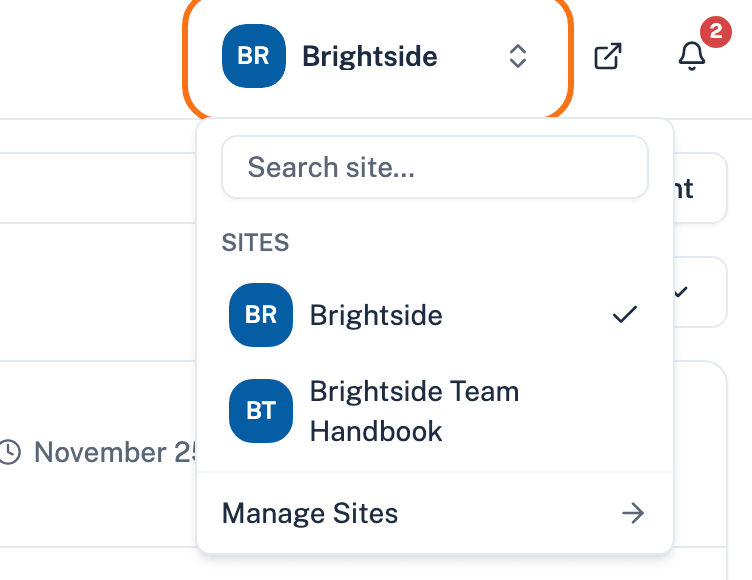
Everything in the sidebar above Settings, such as Articles, Categories and Customize site, then applies to that site.
How do I choose which site opens when I log in?
- Go to Settings > Sites.
- In the Opens at sign-in column, turn on the switch for the site.
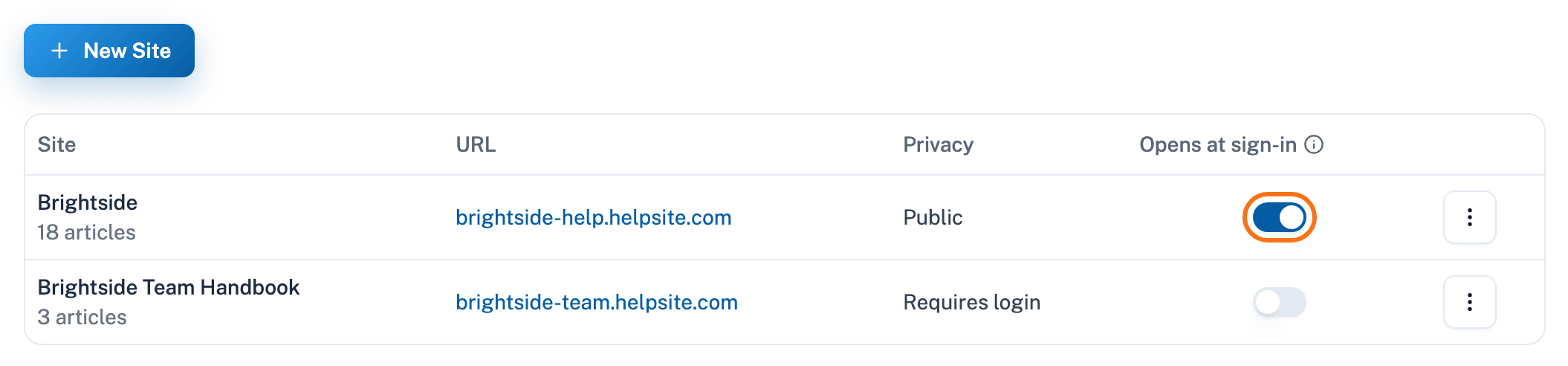
HelpSite confirms with Default site updated. This is your own setting and doesn't change what your team members see.
What can I do from the Sites list?
The list shows each site's name and article count, its URL and its privacy setting. The menu button at the end of each row opens:
- Customize and Privacy, which open that site's Customize site tabs
- Categories, with the number of categories
- Duplicate and Delete. See Duplicate or delete a site.
- Export, which downloads a CSV list of your sites. See Export your site data.
The Sites tab appears once your account is on a trial or a paid plan.
How do team permissions work across sites?
The built-in roles, Admin, Content Editor and Read Only, cover all sites in the account. To give someone access to some sites only, create a custom role in Settings > Roles and choose their access per site. See Set team member roles and permissions.