
Choose and customize a theme
A theme sets how your help center looks: its layout, colors and fonts. You choose a theme and adjust it on the Design tab of Customize site, and your articles and categories stay the same whichever theme you use.
Which themes can I choose?
- Clarity: the theme new sites start on. It takes your brand color and fonts and adds a topic sidebar and an article table of contents.
- Default: the original HelpSite design.
- Calm Minimal: a light layout with simple spacing.
- Dark Terminal: a dark layout.
- Bold Modern: a high-contrast layout with a stronger visual hierarchy.
Every theme adapts to phones and tablets, and every theme shows the date each article was last updated under its title.
How do I switch to another theme?
- In the sidebar, click Customize site, then the Design tab.
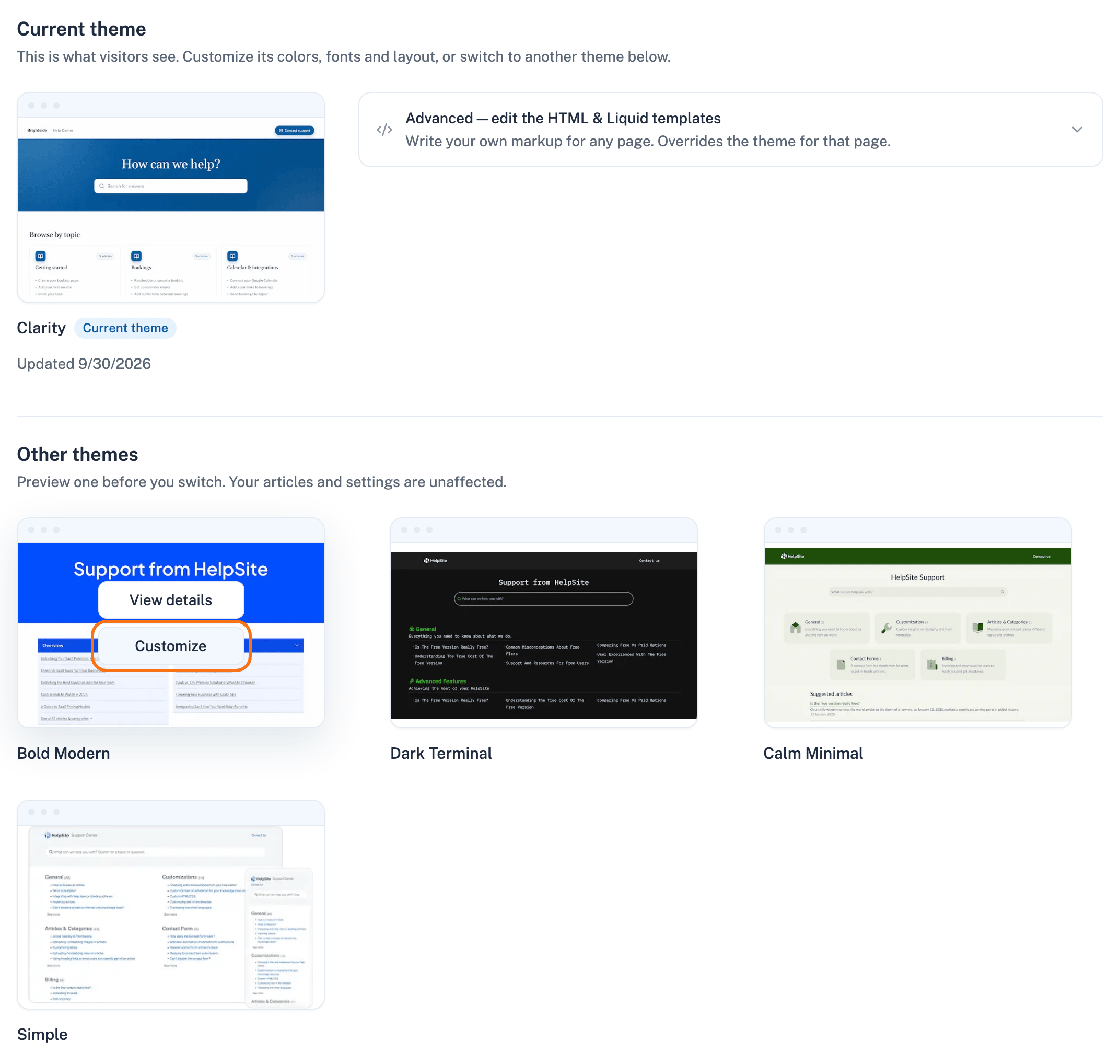
- Under Other themes, hover over a theme. Click View details to see a larger screenshot, or Customize to open it in the theme editor.
- In the theme editor, change its colors and fonts if you like (see the next section). The preview beside the editor shows your help center with the theme applied.
- Click Use on Live Site, then Activate.
Visitors see the new theme straight away. Any page you've given a custom HTML template keeps that template. See Edit your help center's HTML and CSS templates.
How do I change my theme's colors and fonts?
- On the Design tab, hover over your current theme and click Customize.
- Under Site Wide, click Colors and Font.
- Change the settings. On Clarity, pick a Brand color from the presets or enter a Custom color, then choose a Body font and a Heading font. The other themes have a Font and a list of colors, such as Primary, Background, Text color, Text link and Button hover.
- Check the preview. Under Pages, click a page, such as Article Page, to preview it. Click Undo or Redo to step through your changes, or Open preview in new tab to browse the whole help center with them.
- Click Save changes.
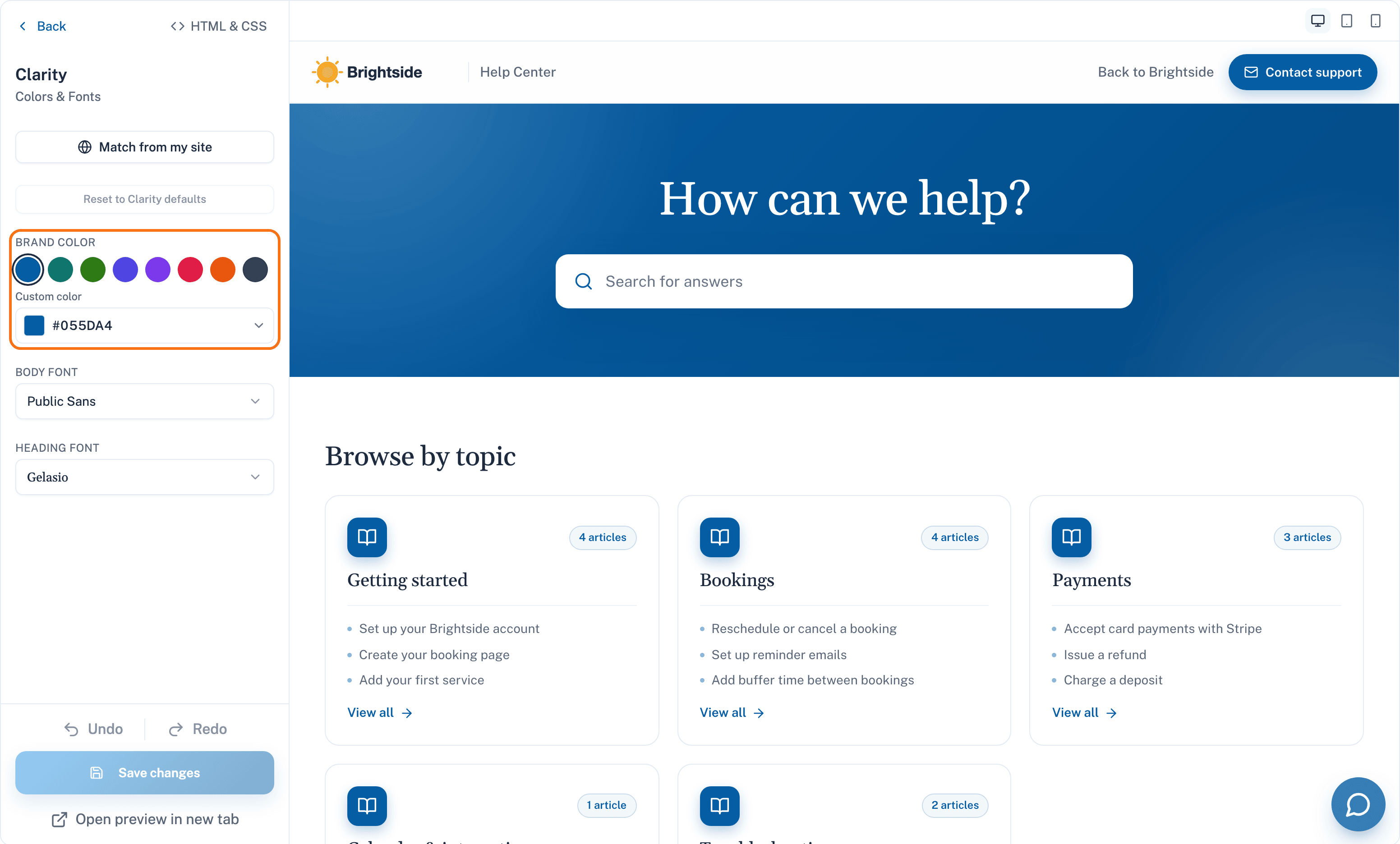
On Clarity, if your brand color is too light for white button text, buttons and banners use a slightly deeper shade, and the editor shows a note saying so.
Can HelpSite copy the look of my website?
Yes. In Colors and Font, click Match from my site, enter your website's address and click Scan. HelpSite reads your site's logo, brand color and fonts and shows what it found. Choose what to keep, click Apply to theme, then click Save changes. Anything it couldn't find stays as it was.
How do I undo my color and font changes?
- In the theme editor, click Reset to the theme's defaults (for example Reset to Clarity defaults), then Reset. Nothing changes on your help center until you click Save changes.
- On the Design tab, hover over your current theme and click Restore default, then Restore to default. This puts the theme's own colors and fonts back on your help center at once.
What does the Clarity theme add?
- Topic sidebar: category pages show your categories as a tree beside the articles, up to three levels deep. The branch holding the current category opens, and the current category is highlighted.
- Subcategory sections: a category page lists each subcategory as its own section with its first five articles.
- Footer topics: the footer lists up to eight top-level categories, in two columns when there are more than four. With more than eight, an All topics link goes to the home page.
- Table of contents: articles show their headings beside the text, with reading progress. See Show a table of contents on articles.
Your logo and site name aren't part of the theme. Set them on the General tab, as described in Change your site's name, logo and subdomain.