
Assign articles to team members
Assignments ask a team member to write a new article, update an existing one or review one, with an optional due date. Everything assigned on a site is listed under Assignments in the sidebar.
Not every plan includes Assignments. See Pricing.
How do I create an assignment?
- In the sidebar, click Assignments.
- Click New assignment.
- In Assign to, choose a team member.
- Under Kind, select Write new, Update existing or Review.
- For Update existing or Review, find the article in Which article?. It searches titles and body text.
- In What needs doing?, describe the task in a line. HelpSite fills it in for updates and reviews, and you can change it.
- Optional: add Details and a Due date.
- Click Create assignment.
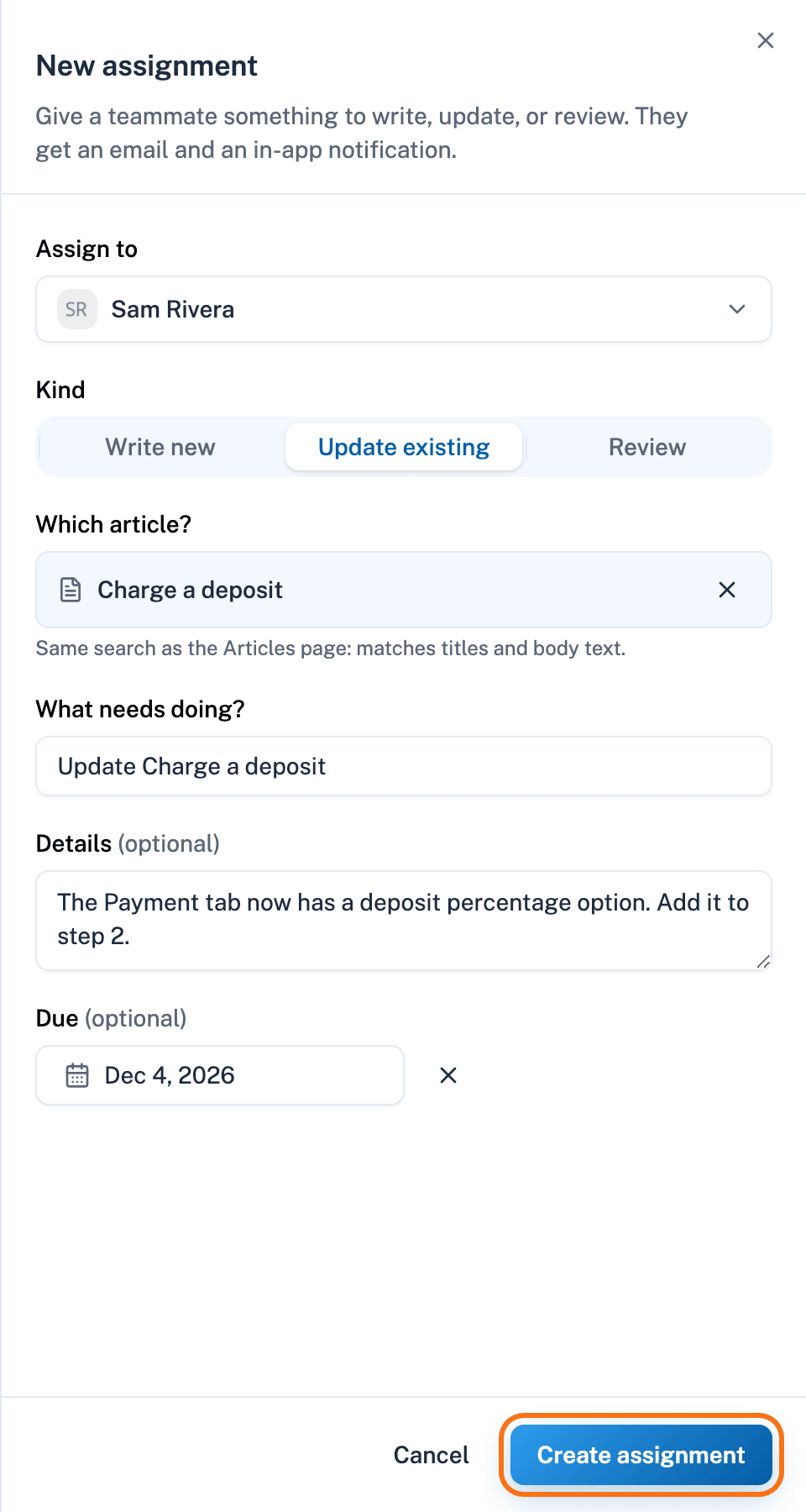
The team member gets an in-app notification and an email. See How notifications work.
Can I assign work from an article or the Articles list?
- From the editor: click More actions, then Request review or Assign update.
- From one row: on the Articles list, open the row's menu and select Assign….
- For many articles at once: select them on the Articles list, click Assign in the bar at the bottom and choose a person. HelpSite creates one review per article, due in 7 days, and sends the person one email for the batch. Change the details on the Assignments page.
How do I find and filter assignments?
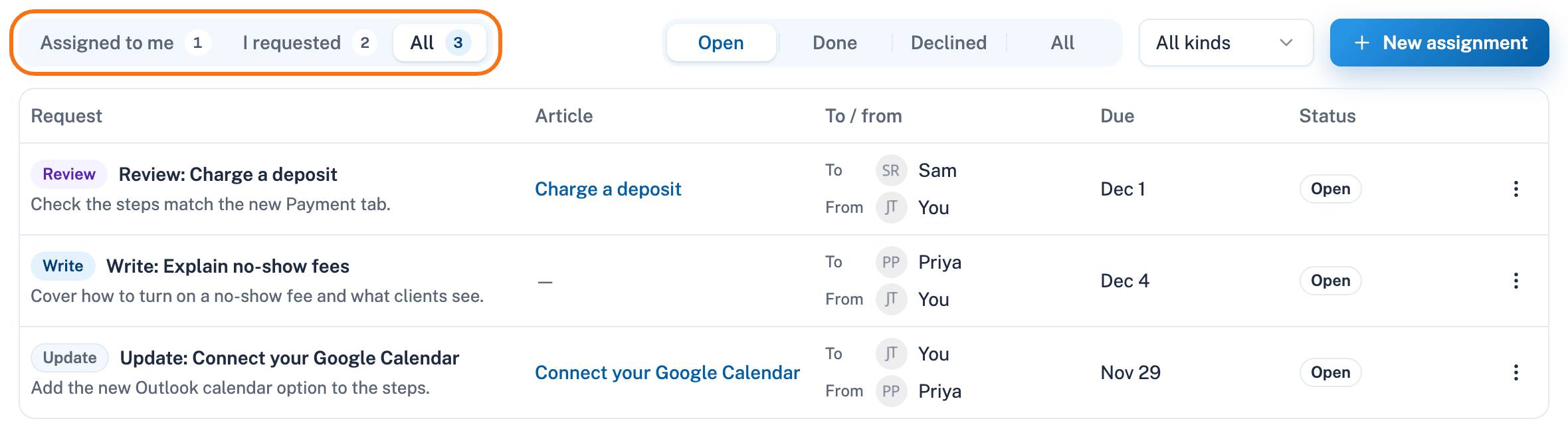
The Assignments page has three tabs: Assigned to me, I requested and All. Next to them, filter by status (Open, Done, Declined or All) and by kind (All kinds, Write, Update or Review). The number next to Assignments in the sidebar is how many open assignments are waiting on you.
How do I complete, decline or change an assignment?
Open the menu at the end of an assignment's row and select an action:
- Mark done when the work is finished. The requester is notified.
- Decline if you can't take it on. The requester is told so they can reassign it.
- Reopen to make a done or declined assignment open again.
- Open article to go to the linked article.
- Edit or Delete to change or remove the request.
When you open an article that has an open assignment, it shows above the editor with a Mark done button, or Mark reviewed for a review.
The assignee, the requester and Admins can mark an assignment done, decline it or reopen it. Only the requester and Admins can edit or delete it.