
How notifications work
HelpSite notifies you in the app when someone assigns you work, finishes or declines something you asked for, or suggests changes to an article you look after. Assignments also send an email. Open your notifications with the bell at the top right of the app.
What triggers a notification?
| What happened | In the app | |
|---|---|---|
| Someone assigns you an assignment | Assigned to you | Yes |
| An assignment you requested is marked done | Marked done | Yes |
| An assignment you requested is declined | Declined | No |
| Someone suggests changes to an article you wrote or last edited, or names you as the reviewer when your account doesn't have Assignments | Suggested changes | No |
You aren't notified about your own actions, so assigning something to yourself sends nothing. When someone assigns you several articles at once from the Articles list, you get a notification for each one and a single email for the batch.
Suggestions sent by a script or AI tool show the tool's name in place of a person's.
Not every plan includes Assignments, so assignment notifications appear only on accounts that have them. See Pricing.
How do I read and clear notifications?
- Click the Notifications bell at the top right of the app. A count shows when you have unread ones.
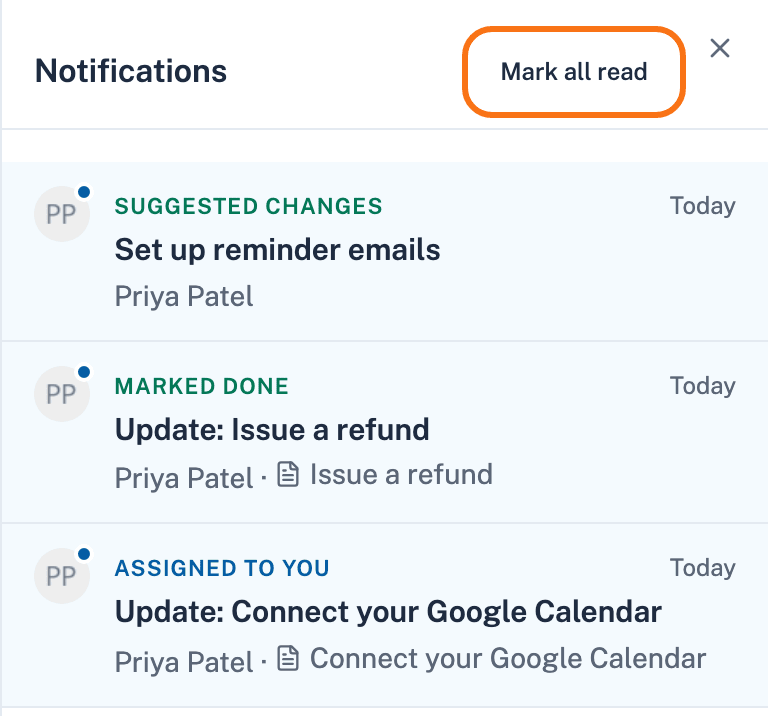
- Click a notification to open it. An assignment opens on the Assignments page, and a suggestion opens the article in the editor on that suggestion.
- To tidy up, click Mark all read, or use the Mark as read and Delete buttons on a single notification.
The list refreshes every minute and whenever you come back to the browser tab.
Who are notification emails from?
Emails come from HelpSite's address. The Reply-To is the team member who acted, so replying to an assignment email goes straight to the person who assigned it or completed it.