
Connect Claude, Cursor or another AI tool with MCP
HelpSite's MCP server lets an AI tool such as Claude, Cursor or Claude Code search, read, draft and update the articles in your help center. You add the server URL https://mcp.helpsite.com/mcp to the tool, then sign in to HelpSite or give the tool an API key.
Not every plan includes MCP. See Pricing.
What is MCP?
MCP (Model Context Protocol) is an open standard that lets AI tools connect to other services and use the actions those services offer. HelpSite's MCP server gives your AI tool actions such as searching articles, creating a draft or updating a category. The AI work happens in your AI tool's account, so it doesn't use your HelpSite AI drafting allowance.
How does my AI tool sign in to HelpSite?
There are two ways, and most tools offer at least one:
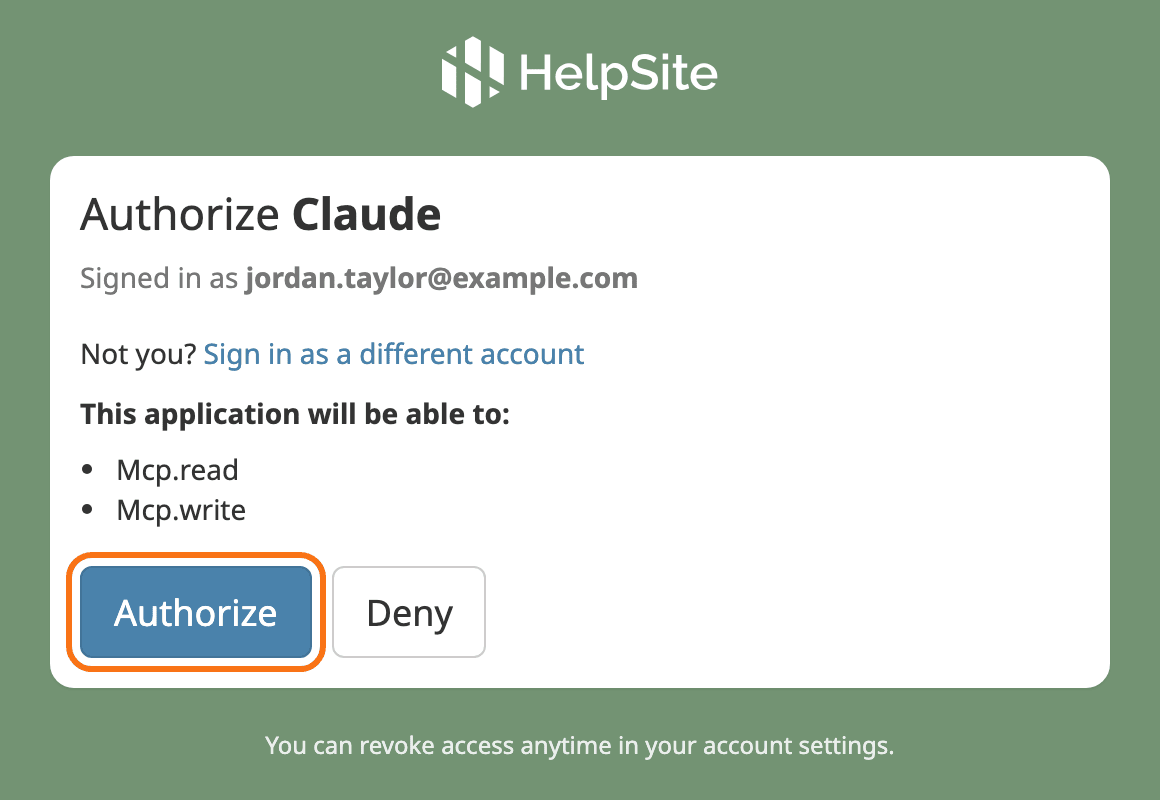
- Sign in with HelpSite (OAuth): the tool opens a HelpSite page that asks you to authorize it. Click Authorize to connect, or Deny to stop. The tool then works as you: it sees the sites you can view and changes only what your role lets you edit.
-
API key: create a key in Settings > API keys (see Create an API key) and add it to the tool as the header
Authorization: Bearer YOUR_API_KEY. The tool reaches only the sites the key covers. Choose Read and write to let it change content, or Read only if it only needs to answer questions. A Suggest edits key can't change anything through MCP.
Old links to a site's MCP or API keys page now open Settings > API keys, where every key is made.
How do I connect Claude?
Claude on the web or the desktop app
- In Claude, open Settings > Connectors.
- Click Add custom connector.
- Enter a name, such as
HelpSite, and the server URLhttps://mcp.helpsite.com/mcp, then click Add. - Click Connect next to the new connector.
- Log in to HelpSite if asked, then click Authorize.
Claude Code
- In a terminal, run
claude mcp add --transport http helpsite https://mcp.helpsite.com/mcp. - In Claude Code, run
/mcp, selecthelpsiteand choose to authenticate. - Log in to HelpSite in the browser window that opens, then click Authorize.
How do I connect Cursor?
- Create an API key in HelpSite. See Create an API key.
- In Cursor, open the MCP settings and add a new MCP server. This opens
mcp.json. - Add a server named
helpsitewith"url": "https://mcp.helpsite.com/mcp"and the header"Authorization": "Bearer YOUR_API_KEY", then save the file. - Turn the
helpsiteserver on in Cursor's MCP settings.
How do I connect another MCP client?
Any AI tool that supports remote MCP servers over HTTP can connect, such as VS Code or Microsoft Copilot Studio. Give the tool:
-
Server URL:
https://mcp.helpsite.com/mcp -
Authentication: OAuth sign-in if the tool offers it, or the header
Authorization: Bearer YOUR_API_KEY.
Microsoft Copilot Studio has its own steps in Connect HelpSite to Microsoft Copilot Studio.
What can I do once it's connected?
Ask your AI tool in plain words, such as "Find our articles about billing" or "Draft an article about resetting a password in the Account category". The tool can list sites, search and read articles, create and update articles and categories, upload images, manage redirects and work on your assignments. See What you can ask AI tools to do with HelpSite MCP for the full list.
New articles start as drafts. Publishing an article, deleting one or creating a site only happens when you ask for it, and the tool has to confirm it.
How do I disconnect an AI tool?
- Remove the HelpSite connector or server in your AI tool.
- If the tool used an API key, also revoke the key in Settings > API keys. A revoked key stops working straight away.
Troubleshooting
- "MCP access is not available on your current plan": your plan doesn't include MCP. See Pricing.
- Connected, but every request asks you to sign in again: remove the connector, log out of HelpSite at app.helpsite.com/logout, then connect again so the sign-in runs from the start.
- Signed in as the wrong HelpSite user: on the authorize page, click Sign in as a different account.
- A site is missing: an API key reaches only the sites it covers, and a HelpSite sign-in reaches only the sites that user can view. Use a key that covers the site, or sign in as someone who can view it.
- "This API key is read-only" or "can only suggest edits": create a Read and write key and give it to the tool instead.
- Changes are refused after signing in: your role can't edit that site. See Set team member roles and permissions.