
Set team member roles and permissions
Every team member has a role that decides what they can do in HelpSite. Admins choose a role when they invite someone and can change it at any time on the Team tab in Settings.
What can each role do?
- Admin: everything in HelpSite. Admins write and publish articles, change site settings under Customize site, edit templates, duplicate and delete sites, manage billing, and invite, remove or change the role of team members.
- Content Editor (All sites): creates, edits, publishes and deletes articles and categories on every site, and can read every site, including private sites and Internal articles. Content Editors can't change site settings, templates, billing or the team.
- Read Only (All sites): can read every site, including private sites and Internal articles, but can't open the HelpSite app. Use this role for people who read a private help center or Internal articles.
- Custom roles: different access on each site. See the section on custom roles below.
Every role counts toward your team member limit. See How team members are counted.
How do I change a team member's role?
- In the sidebar, click Settings, then the Team tab.
- In the person's row, click the pencil icon next to their role.
- Select the new role from the list.
- Click the check mark button to save.
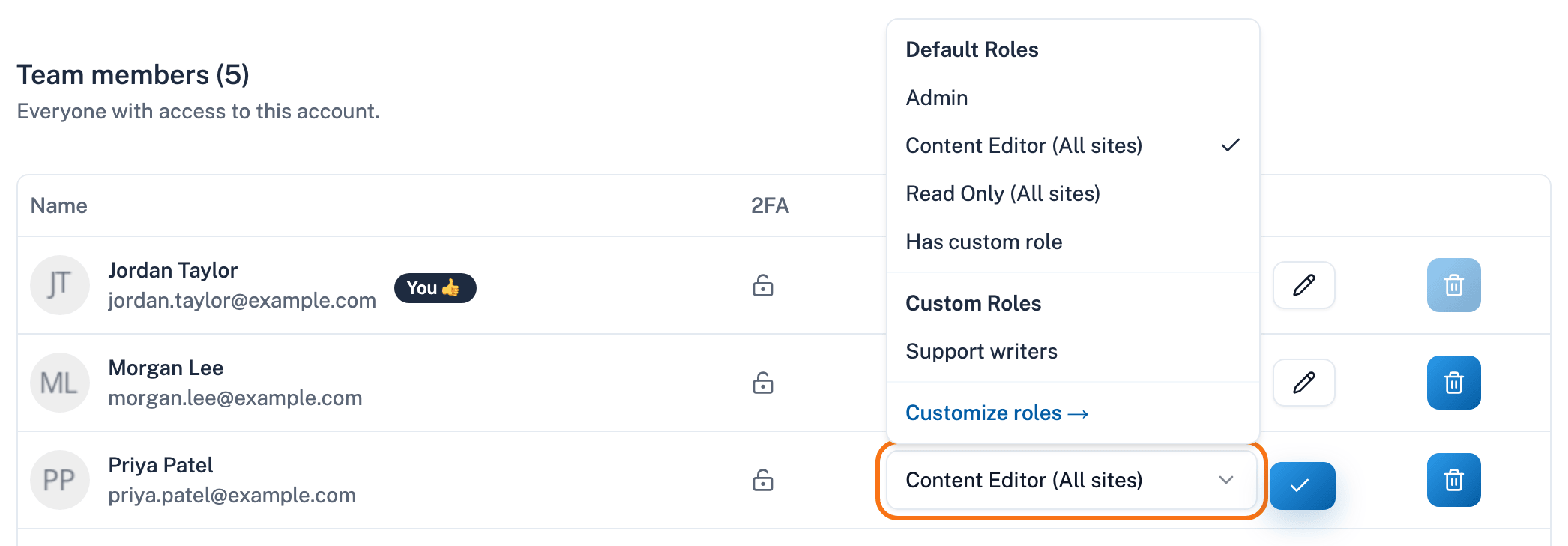
HelpSite confirms with Role update successful. Only Admins can change roles.
What are custom roles?
A custom role sets access site by site, which helps when you run more than one site. For example, one group can read a private internal site while another edits only your customer help center. For each site, a custom role can allow:
- View All Articles (Read Only): read the site and all its articles, including Internal ones.
- Content Editor: edit the site's articles and categories in the HelpSite app.
If neither box is ticked for a site, people with the role can still read it when the site is public, but they don't see its Internal articles. Someone whose custom role has no Content Editor sites can't open the HelpSite app.
Not every plan includes custom roles. See Pricing.
How do I create a custom role?
- In the sidebar, click Settings, then the Roles tab.
- Click New Role.
- Enter a Name.
- Under Site Permissions, tick View All Articles (Read Only), Content Editor or both for each site. The boxes in the header row tick a column for every site at once.
- Click Create Role.
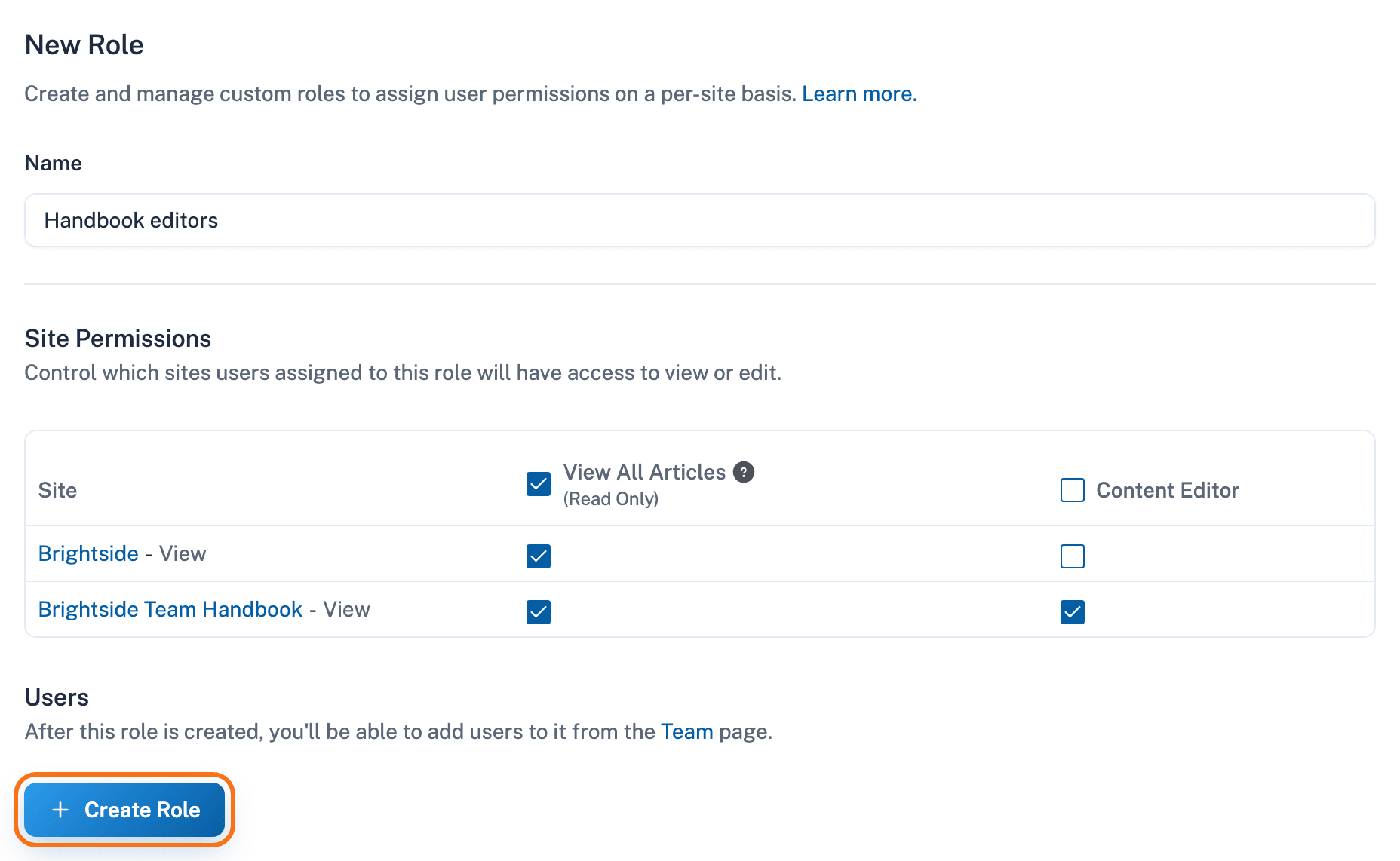
To give the role to someone, select it from the Role list when you invite them or change their role on the Team tab. Custom roles are listed under Custom Roles, and Customize roles → at the bottom of the list opens the Roles tab.
How do I edit or delete a custom role?
On the Roles tab, click Edit next to the role, change it and click Update Role. To remove it, click Delete, then confirm with Delete.
You can't delete a role while team members have it, so give them another role first. You also can't move to a plan without custom roles while anyone has one.
What does "Email has already been taken" mean?
The message appears when the address you're inviting already has its own working HelpSite login, usually because the person signed up for their own account before accepting your invitation. An address that signed up but never confirmed its email, and has no sites or teammates, is invited without the error.
To fix it, the person removes their login from the other account, or closes that account if it's their own and they don't need it. Then invite them again. If they can't do that, contact us.