
Create an API key
An API key lets your own scripts, integrations and AI tools read and update your help centers through the HelpSite REST API and MCP. You create keys in Settings > API keys, and each key covers all your sites or only the ones you choose.
Not every plan includes API access. See Pricing.
How do I create an API key?
- In the sidebar, click Settings, then the API keys tab.
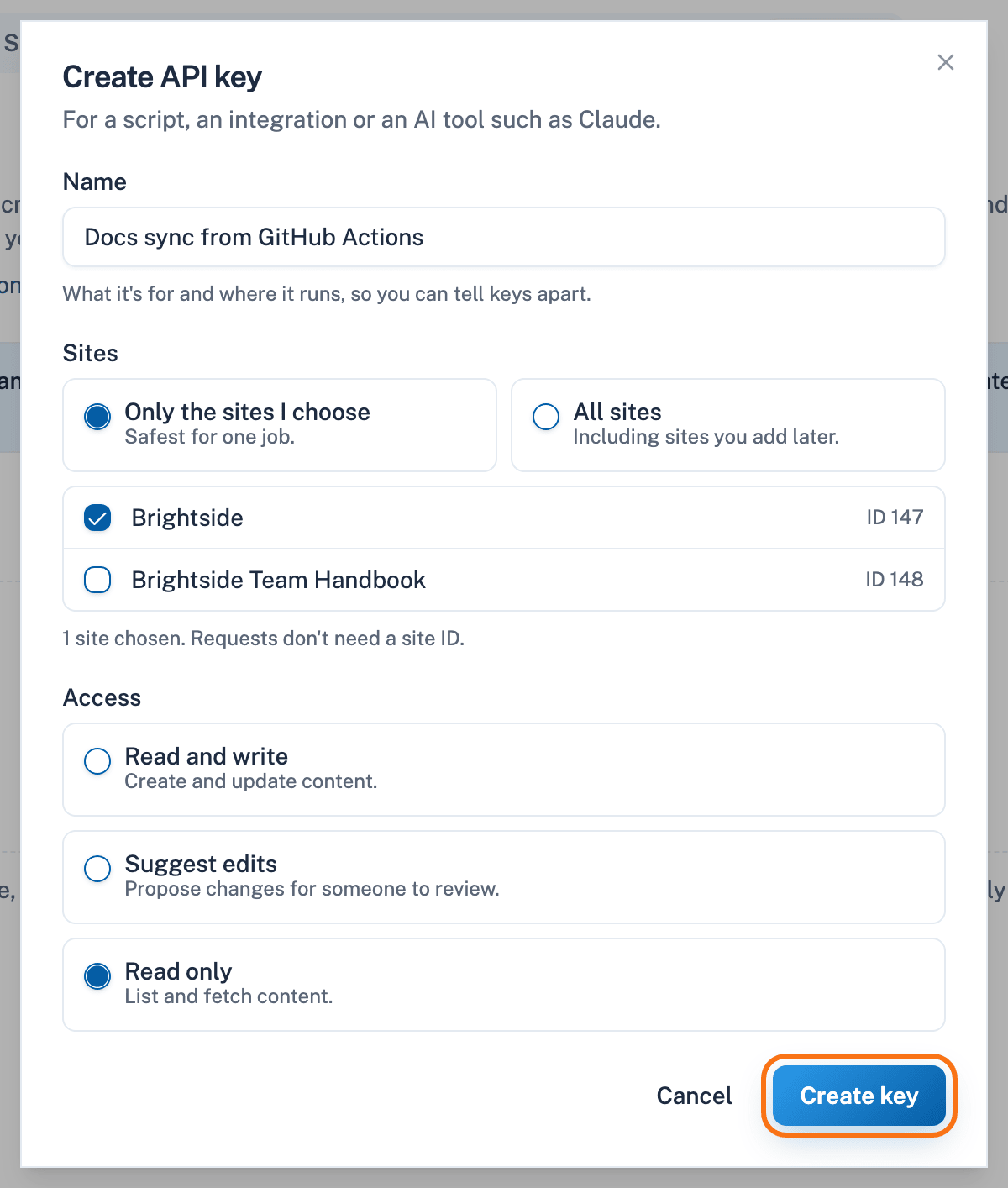
- Click Create API key.
- In Name, say what the key is for and where it runs, such as
Docs sync from GitHub Actions, so you can tell your keys apart later. - Under Sites, choose Only the sites I choose and tick each site the key may reach, or choose All sites to cover every site, including ones you add later.
- Under Access, choose Read and write, Suggest edits or Read only. The next section explains each one.
- Click Create key.
- Click Copy and store the key where the tool that uses it can read it, such as a secret in your CI or a password manager.
- Click Done.
The key now appears in the API keys list. HelpSite shows the full key only once, on the Copy your new key screen. If you lose it, revoke the key and create a new one.
Only admins see the All sites option. Other team members can create keys for the sites they can edit.
Which access should I choose?
Choose the least access the job needs. A key's sites and access are fixed once it's created, so to change them, create a new key and revoke the old one.
- Read and write: create and update content, such as articles, categories, images and redirects.
- Suggest edits: propose changes to articles as suggested edits, which someone on your team reviews. The key can't publish or change anything itself.
- Read only: list and fetch content. This is enough for an AI tool that only answers questions from your articles.
If you don't see the Access choice, your plan's keys can read only.
How do I use a key that covers more than one site?
A key that covers one site works on that site without a site ID. A key that covers more than one site must name the site on every request, with a site_id parameter or an X-HelpSite-Site-Id header. Each site's ID appears next to its name in the Sites list when you create a key.
How do I rename or revoke an API key?
The API keys list shows each key's name, the sites it covers, its access, when it was last used and who created it. Admins see every key in the account. Other team members see the keys they created and the keys for sites they can edit.
- In Settings > API keys, click the three dots (⋯) next to the key.
- Click Rename to give it a new name, or click Revoke, then Revoke key to turn it off.
Revoking a key can't be undone. Anything that uses the key stops working straight away.