
Set up or turn off the AI Chatbot
The AI Chatbot answers visitors' questions on your help center from your published, public articles, and links the articles it used. Turn it on or off, and tell it how to answer, under Customize site > AI Chatbot.
Not every plan includes the AI Chatbot. See Pricing.
How do I turn on the AI Chatbot?
- In the sidebar, click Customize site, then the AI Chatbot tab.
- Turn on Enable chatbot. The change saves straight away.
- Under What the chatbot knows, click Sync now if it says the chatbot isn't synced yet.
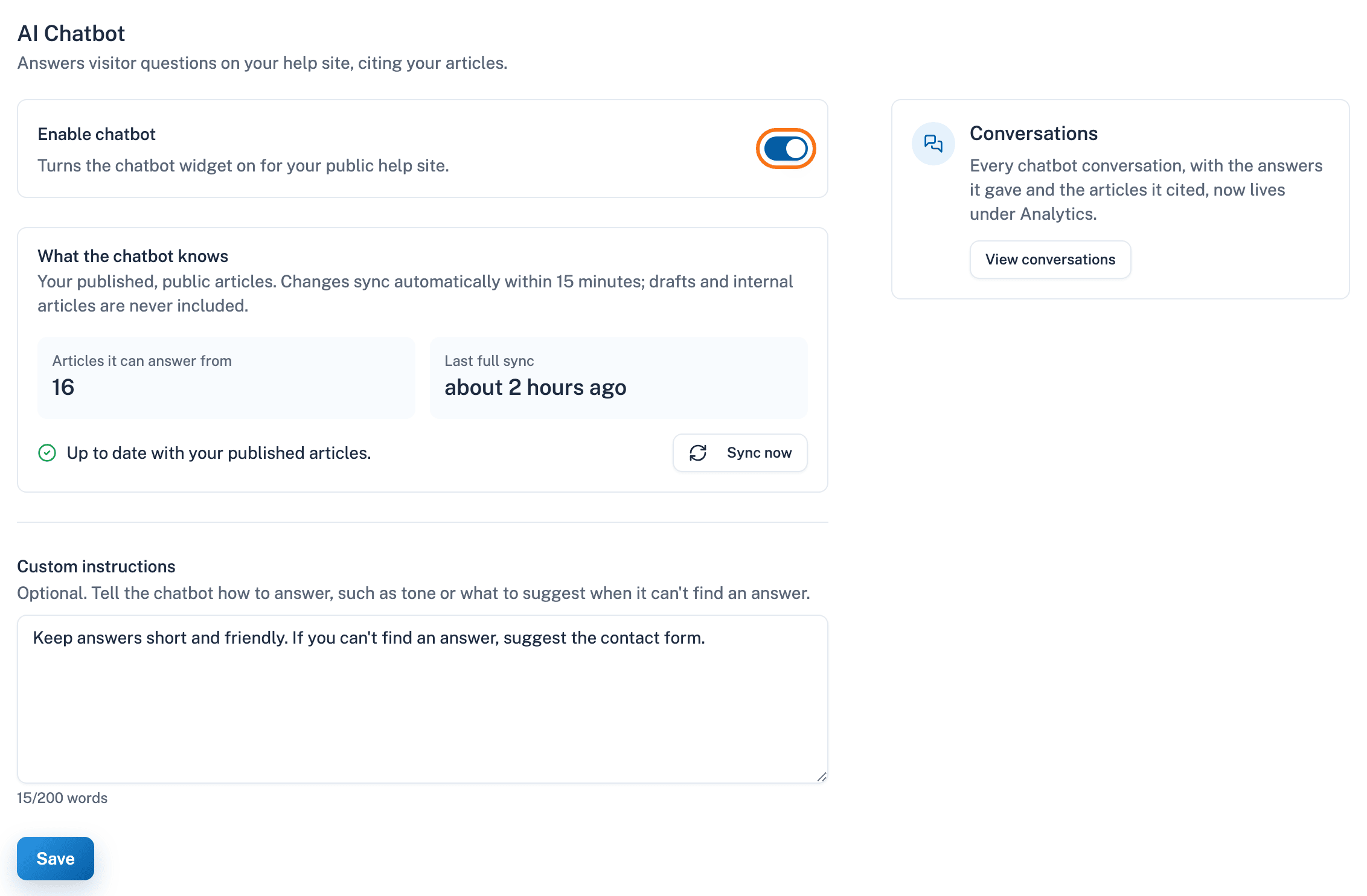
The chat button now appears on your help center. What the chatbot knows shows how many articles it can answer from and when it last synced. After that, article changes reach it automatically within 15 minutes.
How do I tell the chatbot how to answer?
- On the AI Chatbot tab, type in Custom instructions, for example "Keep answers short. If unsure, ask one clarifying question." You can use up to 200 words.
- Click Save.
Use custom instructions for tone, or for what to suggest when the chatbot can't find an answer, such as your contact page.
What do visitors see?
- A chat button at the bottom right of your help center's home, category, article, search and contact pages.
- A greeting, then answers with links to the articles they came from.
- Was this helpful? under each answer, with thumbs up and thumbs down.
- After 15 quiet minutes, a closing message with an optional Take a short survey button.
Visitors don't sign in to the chatbot, and each visit starts a new conversation. You can read every conversation in Analytics. See Review AI Chatbot conversations.
How do I turn off the AI Chatbot?
- In the sidebar, click Customize site, then the AI Chatbot tab.
- Turn off Enable chatbot.
HelpSite confirms with Chatbot disabled, and the chat button no longer appears on your help center. Turn the switch back on at any time. The setting is per site.
What does the Usage section show?
Usage shows AI requests and Tokens (approx.) since the chatbot was turned on. Each visitor question uses a few requests.