
Import your existing help center
The importer copies your articles and categories from another help center, such as Zendesk, Intercom or Help Scout, into HelpSite as they are.
Nothing is rewritten. You can import from your live help center's address or from a CSV file. To import Google Docs or Word files, see Import articles from Google Docs or Word.
Where do I find the importer?
- New account: during setup, choose Import your existing help center. See Set up your new help center.
- Existing site: in the sidebar, click Articles, then Import. A site with no articles also shows Import articles.
Articles go into the site you're working in, so switch to the right site first.
How do I import my help center?
- Under A help center, select the platform you're moving from: Zendesk, Intercom, Helpjuice, Help Scout, Freshdesk, Document360, Notion, or CSV / other. The box below the tiles explains how to get your content out of that platform.
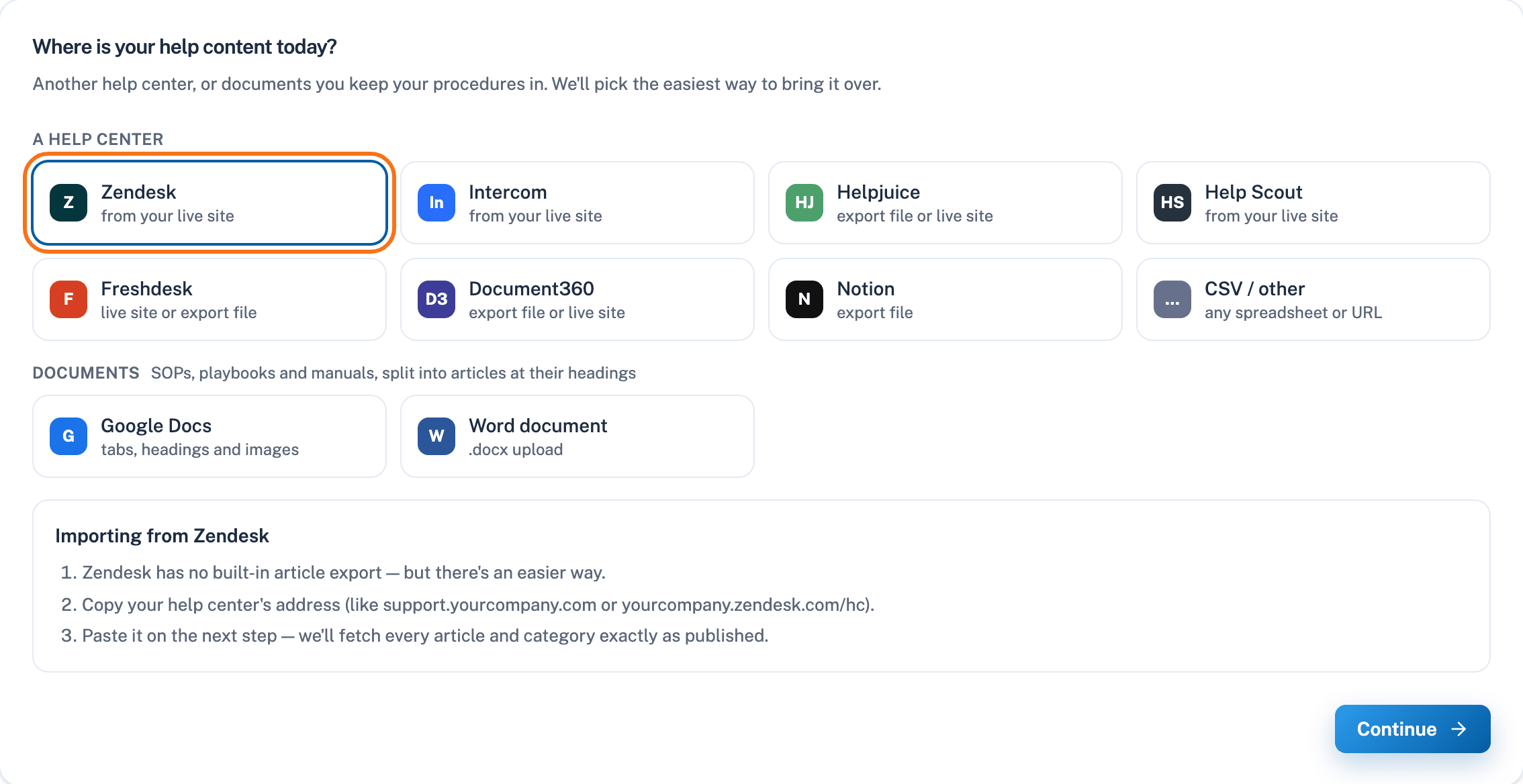
- Click Continue.
- Choose Copy from your live site or Upload an export file. The option that works best for your platform is marked Recommended.
- For a live site, paste your help center's address and click Scan my help center. For a file, drop your CSV on the upload area, or click it to browse.
- When the scan or upload finishes, click Continue.
- Check what HelpSite found. For a CSV, match your columns to Article title, Article body, Category (optional) and Status (optional).
- Choose Publish immediately or Import as drafts.
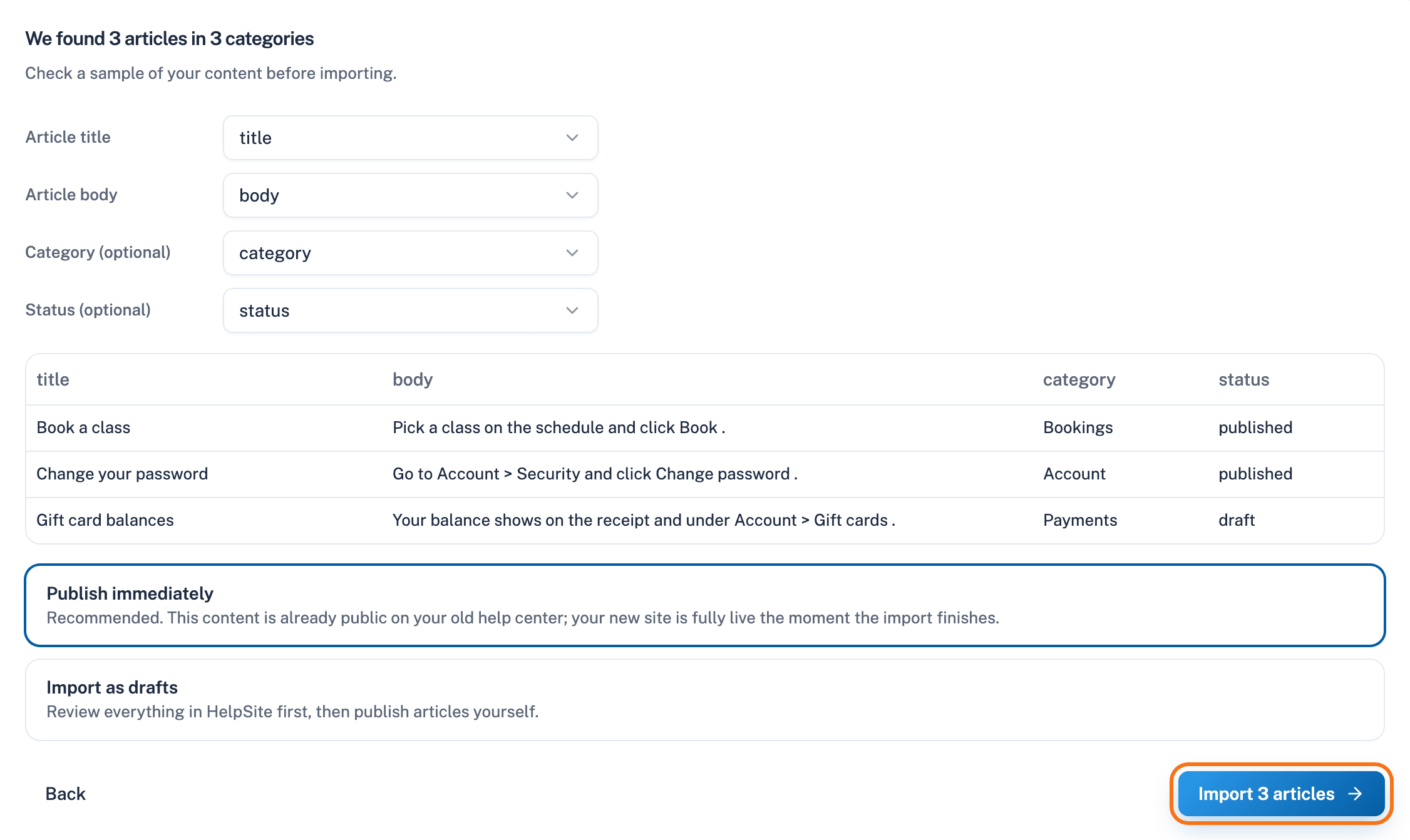
- Click Import. The button shows how many articles will be created.
HelpSite creates the articles and any categories they need. When it finishes, you see how many articles were imported and how many were skipped. Click Review articles to open your Articles list, or View your live site to see the result.
What does the CSV file need?
- A CSV file up to 20 MB. Split a larger file into several, and import them one after another.
- A
titlecolumn and abodycolumn, in HTML or plain text.categoryandstatuscolumns are optional, and HelpSite ignores any other columns. - For a starting point, click Download our sample CSV template on the upload area.
Helpjuice, Document360 and Notion export ZIP or several files rather than one CSV. For those, the importer's instructions ask you to send the export to HelpSite, and the team imports it for you at no charge. If their help center is public, you can paste its address instead.
What should I know before importing?
- Live-site import needs a public help center. HelpSite can't scan a site behind a login or password. Use an export file, or ask HelpSite to import it.
- Duplicates are skipped. An article with the same title in the same category as an existing one isn't imported again, so you can rerun an import safely. Skipped articles are listed in Download the skipped-items report.
- Old links need redirects. To send visitors from your old help center's URLs to the new articles, see Set up redirects.
- Your plan's article limit applies. If the import has more articles than your plan has room for, HelpSite says how many fit before it starts.
Images in imported articles still load from your old help center. Keep that site's images online until you've replaced them, or they'll stop showing in HelpSite.
Can HelpSite import it for me?
Yes, for free. If you can't get an export, or your help center is internal-only, click Contact us at the bottom of any importer step. It opens an email to help@helpsite.com where you can send the address or the export.