
Create and organize categories
Categories group your articles into topics on your help center. You can create them, nest subcategories, add icons, and set the order visitors see.
How do I create a category?
- In the sidebar, click Categories.
- Click New Category.
- In Title, enter the category's name.
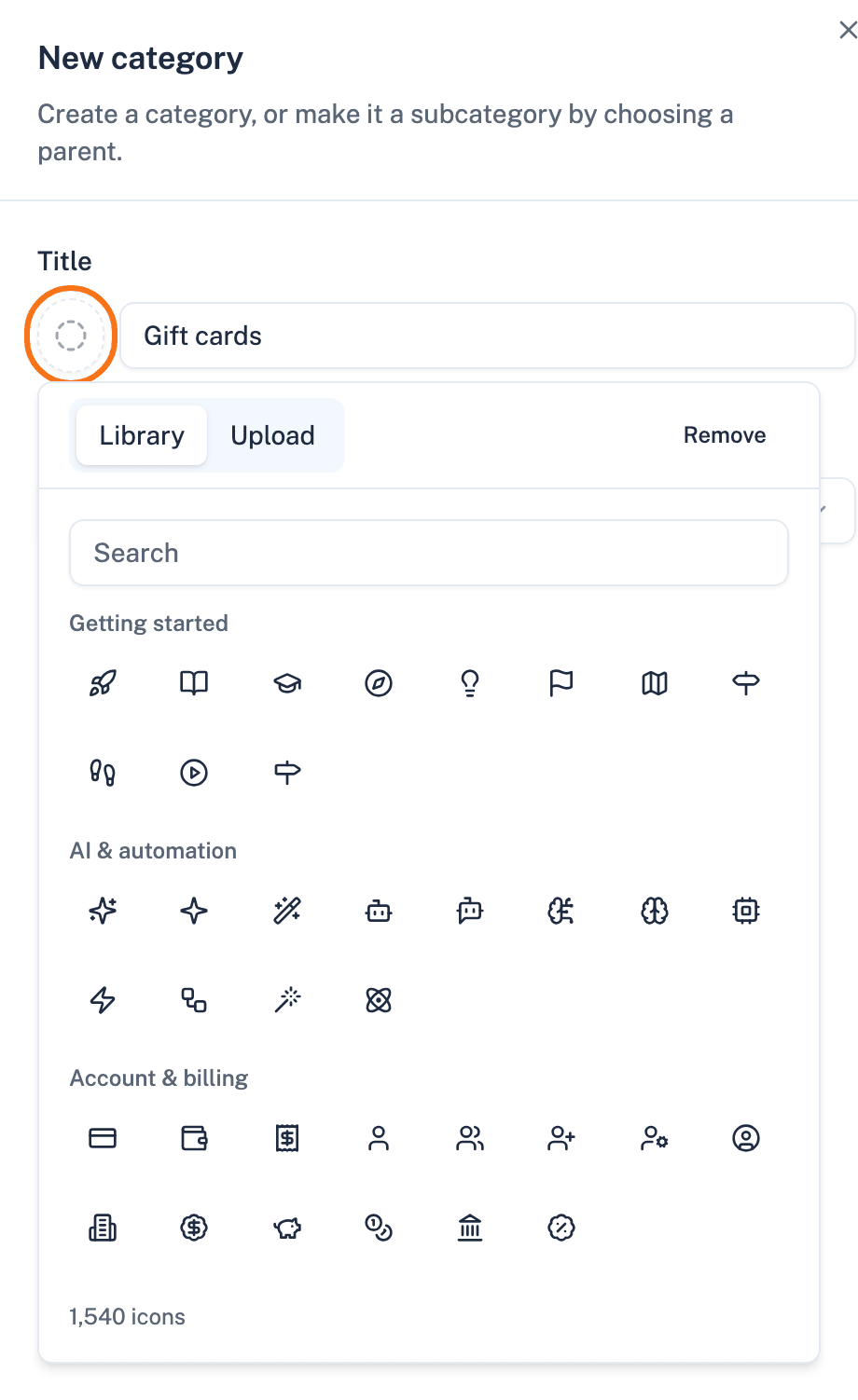
- To add an icon, click the round button next to the title (see the icon section below).
- To make it a subcategory, choose a Parent Category. Leave it on None for a top-level category.
- Click Create category.
The category appears in the list. It shows on your help center once it holds at least one published article that visitors can see. Empty categories stay hidden.
How do I add a subcategory?
- On the Categories page, find the parent category.
- Click Add Subcategory on its row.
- Enter a Title and, if you like, an icon.
- Click Create category.
You can also click a category's name to open its details, then click Add subcategory. Categories nest up to five levels deep, though two or three levels are easier for visitors to browse. On your help center, a category's page lists its subcategories, and the Clarity theme also shows them in a sidebar tree.
How do I add an icon to a category?
- In the category form, click the round button next to Title.
- On Library, type in Search and click an icon. Or click Upload and drop a PNG, JPG, WebP or SVG image.
- Click Create category or Save changes.
To take an icon off, open the same picker and click Remove. On the Clarity theme, a category without an icon shows a book icon.
How do I rename or move a category?
- On the Categories page, click Edit on the category's row.
- Change the Title, the icon, or the Parent Category.
- Click Save changes.
Choosing a different parent moves the category with all its subcategories and articles.
How do I reorder categories?
- On the Categories page, hold the drag handle at the left of a category's row.
- Drag the category above or below another category with the same parent, and let go.
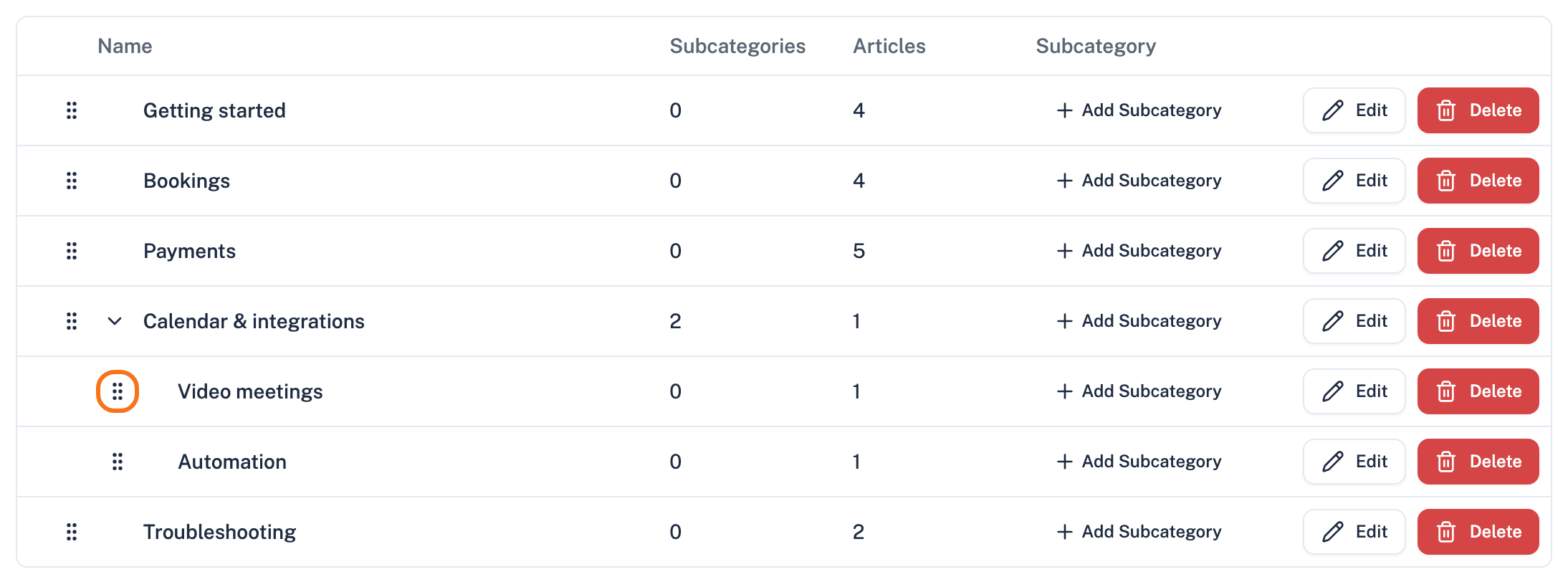
The new order saves straight away and is the order visitors see. You can only reorder categories within the same level. To move a category to another level, change its Parent Category.
How do I put articles in a category?
- In the article editor, choose a Category in the sidebar. An article needs a category before you can publish it.
- On the Articles list, drag an article onto a category in the categories panel on the left.
- To move many articles at once, select them on the Articles list and use Move to. See Find, filter and bulk-edit articles.
- Select a category on the Articles list before you click New Article, and the new article starts in that category.
What happens when I delete a category?
- On the Categories page, click Delete on the category's row.
- Click Delete to confirm.
- The category's articles aren't deleted. They become uncategorized.
- Its subcategories move up one level, under the deleted category's parent, or to the top level.
- Uncategorized published articles appear on your help center's home page and in search only while Show Uncategorized Articles is on, in Customize site > General. Otherwise visitors reach them only by direct link.
- The next time you publish changes to one of those articles, you'll need to choose a category for it.
Deleting a category can't be undone. To keep its articles together, move them to another category first.