
Turn on two-factor authentication
Two-factor authentication (2FA) protects your HelpSite login with a 6-digit code from an authenticator app, which HelpSite asks for each time you sign in with your email and password. Each team member turns it on for their own login in Settings > My Account.
Before you start
Install an authenticator app on your phone or computer, such as Google Authenticator or 1Password. HelpSite doesn't send codes by email or text message.
How do I turn on two-factor authentication?
- In the sidebar, click Settings. The My Account tab opens.
- In the Two-Factor Authentication section, click Enable authentication.
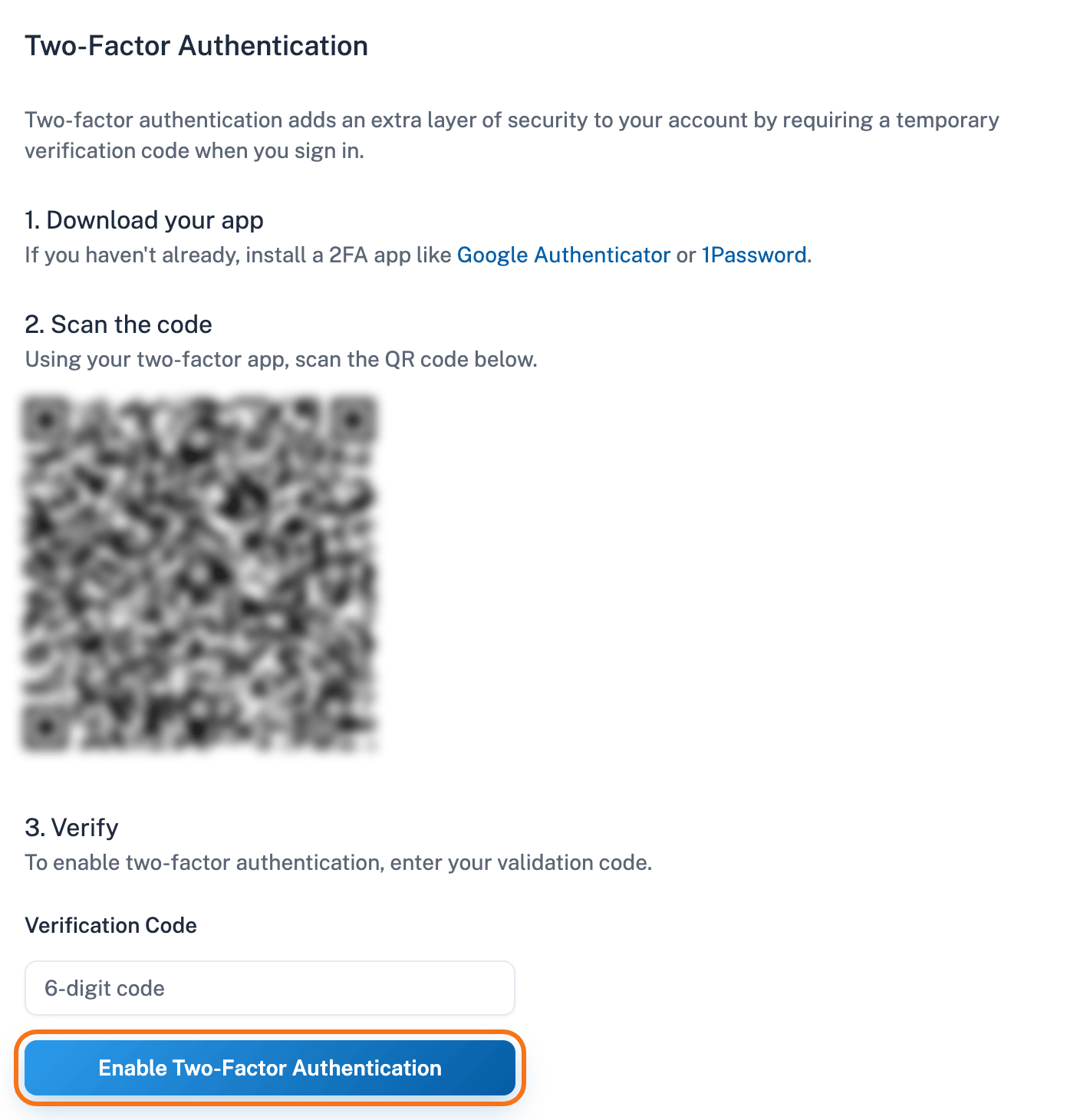
- Scan the QR code with your authenticator app.
- Enter the 6-digit code from the app in Verification Code.
- Click Enable Two-Factor Authentication.
A message confirms that two-factor authentication is on. From your next sign-in, HelpSite asks for a code after your email and password.
HelpSite doesn't give you backup codes. Use an authenticator app that backs up your codes, or scan the QR code on a second device while you set up, so losing your phone doesn't lock you out.
What happens when I sign in?
After you enter your email and password, HelpSite shows Enter verification code. Open your authenticator app and type the current 6-digit code for HelpSite. You're signed in as soon as all six digits are in.
How do I turn it off?
- In the sidebar, click Settings. The My Account tab opens.
- In the Two-Factor Authentication section, click Disable authentication.
Two-factor authentication turns off straight away. If you turn it on again later, you scan a new QR code.
How can I see who on my team uses it?
In the sidebar, click Settings, then the Team tab. The 2FA column shows a closed lock for each team member who has two-factor authentication on. Each person turns it on for themselves; an admin can't turn it on for someone else or require it.