
Import articles from Google Docs or Word
The importer turns Google Docs and Word files into draft articles. It splits each document at its headings and keeps images, tables, lists and links.
Nothing is rewritten. It suits procedures, playbooks and manuals you keep in documents. To move another help center, see Import your existing help center.
How does a document become articles?
- Each Heading 1 starts a new article. Smaller headings stay inside that article as subheadings.
- In a Google Doc, each tab becomes a category and each child tab a subcategory. A Doc with one tab becomes one category named after the Doc.
- A Word file becomes one category named after the file.
- Text before the first heading becomes an article called Introduction.
- Every article is created as a draft, in the order of your document.
How do I import a Google Doc?
- In the sidebar, click Articles, then Import.
- Under Documents, select Google Docs, then click Continue.
- Click Connect Google Drive and allow access. HelpSite gets read-only access, opens only the Docs you pick, and never changes them.
- Select one or more Docs. Use Search your Google Docs to find one.
- Click Split document into articles. With several Docs selected, the button names how many.
- When the split finishes, click Continue.
- Check the split (see below), then click Import at the bottom. The button shows how many articles will be created as drafts.
How do I import a Word document?
- In the sidebar, click Articles, then Import.
- Under Documents, select Word document, then click Continue.
- Drop one or more
.docxfiles on the upload area, or click it to browse. Each file can be up to 50 MB. - When the split finishes, click Continue.
- Check the split, then click Import.
Only .docx files import. Open an older .doc file in Word and save it as .docx first. If your document is in Google Docs, import it from there to keep its tabs.
How do I check the split before importing?
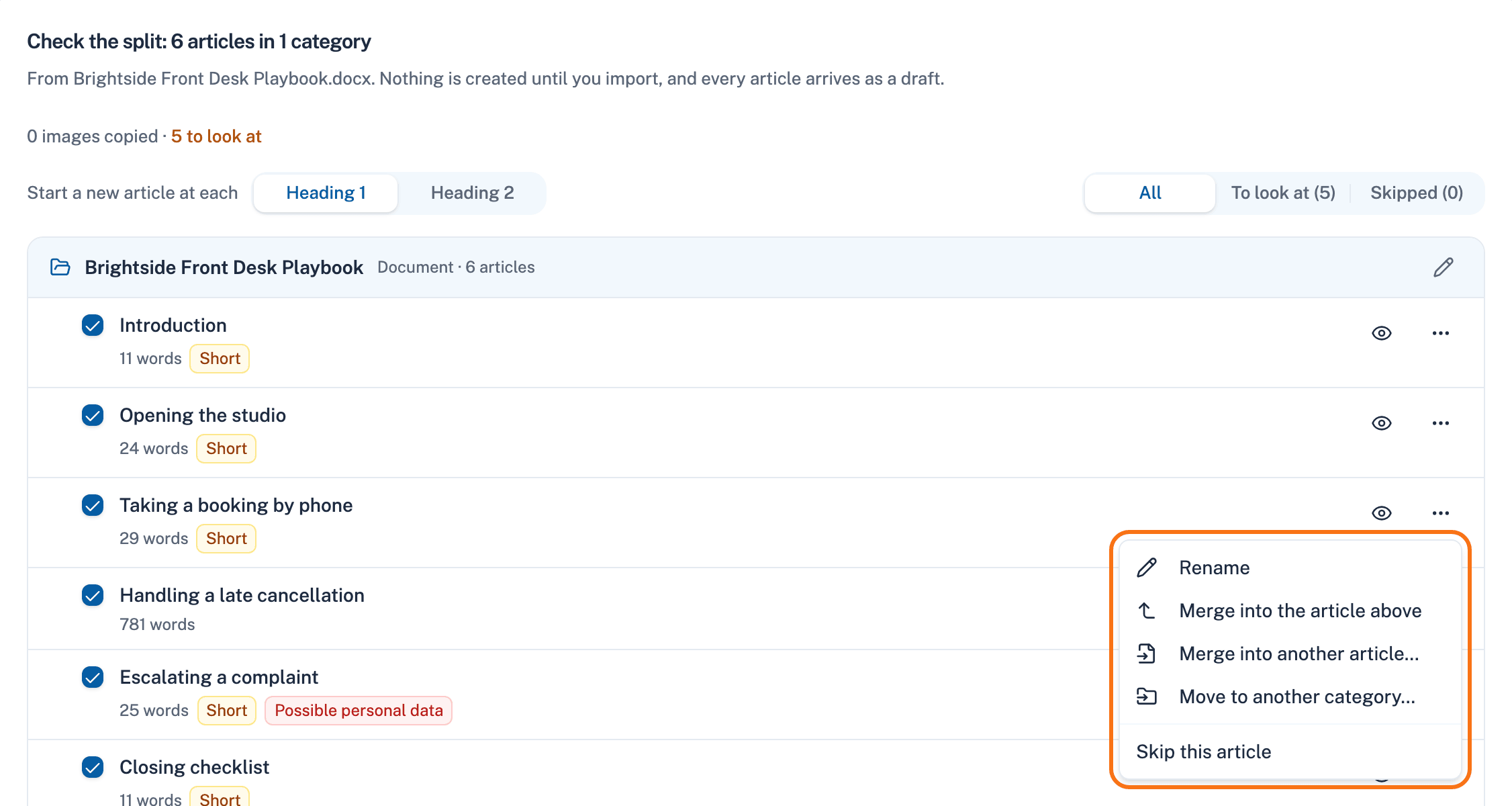
The Check the split step lists the categories and articles HelpSite proposes. Nothing is created until you click Import.
- Next to Start a new article at each, choose Heading 1 or Heading 2. With Heading 2, each Heading 1 becomes a subcategory.
- Click an article's title to preview it.
- Untick an article to leave it out.
- Open an article's menu (⋯) to Rename it, Merge into the article above, Merge into another article… or Move to another category….
- Click the pencil next to a category to rename it.
- Tags mark articles worth a second look, such as Long, Short or Possible personal data. Click To look at to show only those.
Merging into an article that's already published adds the text to a draft of that article, so nothing changes on your help center until you publish it.
What happens after the import?
HelpSite creates the draft articles and categories and shows What came across: a table comparing what was imported with what was in each document. Click Download the report to keep it, or Review your drafts to open your Articles list and publish them. To publish many at once, see Find, filter and bulk-edit articles.
- Images are copied into HelpSite, so they keep working if the document changes.
- Importing the same document again updates the articles from last time instead of creating copies. A draft is overwritten, and a published article gets a new draft, so nothing changes live until you publish.
- Your plan's article limit applies to the new articles.
Can HelpSite help with a large import?
Yes. If you have a whole folder of playbooks, or a document that won't split cleanly, click Get help with the import at the bottom of any importer step to email help@helpsite.com. The HelpSite team will do the import with you at no charge.