
Duplicate or delete a site
From Settings > Sites, you can copy a whole site with its categories and articles, or delete a site and everything in it.
You need to be an admin to do either.
How do I duplicate a site?
- In the sidebar, click Settings, then the Sites tab.
- Click the menu button at the end of the site's row, then Duplicate.
- In Company Title, enter a name for the copy.
- In Choose a HelpSite URL, enter an address for the copy. It must differ from the original's.
- Click Duplicate site.
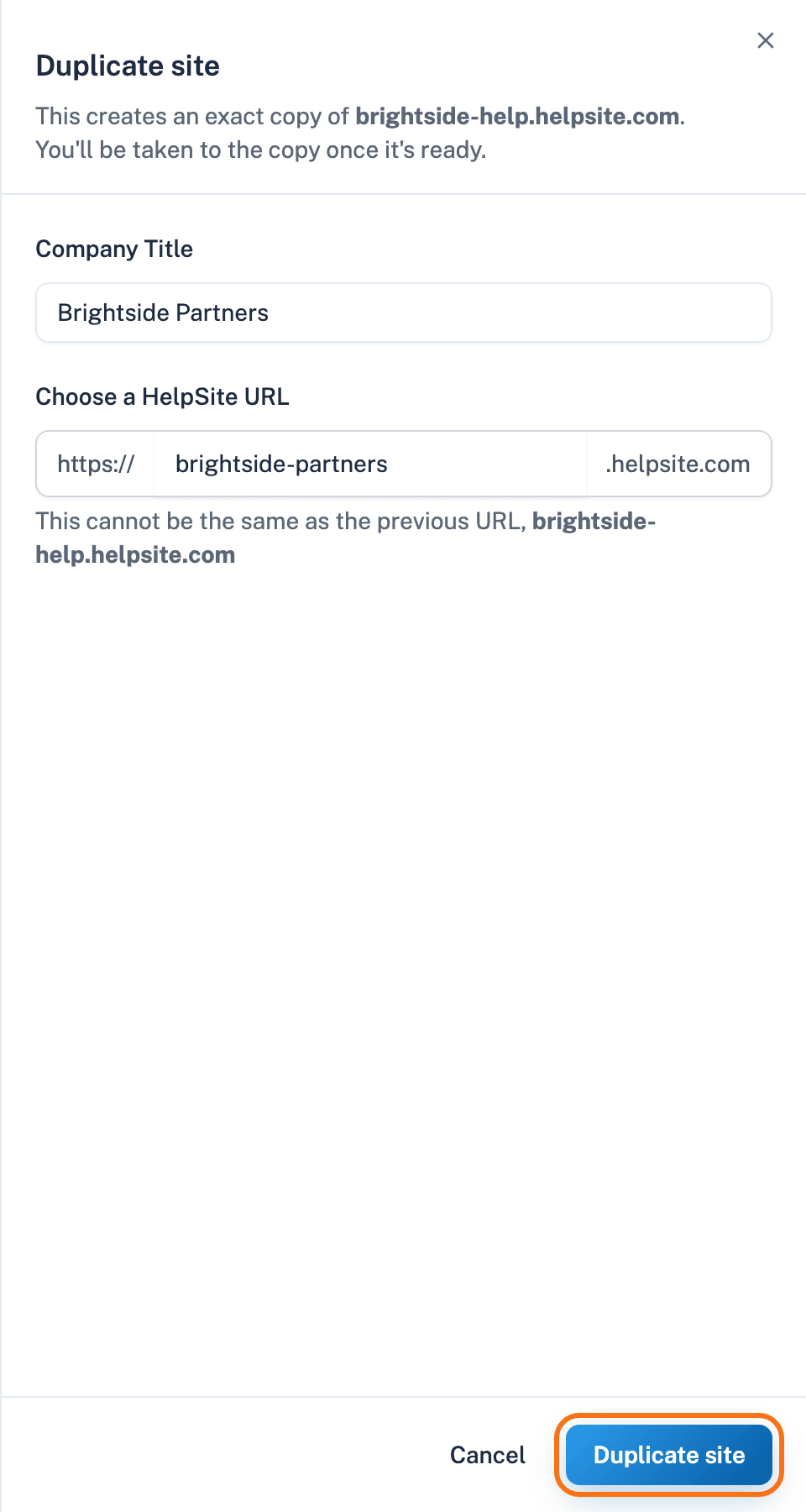
HelpSite creates the copy and opens its Customize site page.
What does a duplicate include?
- The site's settings and design.
- All its categories and subcategories.
- All its articles, each with the same status. Published articles in the copy are live at the copy's address.
Redirects, contact form messages, analytics, API keys and AI Chatbot conversations stay with the original site. To copy a single article to another site instead, see Duplicate an article.
How do I delete a site?
- Go to Settings > Sites.
- Click the menu button at the end of the site's row, then Delete.
- Read the list in the Delete Site dialog, then click Delete.
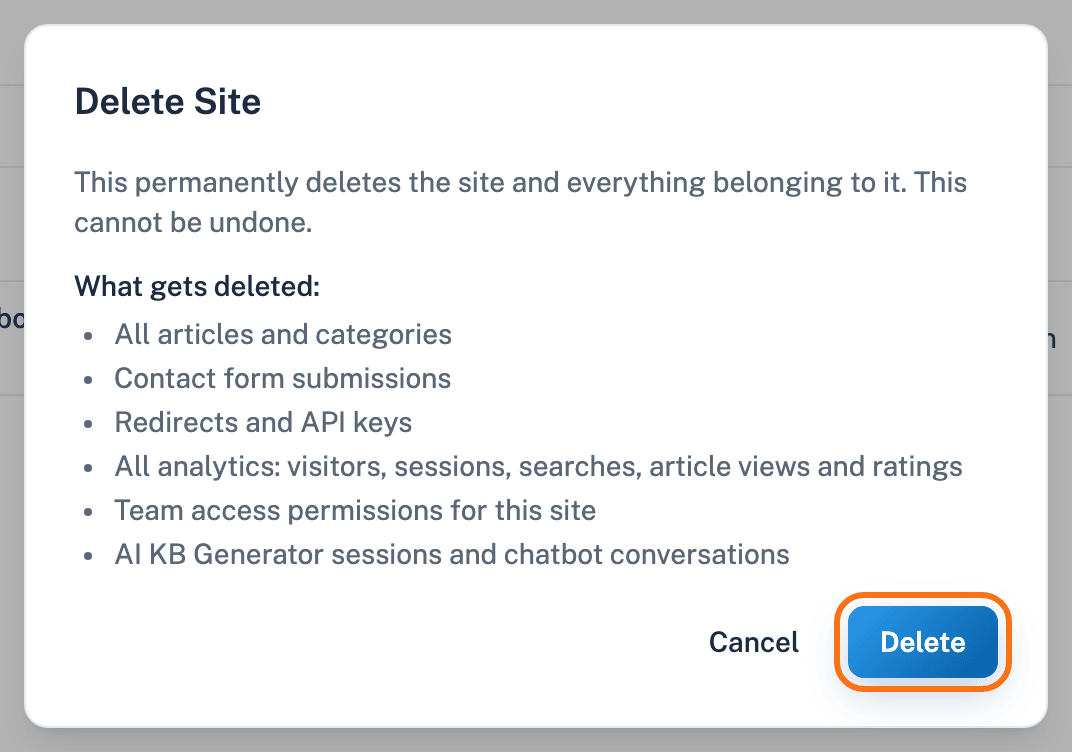
Deleting a site removes:
- all its articles and categories
- contact form submissions
- redirects and API keys
- all analytics: visitors, sessions, searches, article views and ratings
- team access permissions for the site
- AI KB Generator sessions and chatbot conversations
Deleting a site can't be undone, and its help center stops working straight away. To keep a copy of the articles, ask HelpSite support for an export first. See Export your site data.
If the site uses a custom domain, remove its DNS record at your domain provider afterwards. See Set up a custom domain.