
Duplicate an article
To copy an article, click the three dots (⋮) next to it on the Articles list and choose Duplicate, or use More actions > Duplicate in the editor. The copy is made in the same site and category.
How do I duplicate an article?
- In the sidebar, click Articles.
- Click the three dots (⋮) at the end of the article's row.
- Choose Duplicate.
- Click Duplicate Article to confirm.
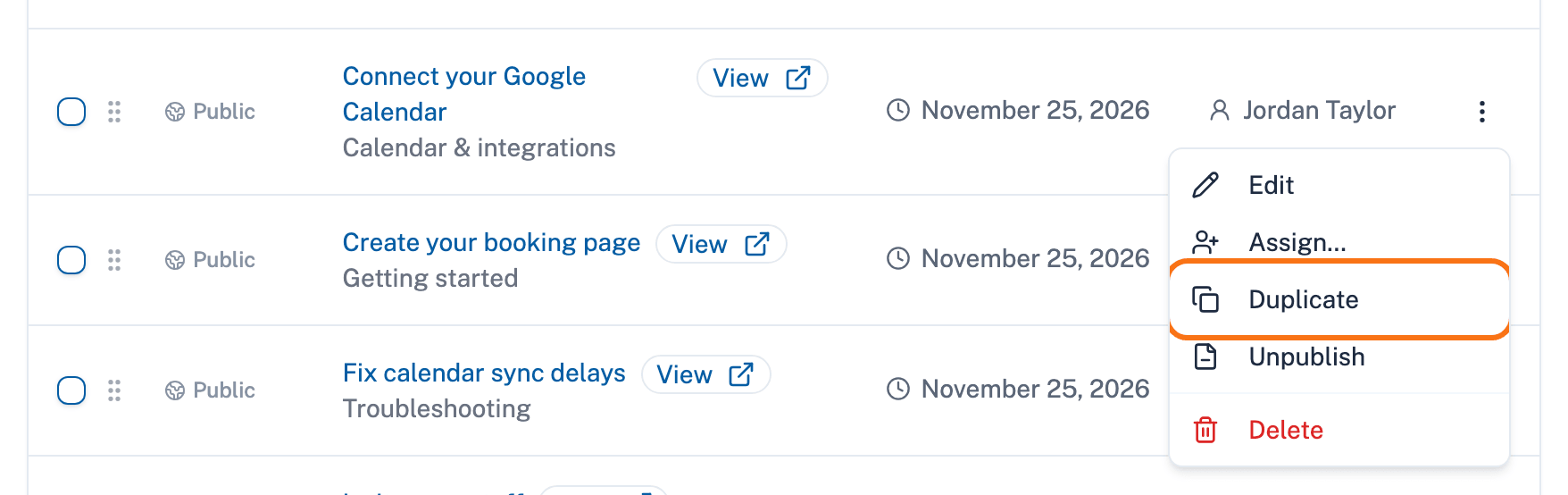
HelpSite opens the copy in the editor. It has the same content, category, visibility, status and search keywords as the original, and its title ends in "Copy".
A copy of a published article is published as soon as it's made. Rename it, or set its Status to Draft and save, before visitors find two articles with the same content.
Can I duplicate an article from the editor?
Yes. In the right-hand panel, click More actions > Duplicate, then Duplicate Article. The copy is made from the article as it was last saved.
Can I copy an article to another site?
Not one at a time. Duplicate makes the copy in the same site. To reuse a whole help center, duplicate the site: in Settings > Sites, click the menu next to the site and choose Duplicate. The new site gets copies of all its categories and articles. See Duplicate or delete a site.
For a single article, copy its content in the editor and paste it into a new article on the other site.