
Invite a team member
Admins invite team members from the Team tab in Settings. The person gets an email, sets a password and joins your account with the role you chose.
How do I invite a team member?
- In the sidebar, click Settings, then the Team tab. You can also click your name at the bottom of the sidebar and select Manage Team.
- Under Invite teammate, enter the person's address in Email.
- Select a Role. To see what each role can do, read Set team member roles and permissions.
- Click Invite.
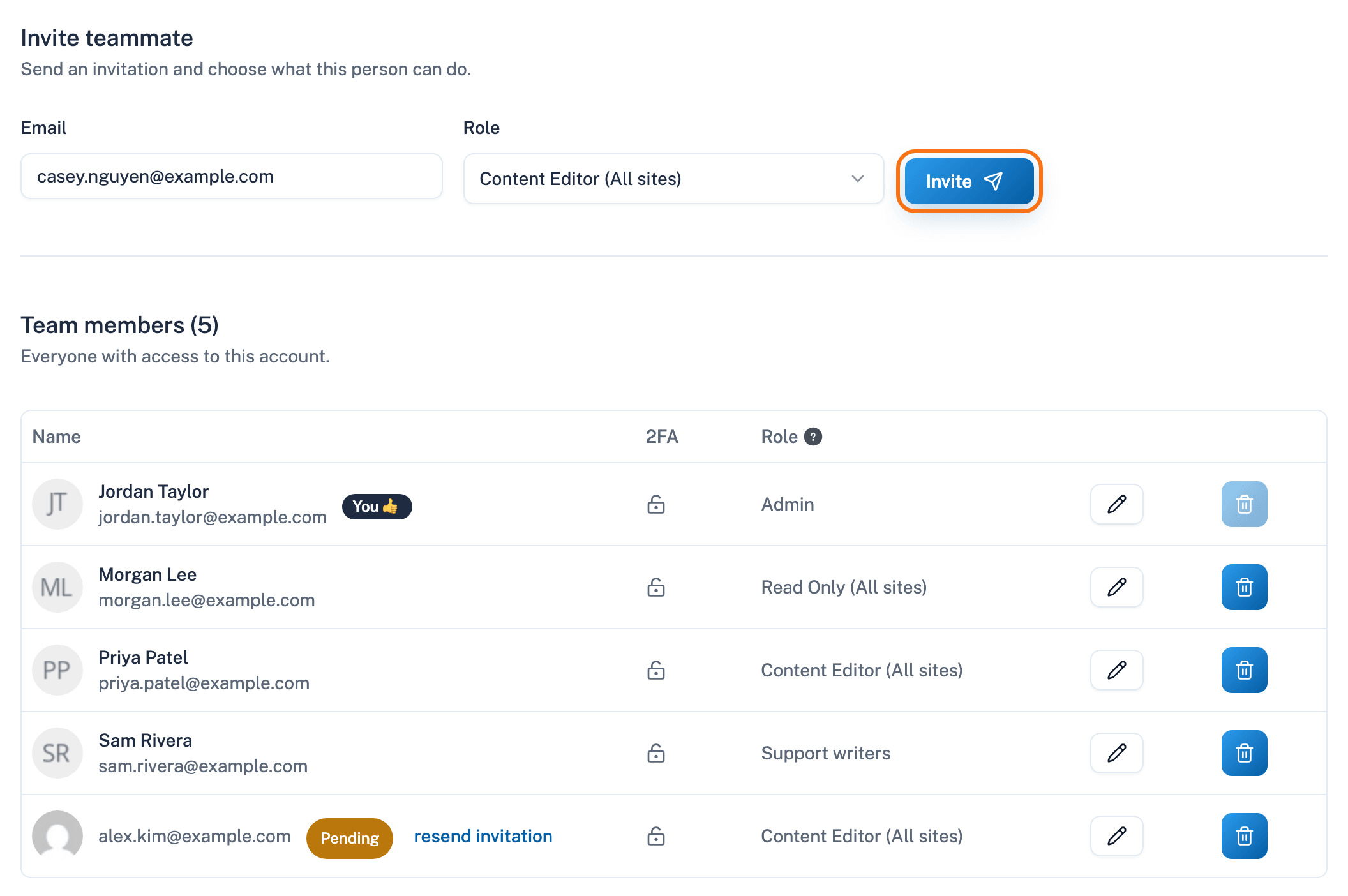
The person appears under Team members with a Pending label until they accept. Invitations don't expire.
What does the invited person do?
- Open the invitation email from HelpSite and click the link in it.
- On Set up your account, enter a Full name and a Password of at least 8 characters.
- Click Set my password.
Admins and Content Editors go to the HelpSite app. Read Only team members go to your help center, because they can read it but don't use the app.
How do I resend an invitation?
Click resend invitation next to the person's Pending label. If the email still doesn't arrive, ask them to check their spam folder.
How do I remove a team member?
- In the sidebar, click Settings, then the Team tab.
- Click the trash icon at the end of the person's row.
- Under Reassign articles/updates to, select who takes over as author and last editor of their articles. If you don't choose anyone, it's you.
- Click Delete.
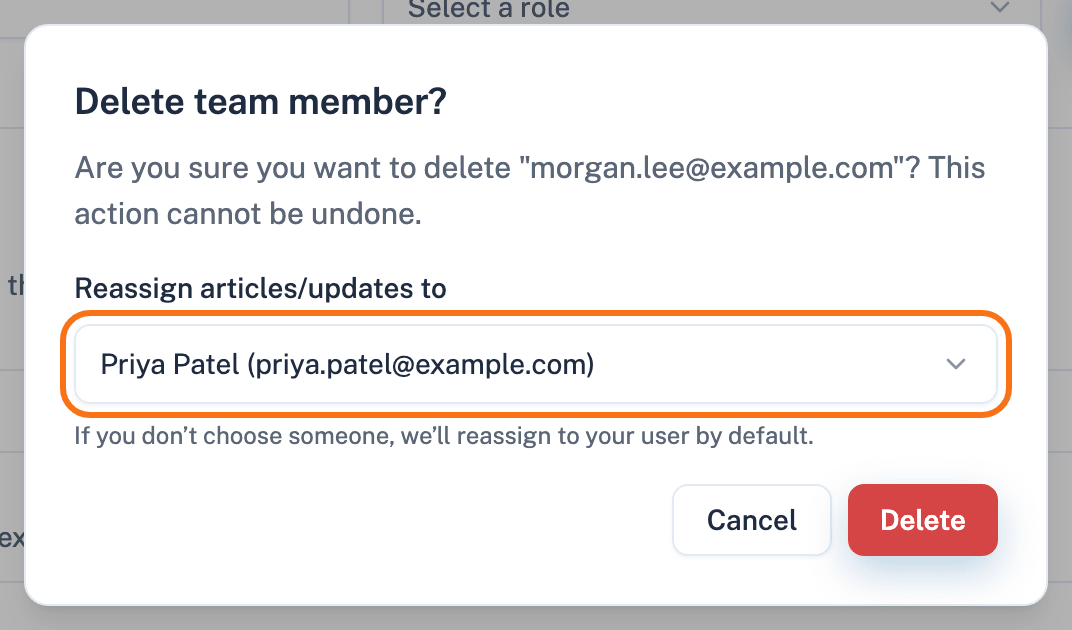
Removing a team member deletes their login and can't be undone. Their articles stay in your help center. To give them access again, send a new invitation.
Removing someone frees their place in your team member limit. You can't remove yourself from the Team tab.
Why can't I invite someone?
- You need to upgrade your plan before you can invite more team members. Your account has reached its team member limit, and pending invitations count toward it. See How team members are counted.
- Only Admin users may perform this action. Only Admins can invite, remove or change the role of team members.
- Email has already been taken. The address already has its own HelpSite login. See Set team member roles and permissions for how to fix it.
The 2FA column on the Team tab shows whether each person has turned on two-factor authentication. See Turn on two-factor authentication.