
Link to another article or a section of one
To link to another article, select the words you want to link, click Link in the editor toolbar, choose HelpSite article (internal) and pick the article. To link to a section of an article, copy that section's address from your live site and add it as an External URL.
How do I link to another article?
- Select the text you want to turn into a link, or put your cursor where the link should go.
- In the toolbar, click Link.
- Under Link Type, choose HelpSite article (internal).
- Type part of the title in Search Articles, then click the article under Select Article.
- Optional: change the words readers see in Link Label (optional). If you didn't select any text, the article's title is used.
- Click Save link.
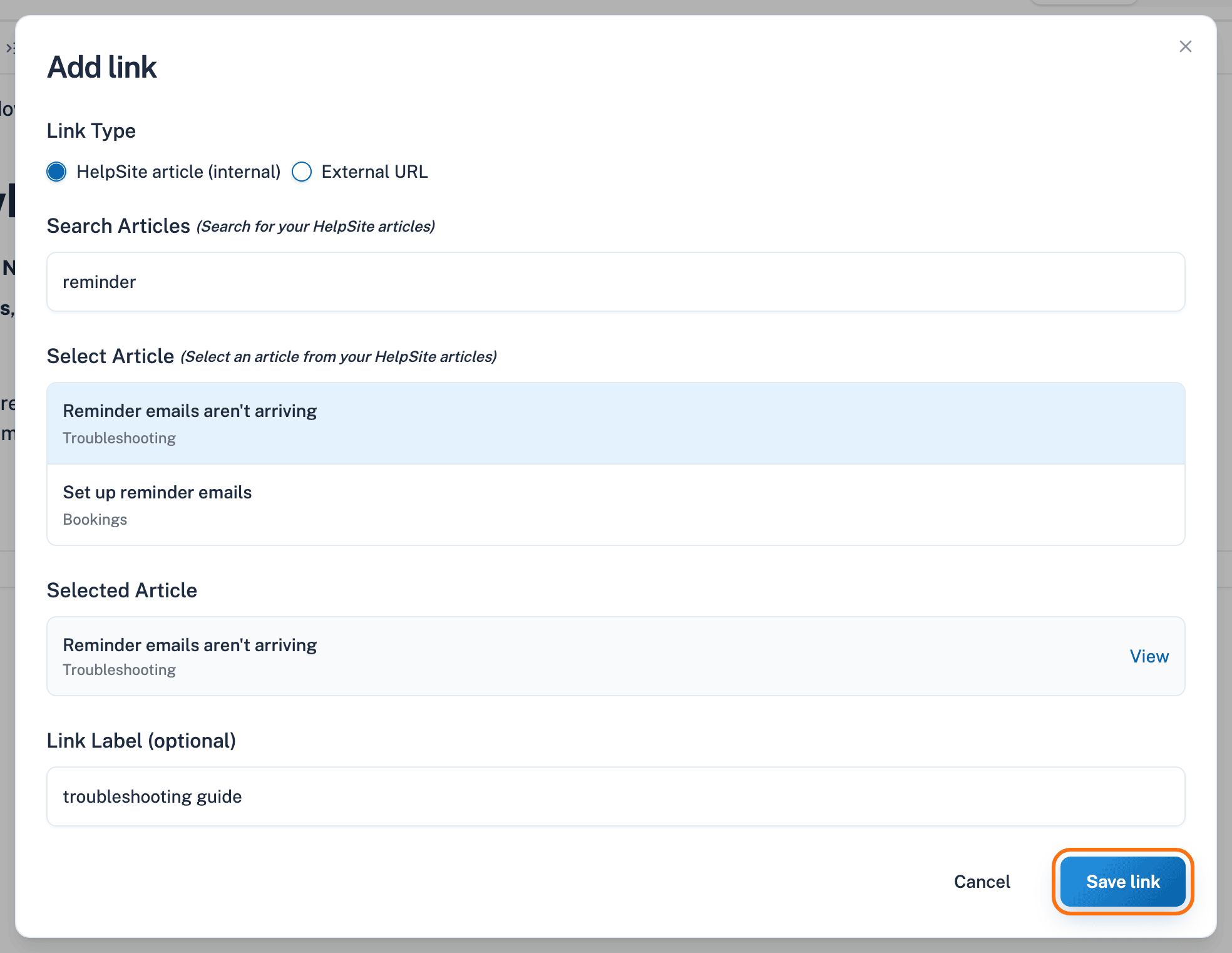
Only published articles appear in the list. Links to your own articles open in the same tab.
How do I link to a web page?
- Select the text, click Link and choose External URL.
- Paste the address into URL.
- Optional: fill in Label (optional).
- Click Save link.
External links open in a new tab.
How do I link to a section of an article?
Section links work when Table of Contents is turned on for your site. HelpSite then gives each Heading 2, 3 and 4 its own address and lists them in the table of contents beside the article. See Show a table of contents on articles.
- Open the article you want to link to on your live help center.
- In the table of contents (On this page, or In this article on the Clarity theme), click the section's heading. The address in your browser now ends in
#and the heading, for example#how-do-i-add-a-team-member.
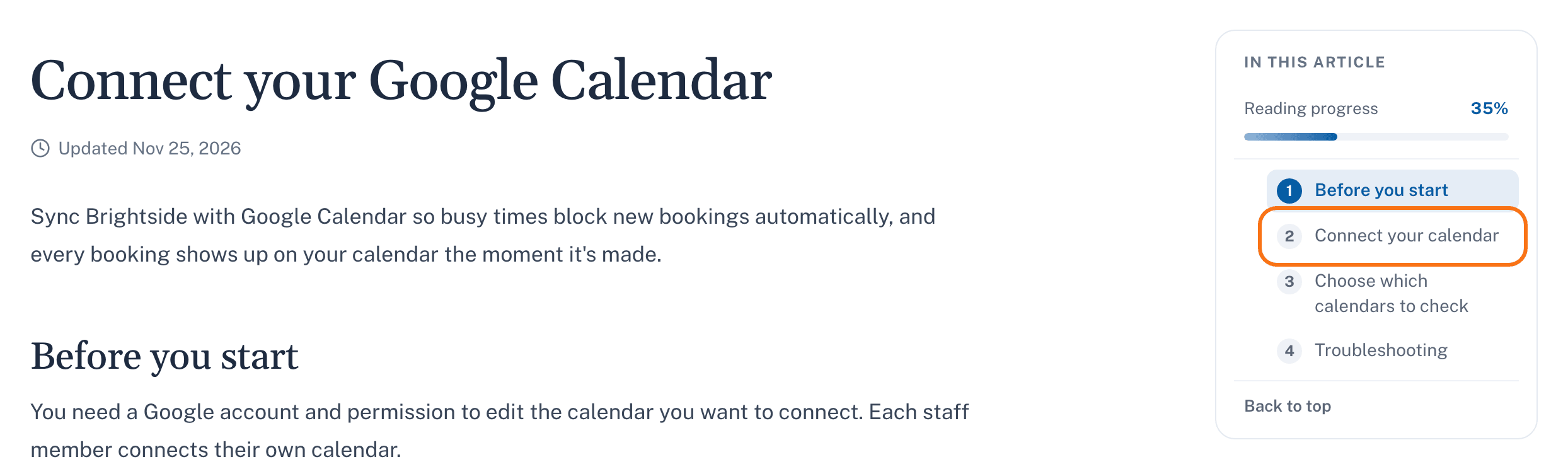
- Copy the full address from the browser.
- In the editor, select your link text, click Link, choose External URL and paste the address into URL.
- Click Save link.
The section part of the address comes from the heading text. If someone renames that heading, the link goes to the top of the article instead, so check section links after you edit headings.
How do I change or remove a link?
Click the link in the editor. A small bar appears with the link's address, Edit and Remove. Edit opens the link settings again, where Remove link also takes it out. The text stays when you remove a link.