
Edit a published article as a draft
When you edit a published article, HelpSite saves your changes to a private draft. Visitors keep seeing the published version until you click Publish & close or Publish & keep editing.
How do I edit a published article without changing the live version?
- In the sidebar, click Articles and open the published article.
- Make your changes to the title or content. HelpSite saves them to the draft about every 10 seconds.
- Check the panel on the right. It reads Draft saved with the time, and a note says Not live yet. Visitors see the published version until you publish.
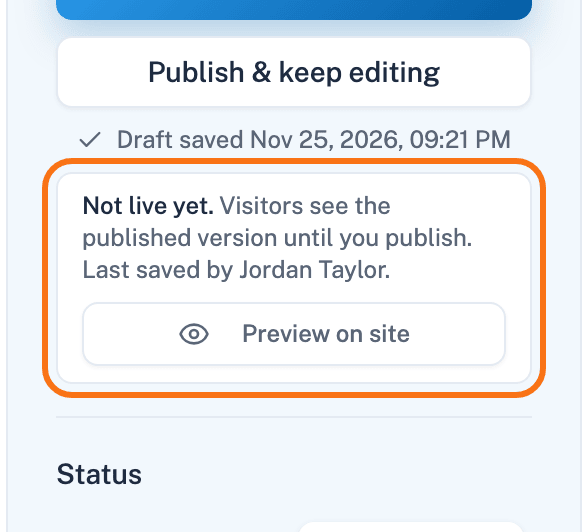
You can close the editor and come back later. The article opens on your draft, and the note shows who saved it last.
How do I see the draft on my site?
- Click Preview on site under the note, or More actions > Preview on site.
- The article opens in a new tab in your site's theme, with a banner saying you're seeing unpublished changes.
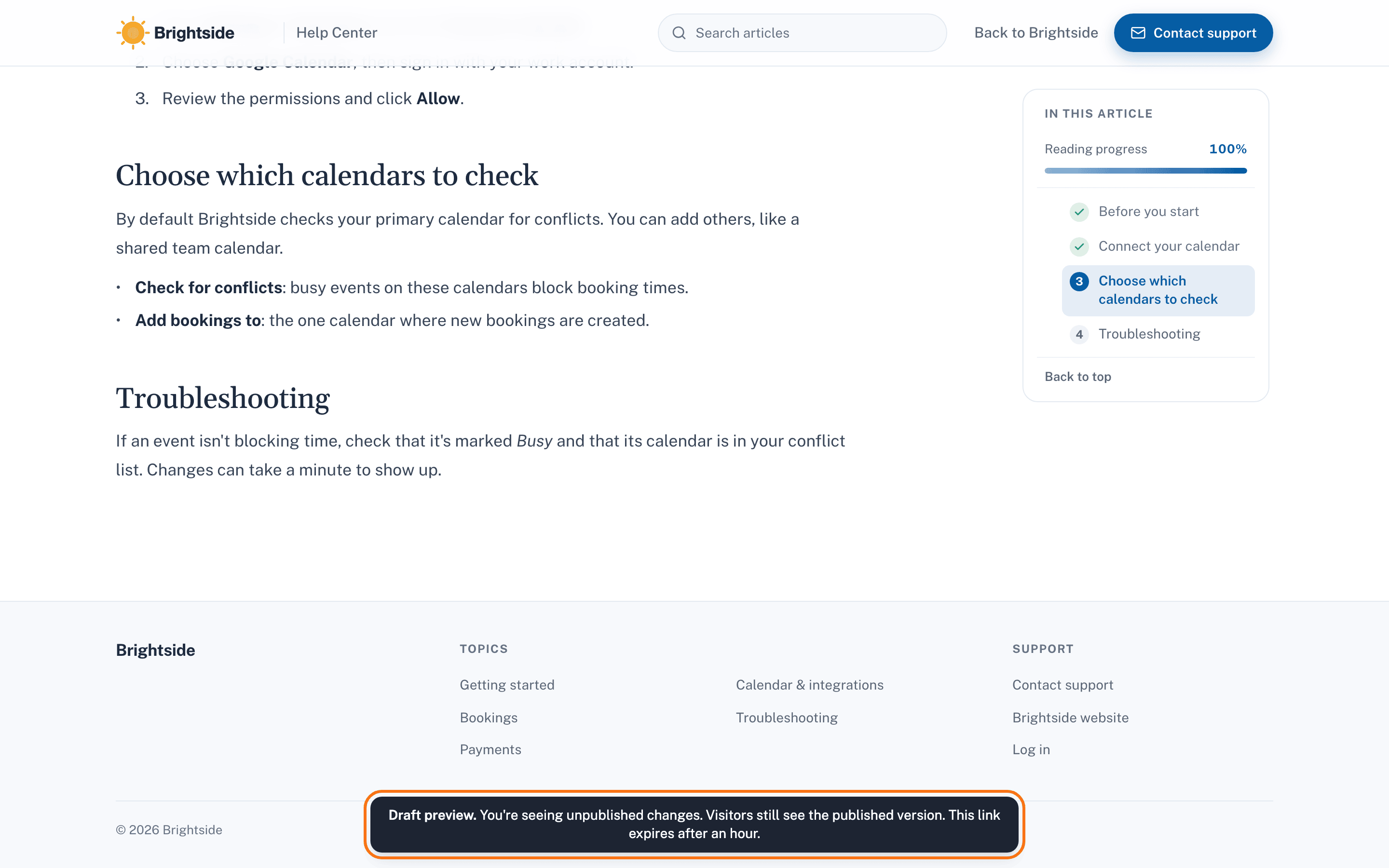
The preview link works for one hour. Anyone who has the link during that hour can see the draft, even on a private site, so share it only with people who should see it.
How do I publish my changes?
- Make sure Status is set to Published.
- Click Publish & close, or Publish & keep editing to stay in the editor.
Your changes replace the live article straight away, and the draft is cleared.
Changes to Visibility, Category, Search keywords and Author aren't saved to the draft. They're saved when you click a Publish or Save button, together with your content.
Who else sees my draft?
An article has one draft, shared by everyone on your team who edits it. If a teammate opens the article, they see your draft and can keep working on it or publish it.
What if someone else saves the article while I'm editing?
HelpSite checks before every save. If the article changed since you opened it, in another tab or by a teammate, your save is paused and the panel reads Not saved: this article changed elsewhere. A dialog, This article changed while you were editing, asks which version to keep:
- Keep my version saves what's in your editor over the other save.
- Use the saved version loads the other save into your editor. Your unsaved edits are discarded.
- Decide later closes the dialog. Nothing is saved or overwritten until you choose. Click Choose a version under the save status to open the dialog again.
HelpSite doesn't warn you when someone opens an article you're editing. To avoid clashes, agree who's working on an article, or assign it to one person. See Assign articles to team members.
What if the article was changed through the API?
If an API key or an AI tool updates the published article after you start your draft, a warning appears above the title: This article was updated through the API after you started this draft. Publishing your draft as it is would replace those changes.
- Click Compare with published to see your draft next to the live version, then copy over anything you want to keep.
- Click Discard my draft, then Discard draft, to delete your unpublished edits and load the live version. This can't be undone.
How do I take the article off my site instead?
Set Status to Draft and click Save & close, or on the Articles list click the three dots (⋮) next to the article and choose Unpublish. The article leaves your site, and your latest edits become its working copy.