
Set up a custom domain
A custom domain puts your help center at your own address, such as help.yourcompany.com, instead of yourname.helpsite.com. You add a CNAME record with your domain provider, enter the domain in Customize site > General, and HelpSite sets up HTTPS for it.
Before you start
- Pick a subdomain of your domain for the help center, such as
helporsupport. A CNAME record can't go on the bare domain (yourcompany.com). - Find your HelpSite URL: in the sidebar, click Customize site and look under URL. You need it for the CNAME record, for example
yourname.helpsite.com. - Make sure you can edit DNS records with your domain provider (your registrar, Cloudflare, AWS Route 53 or similar).
How do I set up a custom domain?
- With your domain provider, create a CNAME record. Set the name (or host) to your subdomain, such as
help, and the value (or target) to your HelpSite URL, such asyourname.helpsite.com. - Wait for the record to take effect. It often takes a few minutes and can take a few hours.
- In HelpSite, click Customize site in the sidebar. The General tab opens.
- In Custom Domain (Optional), enter your full domain, such as
help.yourcompany.com, withouthttps://. - Click Update Site.
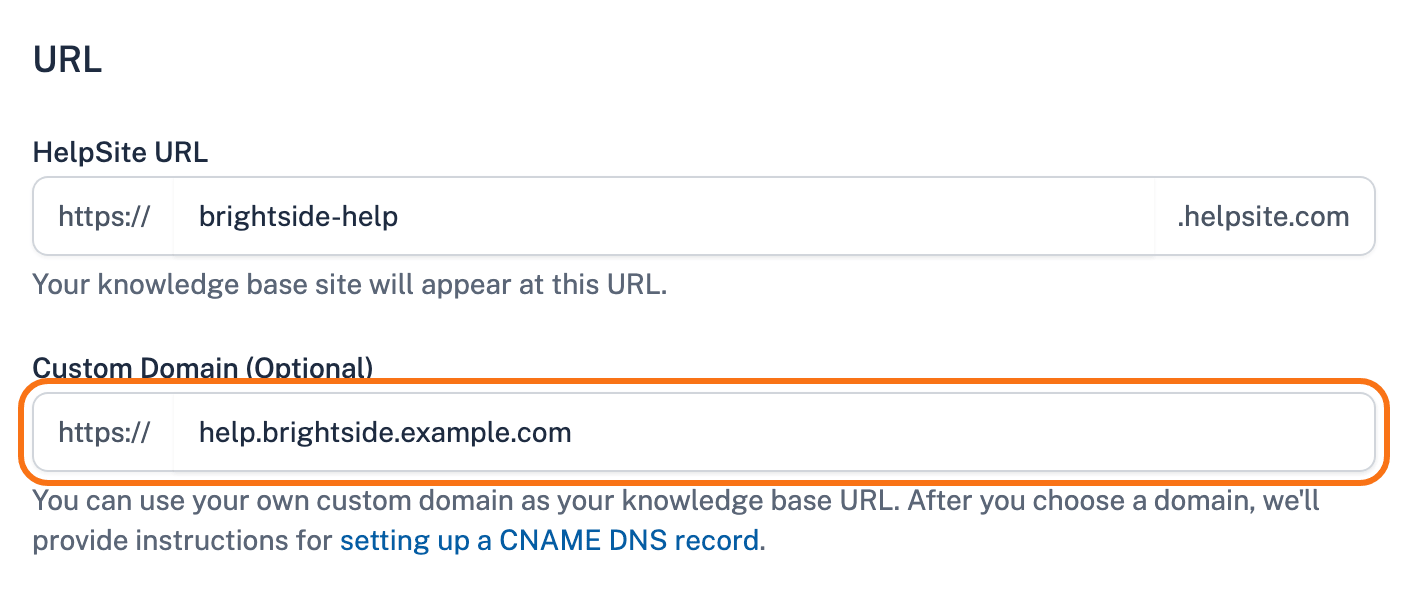
When you click Update Site, HelpSite looks up your CNAME record. Once it finds the record, it sets up an HTTPS certificate for the domain, usually within a few minutes, and your help center opens at https://help.yourcompany.com. The app doesn't show a status for the domain, so visit the address to check.
If the record hadn't taken effect yet when you saved, wait a while and click Update Site again. HelpSite checks the record each time you save until it finds it.
Do I need to set up SSL myself?
No. HelpSite creates and renews the HTTPS (SSL/TLS) certificate for your custom domain, so there's nothing to upload. Your HelpSite URL already uses HTTPS.
I use Cloudflare. What do I change?
Set the CNAME record's proxy status to DNS only (grey cloud), not Proxied (orange cloud). HelpSite can't see a proxied record, so it can't verify the domain or set up its certificate.
My domain has CAA records. What do I add?
Most domains have no CAA records, and then you can skip this. If yours has them, they must allow the authorities that issue your help center's certificate. Add issue records for letsencrypt.org and pki.goog:
yourcompany.com.  CAA  0 issue "letsencrypt.org"
yourcompany.com.  CAA  0 issue "pki.goog"
What happens to my HelpSite URL?
It keeps working. Pages tell search engines that your custom domain is the main address, so search results move to it over time. Link to the custom domain from your website.
How do I change or remove a custom domain?
- In Customize site > General, change or clear Custom Domain (Optional).
- Click Update Site.
HelpSite stops serving the old domain straight away. For a new domain, create its CNAME record first, as above.
What if I see "could not be verified"?
HelpSite found your CNAME record but couldn't set up the certificate. Check the record points at your HelpSite URL and isn't proxied, then click Update Site again. If the message stays, contact us at help@helpsite.com.