
Make your help center private
A private help center can only be read by the people you choose: invited team members, anyone with a shared password or secret link, or people your own app signs in with a JWT. You choose in Customize site > Privacy, separately for each site.
What are the privacy options?
The Privacy tab has two public options and three private ones.
Publicly available
- Visible to search engines: anyone can read the help center, and search engines can list it. This is the default.
- Hidden from search engines: anyone with the URL can read it, but HelpSite asks search engines not to list it.
During a free trial with no card added, HelpSite keeps your help center out of search engines whichever option you choose. The Privacy tab shows a notice while this applies.
Private
- Visible to invited users only: readers log in with their own HelpSite login. Invite them as team members on the Team tab (the Invite & manage users link takes you there), and give people who only need to read the Read only role. Removing someone from the team removes their access.
- Requires a shared password (or secret link): anyone who enters the password can read the help center, with no HelpSite login. You can also share the Secret Link, which has the password in it, so people don't need to type it. Changing the password locks out everyone who used the old one.
- Requires a JWT (JSON Web Token) for SSO: your own website or app signs people in with a token, so they never see a HelpSite login. It needs code on your server. See Set up single sign-on with JWT.
How do I make my help center private?
- If you have more than one site, choose the site in the site switcher at the top of the page.
- In the sidebar, click Customize site.
- Click the Privacy tab.
- Under Private, select the option you want.
- For a shared password, enter the password in the box below the option.
- Click Save.
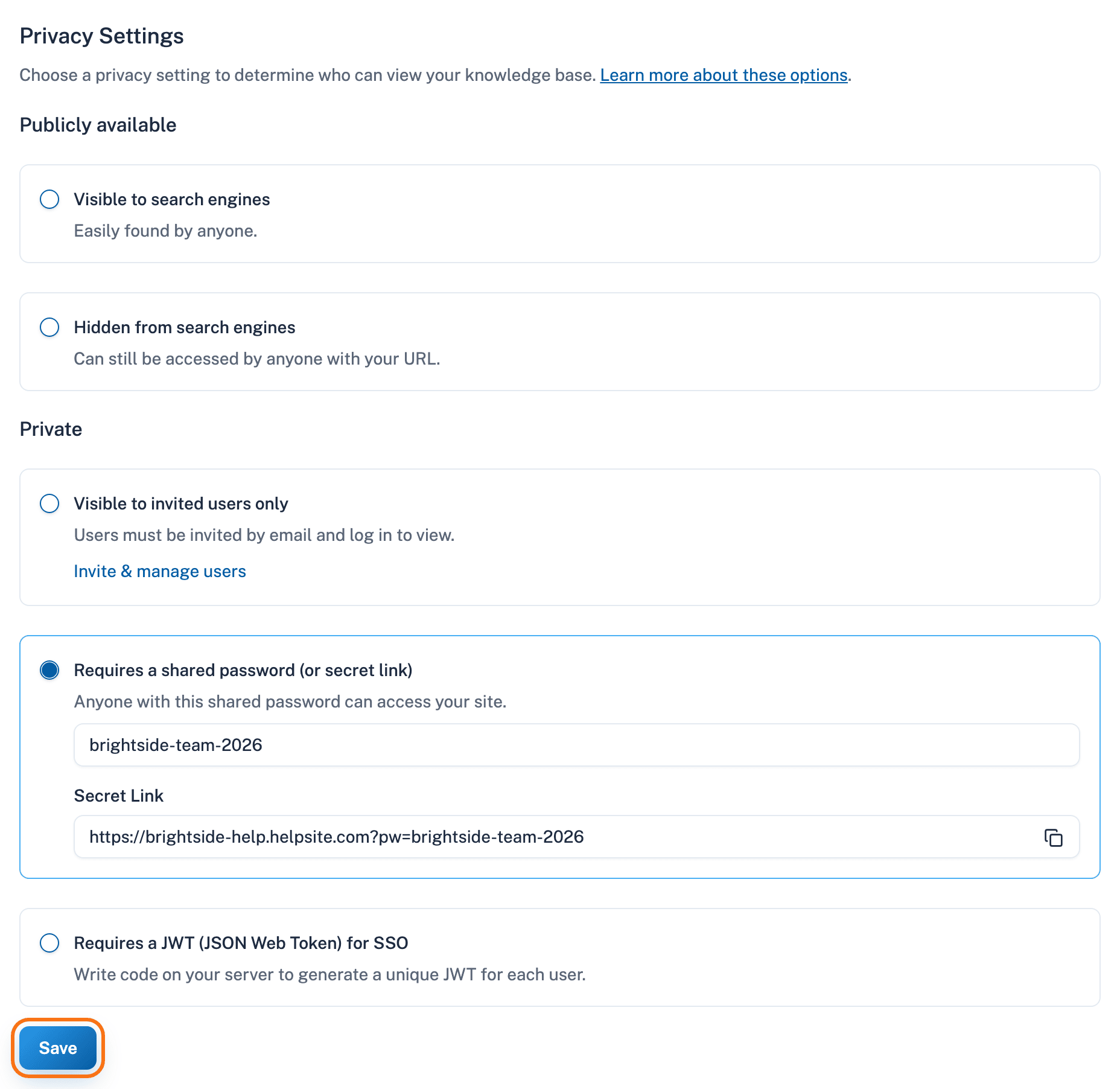
The page reloads with the new setting, and visitors who don't have access now see a login page. For a shared password, copy the Secret Link to share it. For JWT, copy the Secret Key for your developer.
You can also open these settings from Settings > Sites: click the Site actions menu (⋮) on the site's row and select Privacy.
Can I keep only some articles private?
Yes. Leave the help center public and set those articles' visibility to Internal. Internal articles are visible to team members who are logged in, and to visitors signed in with a valid JWT. See Set an article's visibility to internal or public.
Can I use SAML, Okta or Google sign-in?
No. HelpSite doesn't connect to identity providers such as Okta, Microsoft Entra ID or Google Workspace. If your own app can create tokens, JWT single sign-on lets its users in without a HelpSite login.