
Format text in the article editor
The toolbar above the Content box formats your article: headings, lists, quotes, callouts, colors, links, tables and more. Hover over a button to see its name and keyboard shortcut.
On a narrow screen, the buttons that don't fit move into the More formatting options menu (⋮) at the end of the toolbar.

What does each toolbar button do?
| Button | What it does |
|---|---|
| Undo, Redo | Undo or redo your last change. |
| Headings | Turns the line into Paragraph or Heading 1 to Heading 6. |
| Lists | Ordered (numbered), Bullet or Checkbox lists. |
| Indent | Indent or Decrease. In a list, this nests the item under the one above. |
| Code block | A block for code or commands, shown in a fixed-width font. |
| Quote | Formats the paragraph as a quote. |
| Callout | A tinted box for a note, tip, warning or danger. See Add a callout. |
| Text color, Highlight | Color the text or its background. Pick a preset color or enter a HEX or RGB value. Clear Highlight removes a highlight. |
| Bold, Italic, Underline, Strikethrough | Text styles. |
| Link | Links to another article or a web page. See Link to another article or a section of one. |
| Align left, Align center, Align right, Justify | Aligns text, and images or videos you've selected. |
| Clear formatting | Removes bold, italic, colors, highlights and links from the selected text. |
| Divider | Adds a horizontal line between sections. |
| Table tools | Adds and edits tables (see below). |
| Add | Adds a File, Image or Video. |
| Superscript, Subscript | Raised or lowered text, such as m² or H₂O. |
| Export PDF | Downloads the article as a PDF. See Print an article or save it as a PDF. |
| Open HTML editor | Shows the article's HTML so you can edit it directly. Click Close HTML editor to go back. |
Use Heading 2 for the main sections of an article and Heading 3 under it. The article title is already the page's main heading, so a Heading 1 in the content shows as a Heading 2 on your site.
How do I add and edit a table?
- Put your cursor where the table should go.
- Click Table tools, then Insert Table. You get three rows and three columns, with a header row.
- Click in a cell and open Table tools again to Add Row, Delete Row, Add Column or Delete Column.
- To color a cell, click in it, open Table tools and pick a color. Clear removes it.
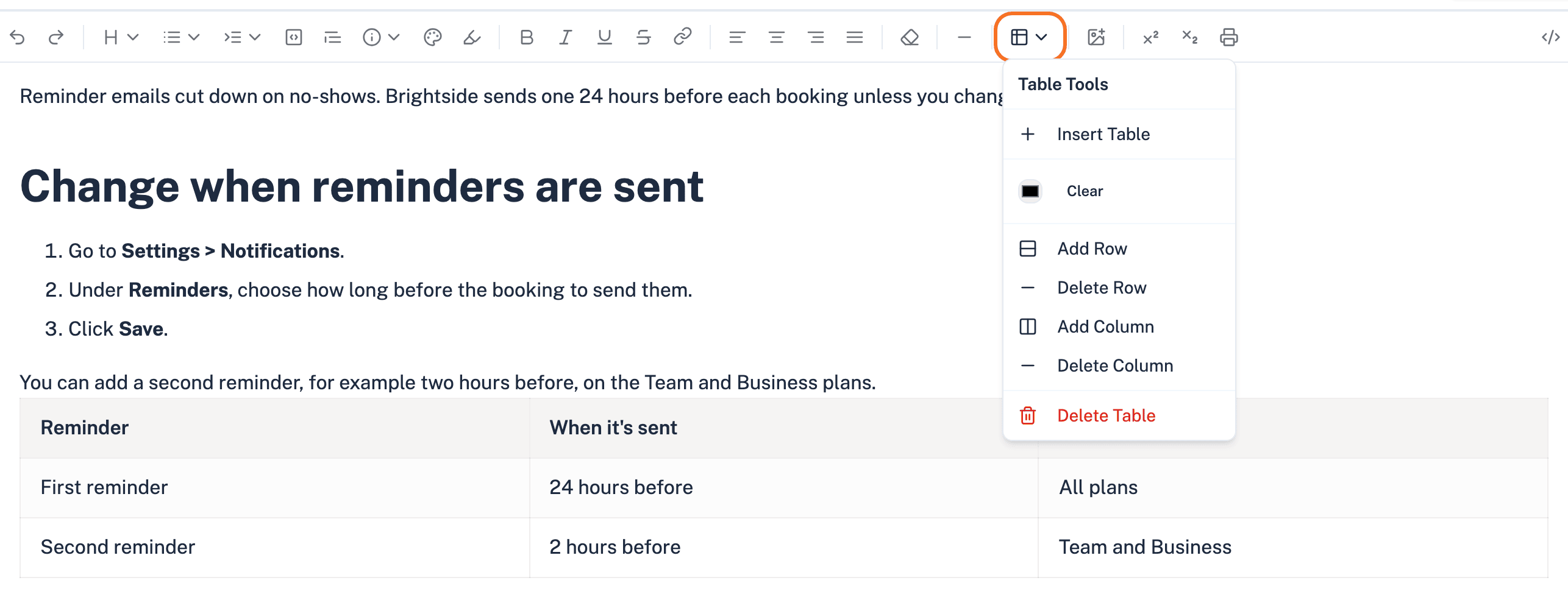
Drag a column border to change its width. Delete Table removes the whole table.
What keyboard shortcuts can I use?
| Action | Shortcut |
|---|---|
| Bold, italic, underline |
⌘B (Mac) or Ctrl+B (Windows), ⌘I (Mac) or Ctrl+I (Windows), ⌘U (Mac) or Ctrl+U (Windows) |
| Undo, redo |
⌘Z (Mac) or Ctrl+Z (Windows), ⇧⌘Z (Mac) or Ctrl+Y (Windows) |
| Heading 1 to Heading 6 |
⌘⌥1 (Mac) or Ctrl+Alt+1 (Windows) to 6
|
| Back to a paragraph |
⌘⌥0 (Mac) or Ctrl+Alt+0 (Windows) |
| Numbered, bullet, checkbox list |
⌘⇧7 (Mac) or Ctrl+Shift+7 (Windows), 8, 9
|
| Quote |
⌘⇧B (Mac) or Ctrl+Shift+B (Windows) |
| Superscript, subscript |
⌘. (Mac) or Ctrl+. (Windows), ⌘, (Mac) or Ctrl+, (Windows) |
| Full-screen editor |
⌘⇧F (Mac) or Ctrl+Shift+F (Windows). Press Esc to leave full screen. |
You can also type Markdown-style shortcuts at the start of a line: ## and a space for Heading 2, - and a space for a bullet list, 1. and a space for a numbered list, > and a space for a quote, or ``` for a code block.
Can I edit the HTML directly?
Yes. Click Open HTML editor at the right end of the toolbar, make your changes, then click Close HTML editor. The other toolbar buttons are turned off while the HTML editor is open.
The editor keeps only the content and formatting it supports, so some HTML you paste in may be changed or removed when you close the HTML editor. Scripts never run on published articles.
A word count shows under the editor while you write.
How do I see the article on my site before publishing?
In the right-hand panel, click More actions > Preview on site. The article opens in a new tab in your site's theme, with your latest saved changes. The preview link works for one hour.