
Add images and files to an article
To add an image or a file, click Add in the editor toolbar and choose Image or File. Images can be up to 10 MB each and files up to 25 MB. You can also paste a screenshot straight into the article.
How do I add an image?
- Put your cursor where the image should go.
- In the toolbar, click Add, then Image.
- On the Upload tab, drag your image into the box or click it to choose a file. To use an image that's already online, open the Link tab and paste its address into Image URL.
- Describe the image in Alt text (optional). Screen readers read it aloud, and search engines use it.
- Click Insert.
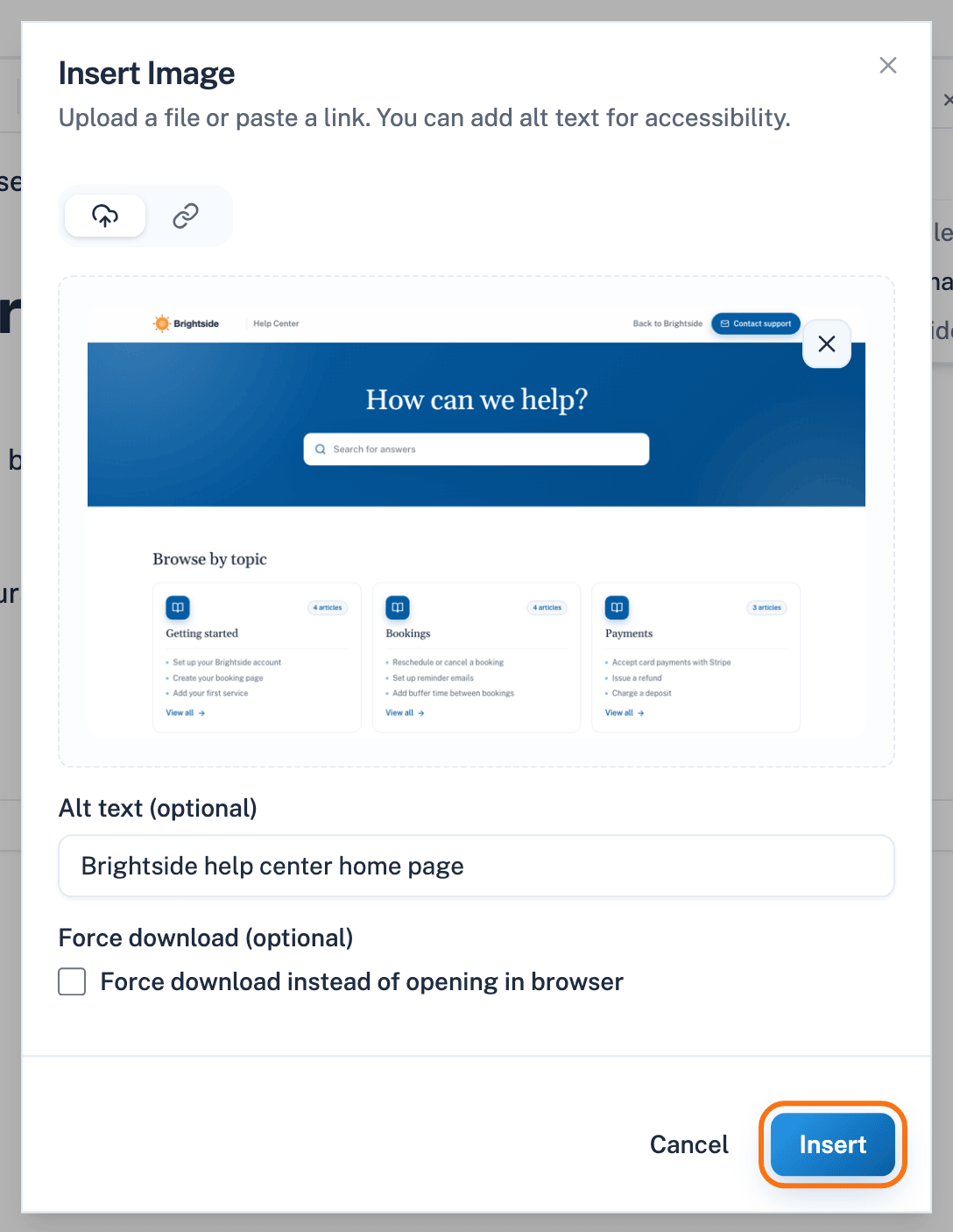
The image appears at your cursor. It's saved with the article and goes live when you publish.
Images over 10 MB are refused with a File too large message, even though the upload box mentions 25 MB. Compress or resize larger images first.
Can I paste a screenshot?
Yes. Copy an image or screenshot and paste it into the editor with ⌘V (Mac) or Ctrl+V (Windows). HelpSite uploads it and shows an Images pasted message when it's done. Images pasted from Google Docs or Word are uploaded the same way.
How do I resize, align or describe an image?
- Resize: click the image and drag the small handle at its bottom-right corner.
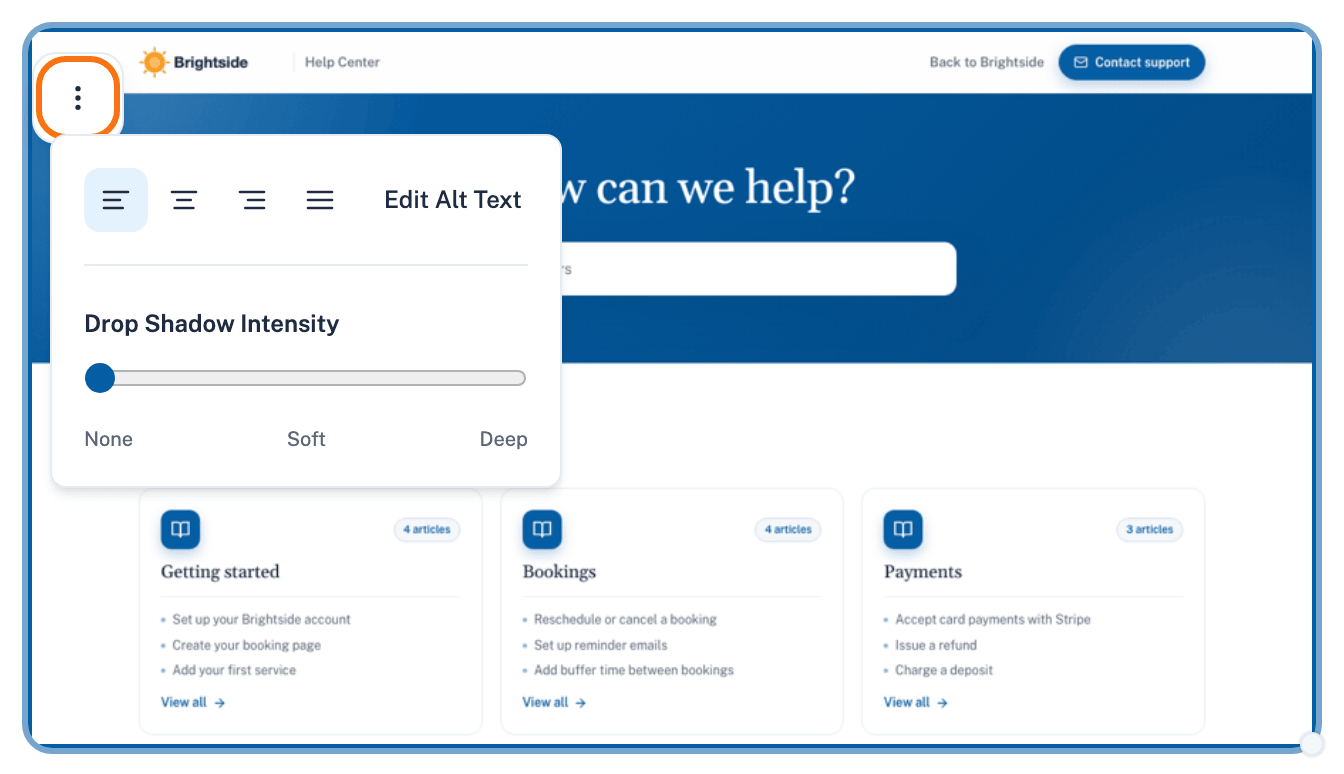
- Align: click the image, then its More image options button (⋮), and choose left, center, right or justify. The toolbar's align buttons work on a selected image too.
-
Alt text: in the same menu, click Edit Alt Text, type a description of up to 125 characters, and press
Enter. - Drop shadow: in the same menu, drag the Drop Shadow Intensity slider from None to Deep.
How do I attach a file?
- Put your cursor where the file link should go.
- In the toolbar, click Add, then File.
- On the Upload tab, drag the file into the box or click it to choose one. Any file type works, up to 25 MB. To link a file that's hosted elsewhere, open the URL tab and paste its address into File URL.
- Optional: type the text readers should see in Alt text (optional). If you leave it empty, the link shows the file name.
- Optional: tick Force download instead of opening in browser and give a Download filename (optional).
- Click Insert.
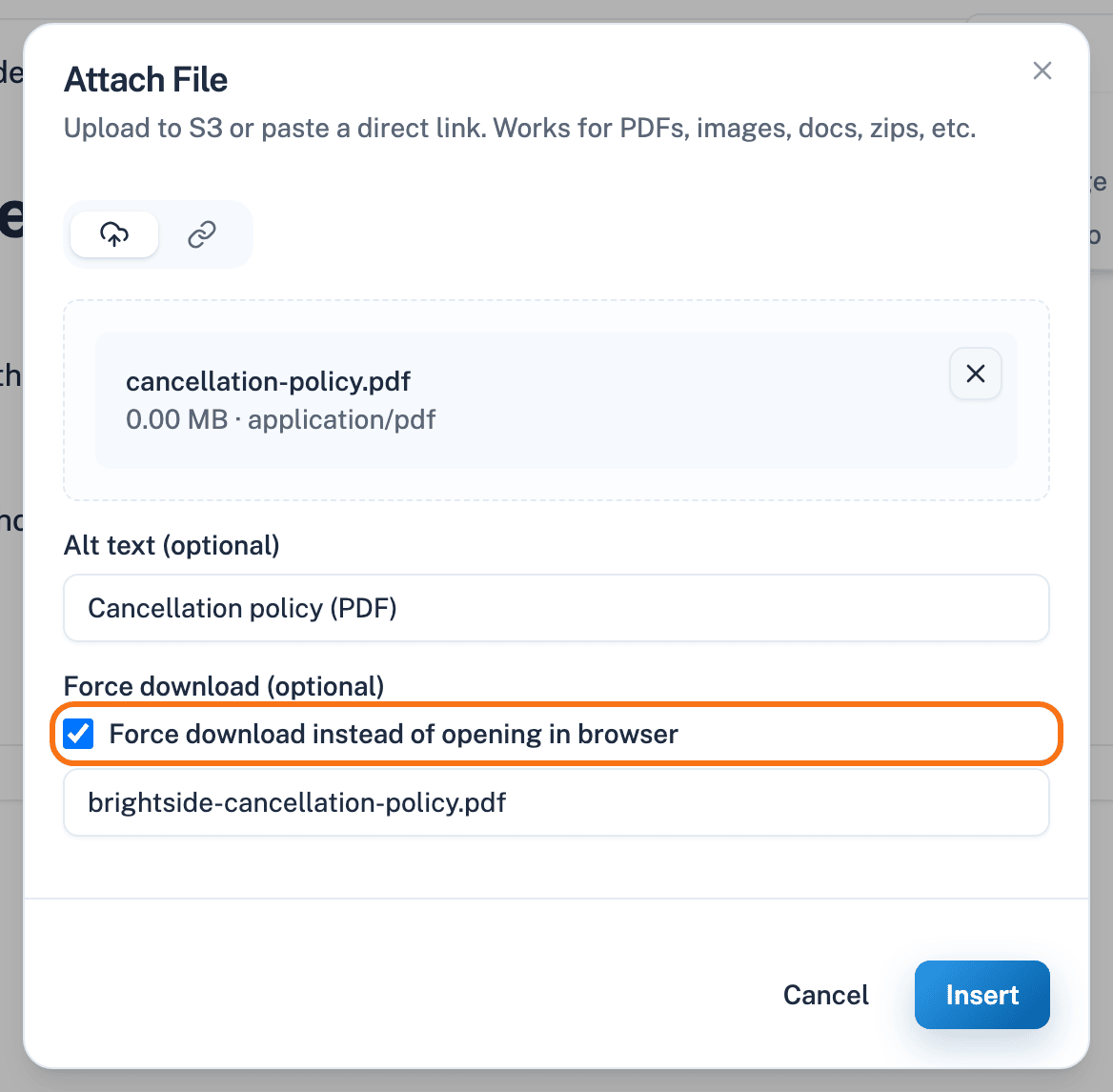
The file appears in the article as a link that opens in a new tab.
What are the size limits?
| What | Limit |
|---|---|
| Image (Add > Image) | 10 MB, image files only |
| File (Add > File) | 25 MB, any file type |
| Video (Add > Video) | 200 MB. See Add a video to an article. |
If an upload fails, check the file size first, then try again on a stable connection.