
Show a table of contents on articles
HelpSite can show a table of contents beside each article, listing its headings so readers can jump to a section. It's on for new sites, and you turn it on or off for the whole site in Customize site > General.
How do I turn the table of contents on or off?
- In the sidebar, click Customize site. The General tab opens.
- Scroll to Site behavior.
- Switch Table of Contents on or off.
- Click Update Site.
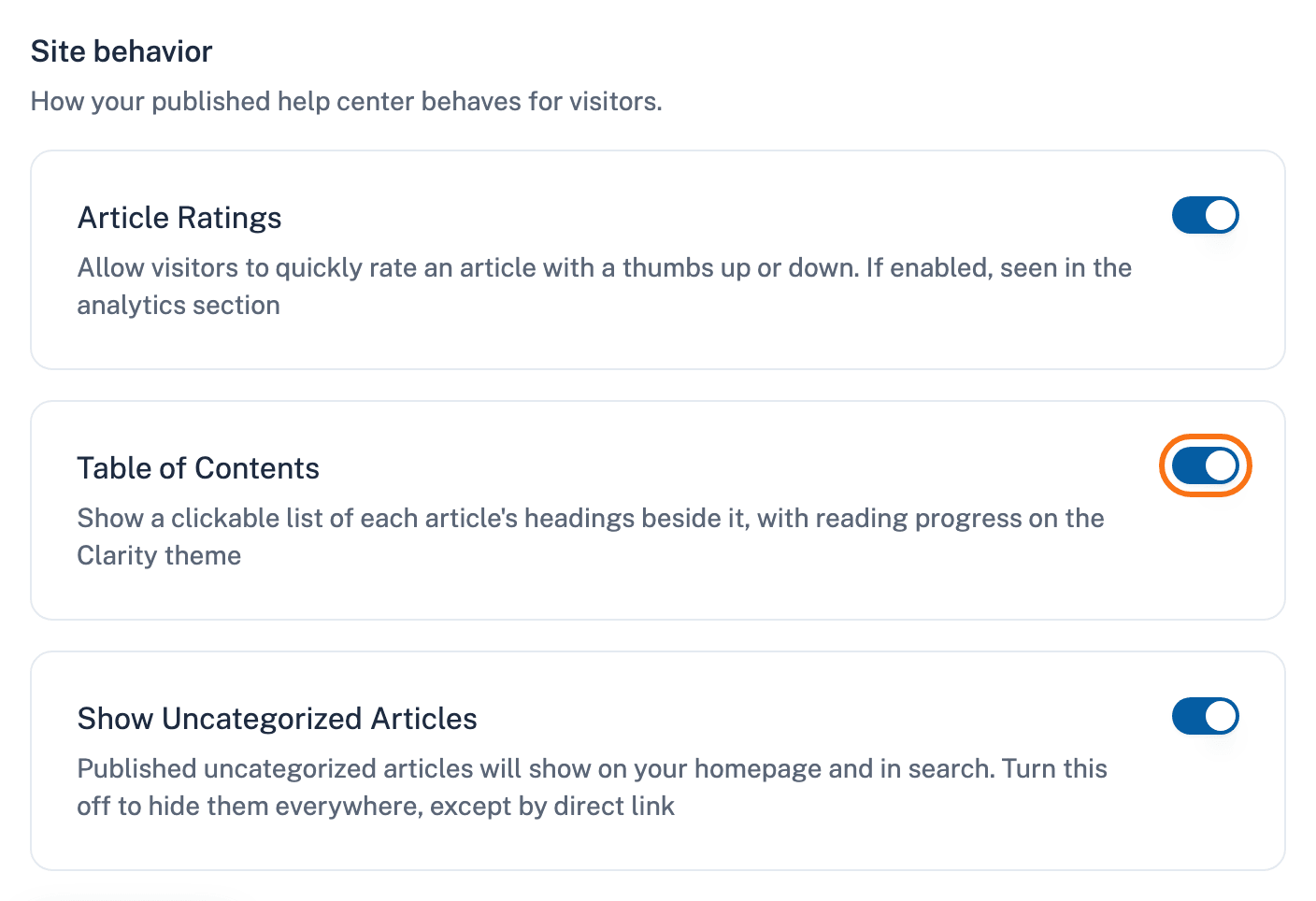
With the switch on, every article that has at least one heading shows a table of contents beside it, headed On this page (In this article on the Clarity theme). Articles without headings show none.
Which headings appear in the table of contents?
Text formatted as Heading 2, Heading 3 or Heading 4 in the article editor appears in the list, indented by level. Heading 5 and Heading 6 don't. To get a useful table of contents, break longer articles into sections with Heading 2 and use Heading 3 for the parts of a section.
What does the table of contents look like on Clarity?
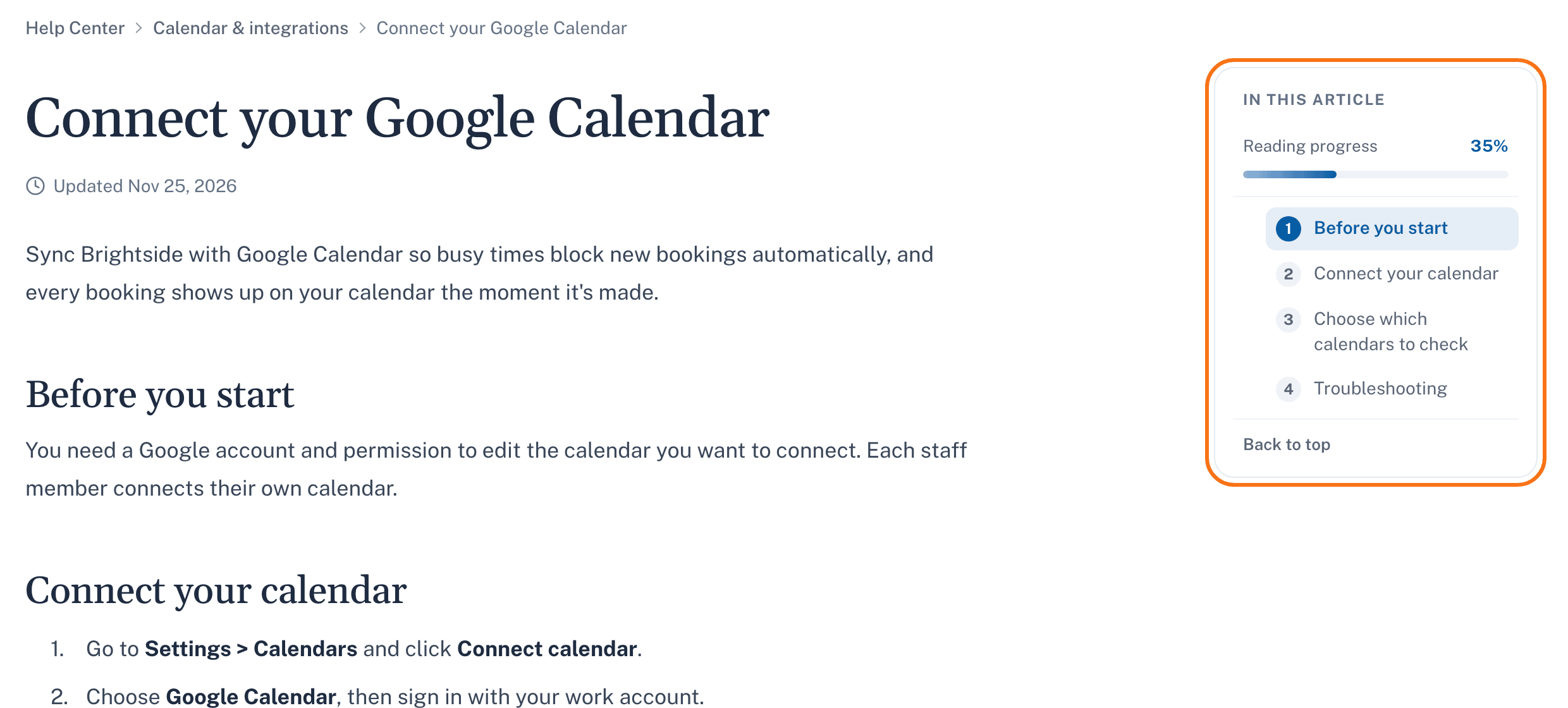
On the Clarity theme, the table of contents stays in view as you scroll. It highlights the section you're reading, ticks off the sections above it and shows how far through the article you are. On a phone it appears as an In this article card at the top of the article that readers can open and close. On the other themes it's a plain list of links beside the article.
Can I link to a section from inside the article?
Yes. You can add your own links to headings anywhere in an article, for example a short list at the top. See Link to another article or a section of one.
If you added a table of contents to your Article page template with custom code in the past, remove that code. With the Table of Contents switch on, articles would otherwise show two.