
Restore an earlier version of an article
To go back to an earlier version of an article, open it, click More actions > View drafts & version history, open the version you want and click Revert to this version. HelpSite also autosaves your work as you type.
How does autosave work?
While you edit, HelpSite saves the title and content about every 10 seconds, whenever something has changed. The status under the save buttons shows Saving…, Unsaved changes, or the time of the last save.
- On a published article, autosave goes to a private draft, and visitors see the published version until you publish. See Edit a published article as a draft.
- Status, Visibility, Category, Search keywords and Author aren't autosaved. Click a Save or Publish button to keep changes to them.
- Autosave is off while you're suggesting edits. Your changes are kept until you send them for review.
If you try to leave with changes that aren't saved yet, HelpSite asks Leave without saving? first.
When is a version saved?
A version is added to the article's history when you click a Save or Publish button, when you unpublish it, and about every 30 minutes while you work on an unpublished article. Autosaves in between don't each become a version.
How do I restore an earlier version?
- Open the article in the editor.
- In the right-hand panel, click More actions > View drafts & version history.
- The Drafts & Version History panel lists saved versions, newest first, with when each was saved and by whom. Hover over a version and click Open Version.
- Read the version to check it's the one you want. Click the back arrow to return to the list.
- Click Revert to this version.
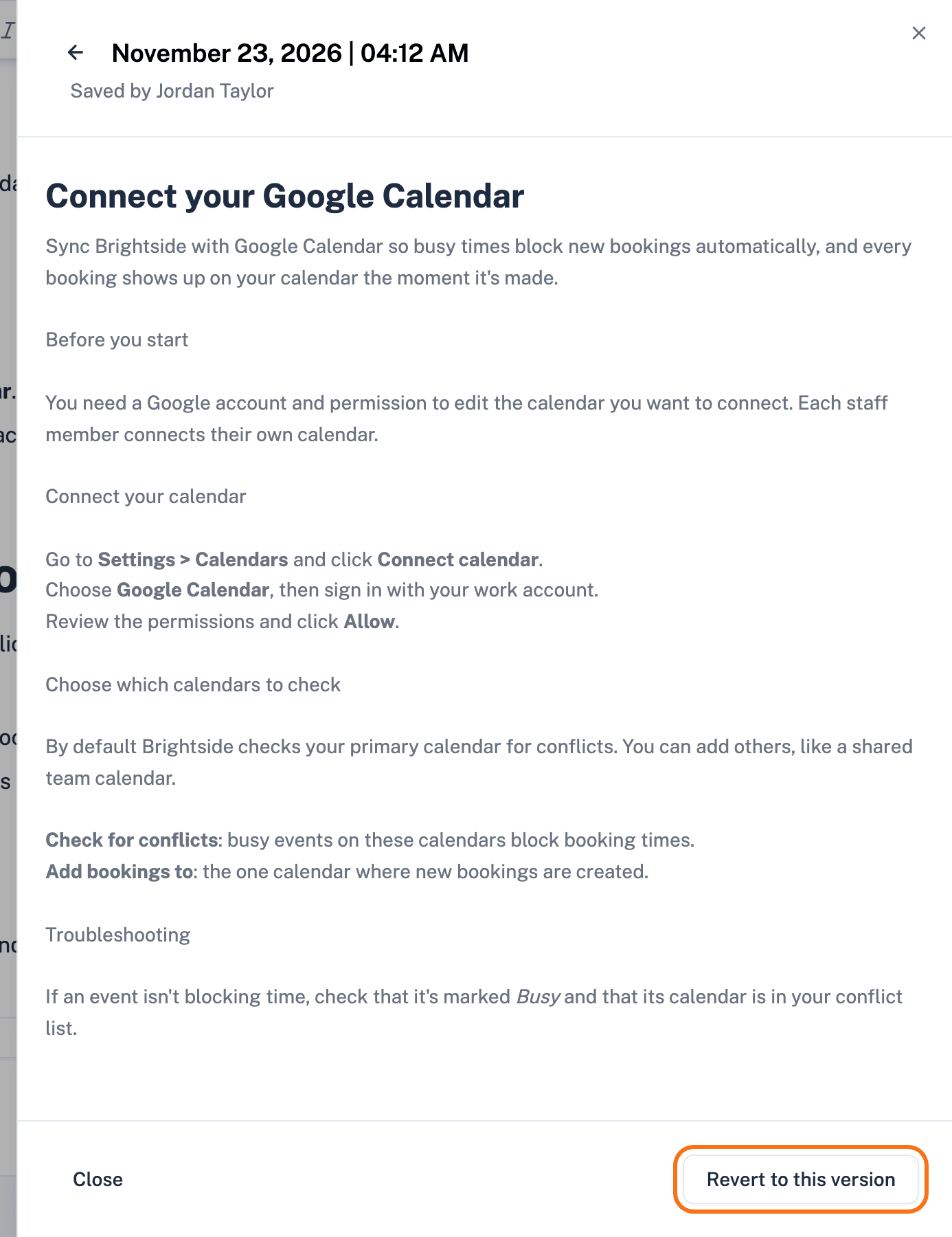
A Version applied message confirms it, and the article now has that version's title and content.
On a published article, reverting changes the live article right away. It doesn't go through a draft, so preview the version before you revert.
How do I save a version I can find again?
- In Drafts & Version History, click + Add to version history.
- Give the version a Title, and optionally a Description.
- Click Save.
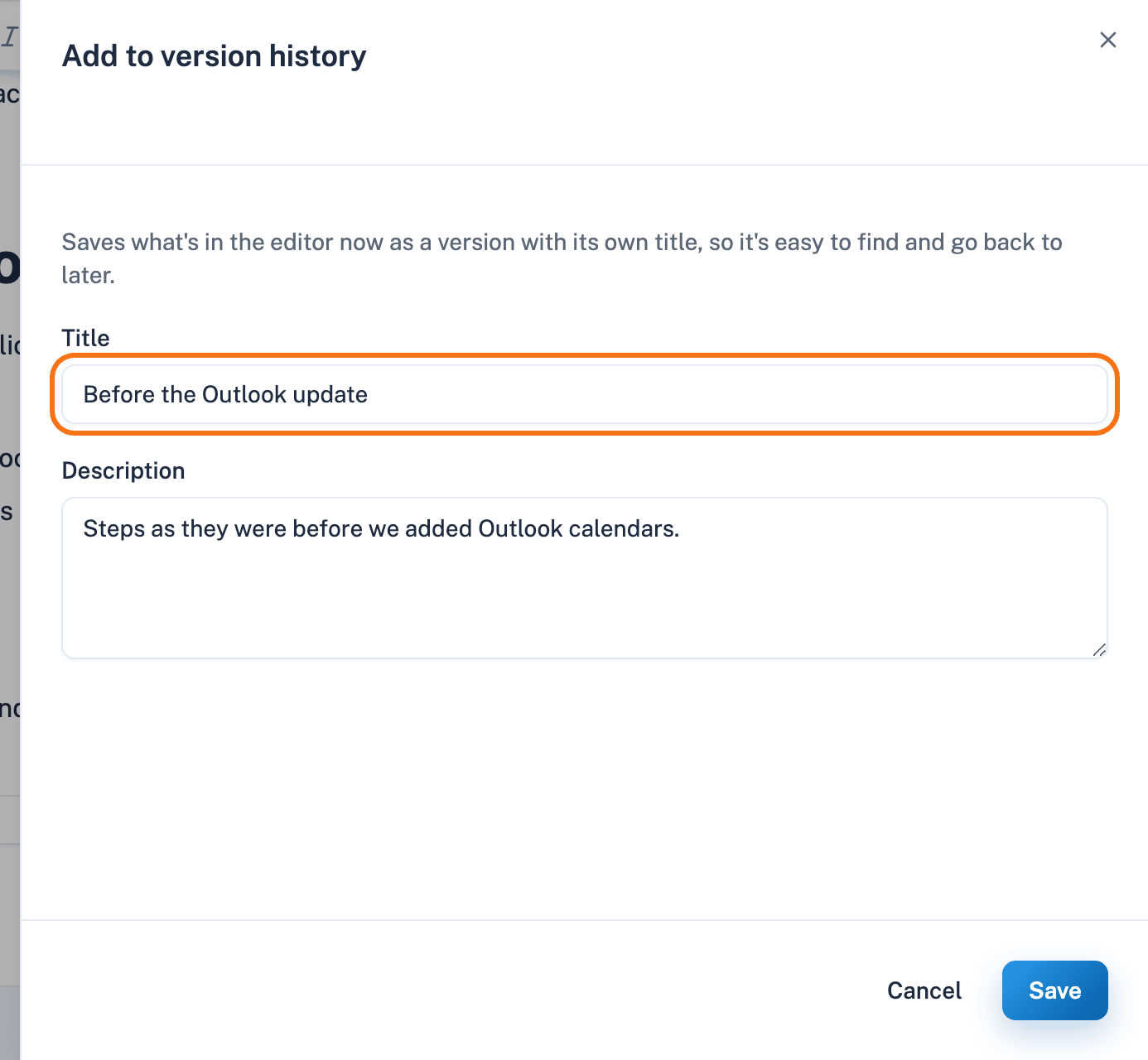
The version saves what's in the editor now, with its title, so it stands out in the list. Adding a version doesn't change or publish the article.
What if someone else saved the article at the same time?
HelpSite pauses your save and asks whether to Keep my version or Use the saved version. See Edit a published article as a draft for what each choice does.