
Set up your new help center
After you sign up, HelpSite sets up your help center in two steps: you create your site, then choose how to add your first articles.
Your help center is live from the first step.
How do I create my help center site?
Once you've signed up, HelpSite opens Create a knowledge base site.
- In Your website (optional), enter your company's website, such as
yourcompany.com. HelpSite uses it to match your help center to your brand. - In Company name, enter the name of your product or company. It's shown on your help center.
- In Choose a HelpSite URL, keep the address HelpSite suggests or type your own. Your help center will be at
https://yourname.helpsite.com. - If HelpSite asks How did you hear about us?, choose an answer.
- Click Create Site.
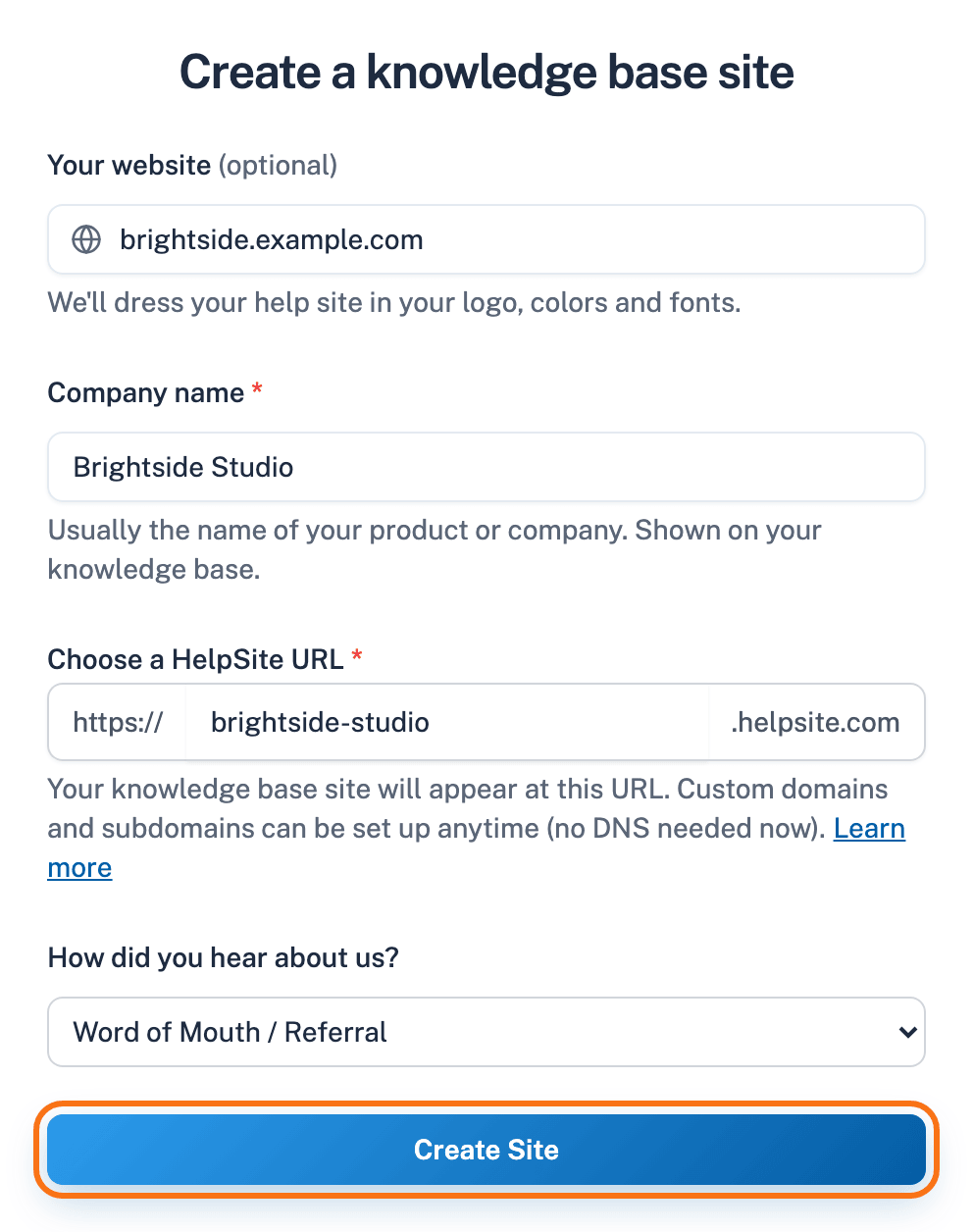
Your help center is now live at its helpsite.com address, with no articles yet, and HelpSite moves you to Step 2 of 2 · Add your content.
The company name needs at least 5 characters. The URL can use letters, numbers and hyphens, from 4 to 63 characters. You can change both later, and add your own domain any time. See Change your site's name, logo and subdomain and Set up a custom domain.
How does HelpSite match my brand?
If you entered your website, step 2 starts by reading your site's logo, colors and fonts and applying them to your help center. A preview shows what it found under Color, Logo and Fonts.
- To use a different brand color, click another swatch next to Color.
- To change the logo, click Upload one or Upload a different one. Use a PNG, JPG, WebP, GIF or SVG image up to 2 MB.
- To go back to HelpSite's default look, click Undo. Use my brand again puts your brand back.
- To adjust more, click Fine-tune in Design.
If you left the website field empty, type your website next to Match your brand and click Match. If HelpSite can't read your site's branding, your help center keeps the default look and nothing else changes.
You can match your brand later from Customize site > Design. See Choose and customize a theme.
How do I choose how to add my articles?
Under How would you like to add your articles?, HelpSite offers three ways in:
- Import your existing help center copies your articles and categories from Zendesk, Intercom, Helpjuice or another tool, from your live site's address or an export file.
- Generate it with AI suggests topics from your website and documents and writes first drafts for you to review.
- Start from scratch adds two short sample articles that show how publishing works.
- Click the card you want.
- Click Continue.
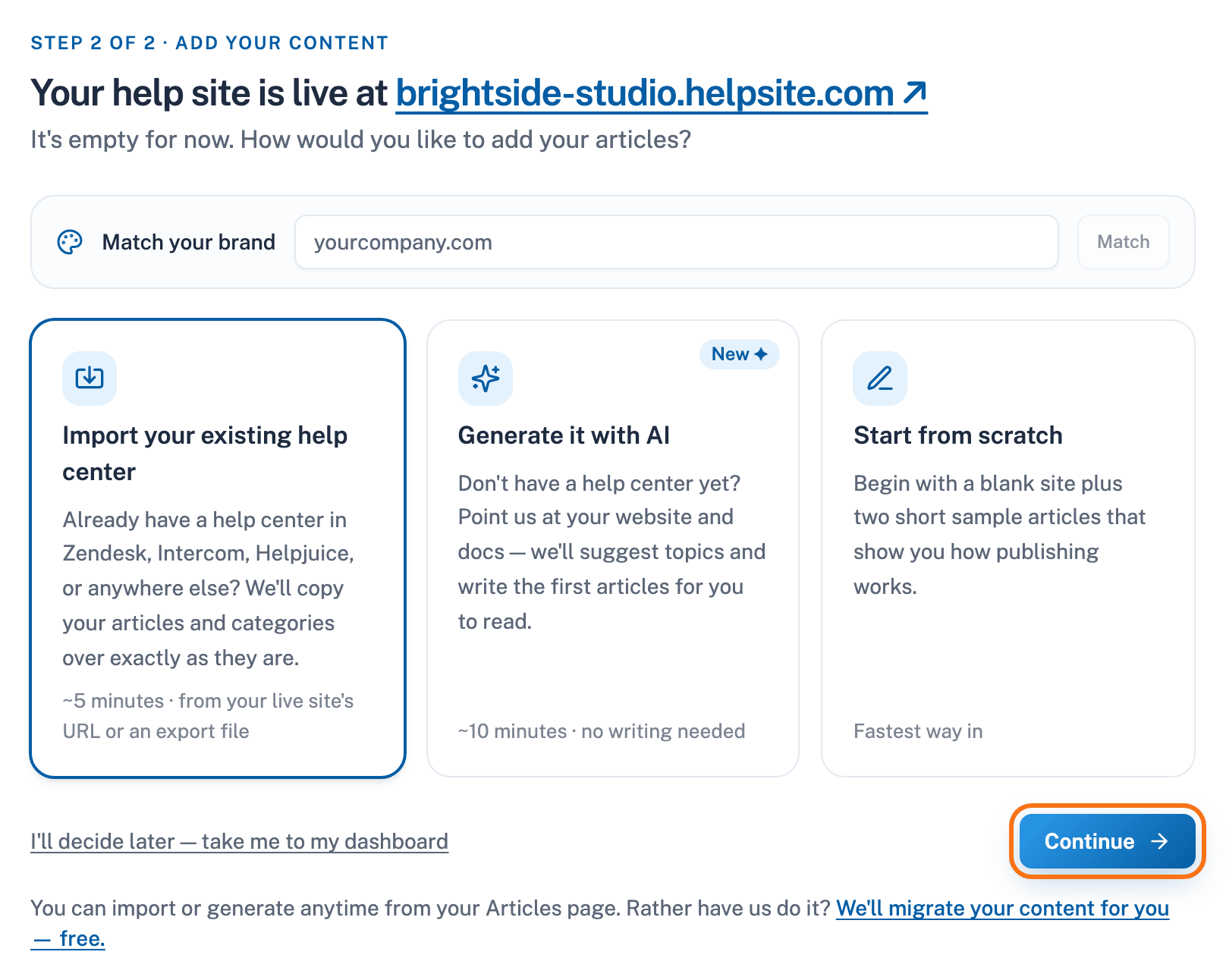
Import opens the importer (see Import your existing help center). Generate opens the AI KB Generator (see Build your knowledge base with the AI KB Generator). Start from scratch opens your Articles list with the two sample articles.
To skip this step, click I'll decide later — take me to my dashboard. Your empty Articles list offers the same three choices as Import articles, Generate with AI and Start from scratch.
Can HelpSite move my content for me?
Yes. Below the three cards, the link We'll migrate your content for you — free. opens an email to help@helpsite.com. Send your current help center's address or an export file, and the HelpSite team imports it for you.