
Set up a help center in more than one language
To offer your help center in more than one language, create one site per language. Each site has its own articles, categories, address and settings, and you can write articles in any language.
The number of sites you can create depends on your plan. See Pricing.
How do I add a site for another language?
- In the sidebar, click Settings, then the Sites tab.
- Click New Site.
- Enter a Company name and Choose a HelpSite URL that names the language, for example
acme-es. - Click Create Site.
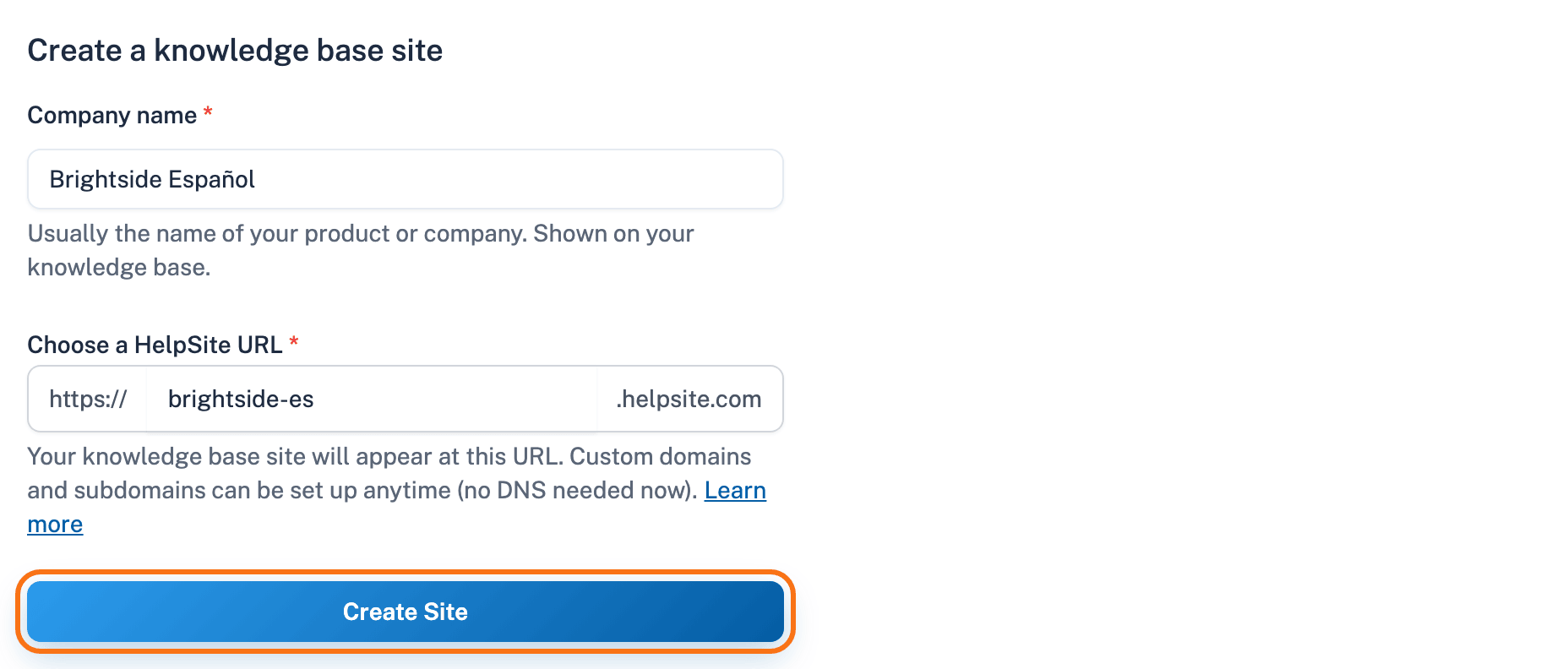
- Write or import the articles for that language.
- Translate the built-in text, such as the search box and contact form labels. See Change the built-in text on your help center.
The new site is live at its HelpSite URL. To give each language its own address on your domain, such as es.help.yourcompany.com, set up a custom domain for each site. See Set up a custom domain.
To start from copies of your existing articles and categories, duplicate your site instead of creating an empty one, then translate the copies. See Duplicate or delete a site.
How do visitors switch languages?
Each language is a separate help center, so add links between them yourself. For example, add a link to each language's address in the header of every site's Main layout template. See Edit your help center's HTML and CSS templates.
Which parts stay in English?
- The HelpSite app, where you and your team write articles, is in English.
- A few words on the help center come from HelpSite itself and can't be translated today: the heading of the table of contents (On this page, or In this article on the Clarity theme), Was this article helpful? and the end of category page tab titles.
- Help center pages are marked as English in their code, whatever language the articles are in.
Does HelpSite support right-to-left languages?
You can write articles in right-to-left languages such as Arabic and Hebrew, and the text is stored and shown as you type it. HelpSite has no right-to-left setting, so the page layout reads left to right. To flip the whole help center, add this CSS to the <head> of the site's Main layout template:
<style>
  body { direction: rtl; }
</style>