
Add a video to an article
To add a video, click Add > Video in the editor toolbar. Paste a YouTube, Vimeo or Dailymotion link, or upload a video file of up to 200 MB. Videos from other hosts go in through their embed code.
How do I add a YouTube, Vimeo or Dailymotion video?
- Put your cursor where the video should go.
- In the toolbar, click Add, then Video.
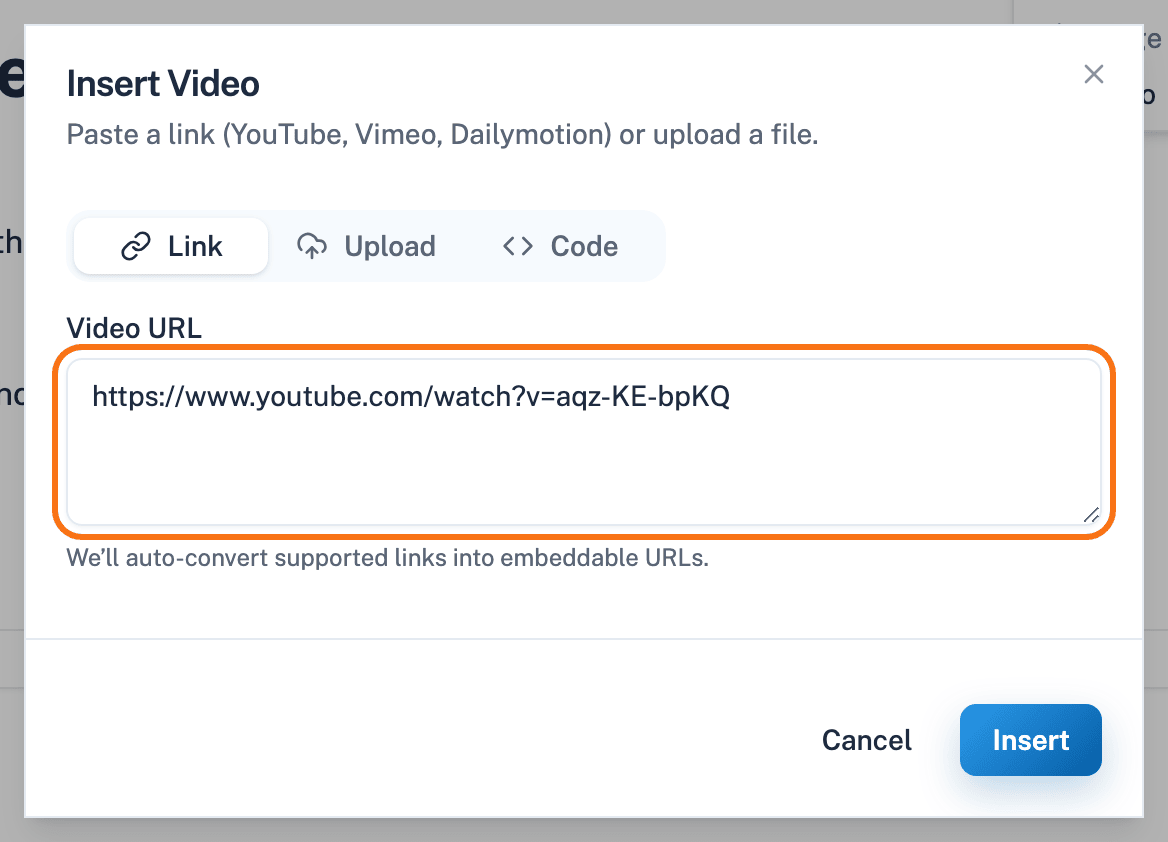
- On the Link tab, paste the video's address into Video URL. A normal watch link, a short link such as
youtu.be, a YouTube Shorts link and a Vimeo showcase link all work. - Click Insert.
The video is added at 640 × 360. Drag its corner handle to resize it, and use the toolbar's align buttons to move it left, center or right.
How do I upload a video file?
- Click Add, then Video, and open the Upload tab.
- Drag the video into the box or click it to choose a file. MP4, WebM and Ogg files up to 200 MB work.
- Optional: paste the address of a still image into Poster image URL (optional). It shows before the video plays.
- Click Insert.
A Video added message confirms the upload. Large uploaded videos load more slowly than ones streamed from a video host, so YouTube or Vimeo is the better choice for long videos.
How do I add a video from Wistia, Vidyard, Loom or another host?
Use the host's iframe embed code. Script-based embed codes don't play, because published articles don't run scripts.
- On the video host, copy the embed code that starts with
<iframe. Leave out any<script>lines. - In the editor toolbar, click Open HTML editor.
- Paste the iframe code where the video should go.
- Click Close HTML editor, then save the article.
Open the published article to check the video plays.
What is the Code tab for?
The Code tab in Insert Video takes an Embed Code. An iframe from YouTube, Vimeo or Dailymotion pasted there becomes a normal video. Other embed codes added on this tab show in the editor but appear on your site only for Scribe and Viostream, so use the HTML editor steps above for other hosts.