
Find, filter and bulk-edit articles
The Articles list shows every article in the current site. Search it, filter it by category, status, visibility or author, and change many articles at once.
How do I find an article?
- Type in the search box, Find an article…, at the top of the list. Matches from titles and article text appear as you type. Click one to open it in the editor.
- In the Categories panel on the left, click a category to show its articles, including those in its subcategories. Click All Articles to show everything, or Uncategorized for articles with no category.
On a small screen, the categories panel and filters are behind the Categories & filters button.
How do I filter and sort the list?
Below the categories in the left panel:
- Status: All, Draft or Published.
- Visibility: All, Internal or Public.
- Author: Anyone, Mine, a team member, or No author recorded. This filter appears once more than one team member can write articles.
The sort menu above the list offers Manual order, Alphabetical, Oldest first, Newest first, Recently updated and Least recently updated. Each row shows whether the article is Public or Internal, when it was last updated and who edited it last.
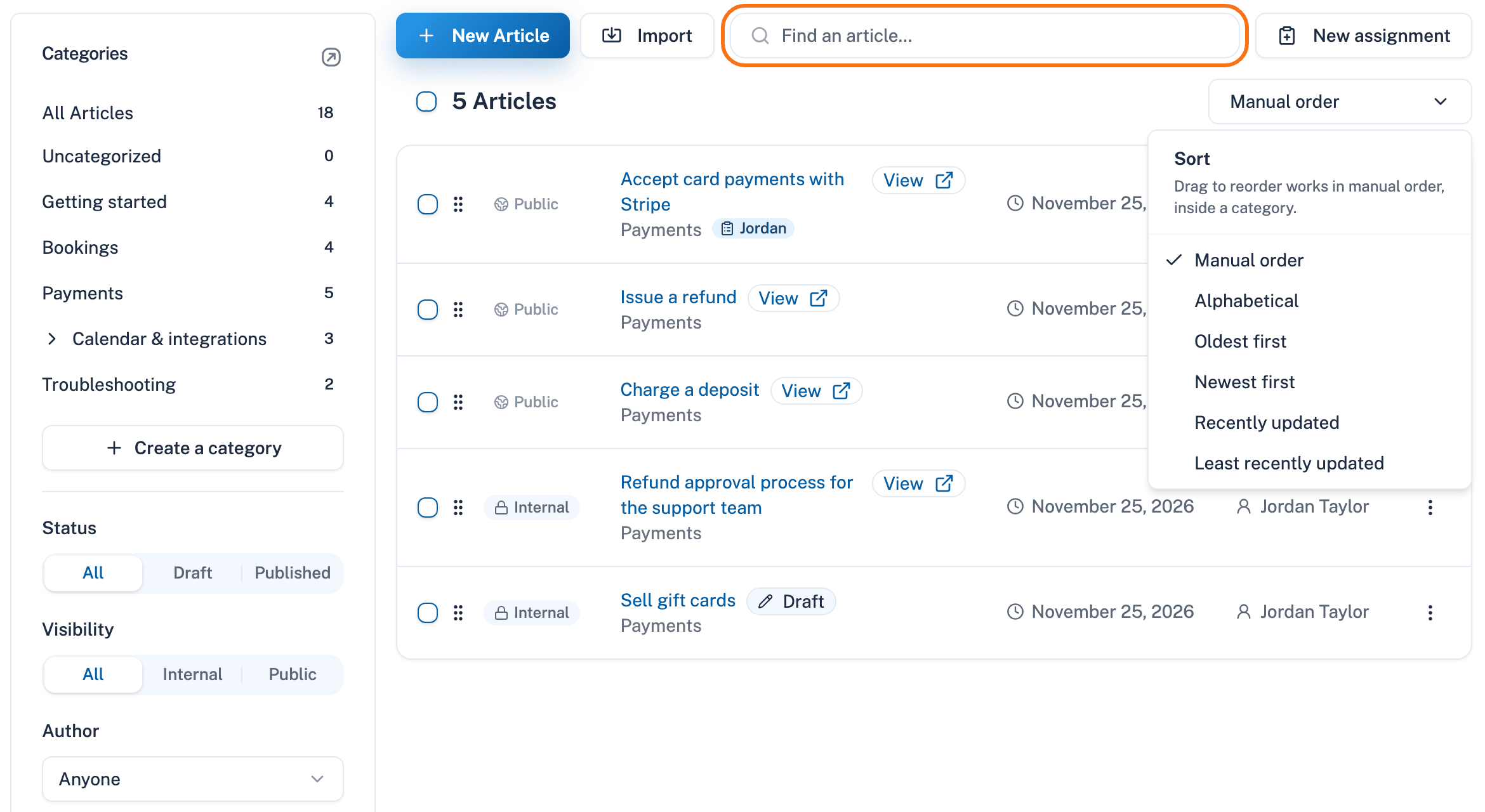
How do I reorder articles?
- Click a category in the Categories panel.
- Set the sort menu to Manual order.
- Drag an article up or down the list.
The order is saved for that category and is the order visitors see. Dragging to reorder doesn't work in All Articles or with another sort selected.
How do I move an article to another category?
- Drag the article's row onto a category in the Categories panel.
- To undo, click Undo in the message that appears.
The article goes to the end of that category's order. This works from any view and sort. Drop it on Uncategorized to remove its category.
How do I change several articles at once?
- Tick the checkbox next to each article you want. Hold
Shiftwhile you click to select a range, or tick the box above the list to select every article shown. - In the bar at the bottom of the list, choose an action:
- Publish or Unpublish
- Visibility, then Public or Internal
- Move to, then a category
- Author, then a team member
- Assign, which assigns each article for review, due in 7 days
- Delete
- Check the message that confirms the change. Most changes, other than Delete, offer Undo.
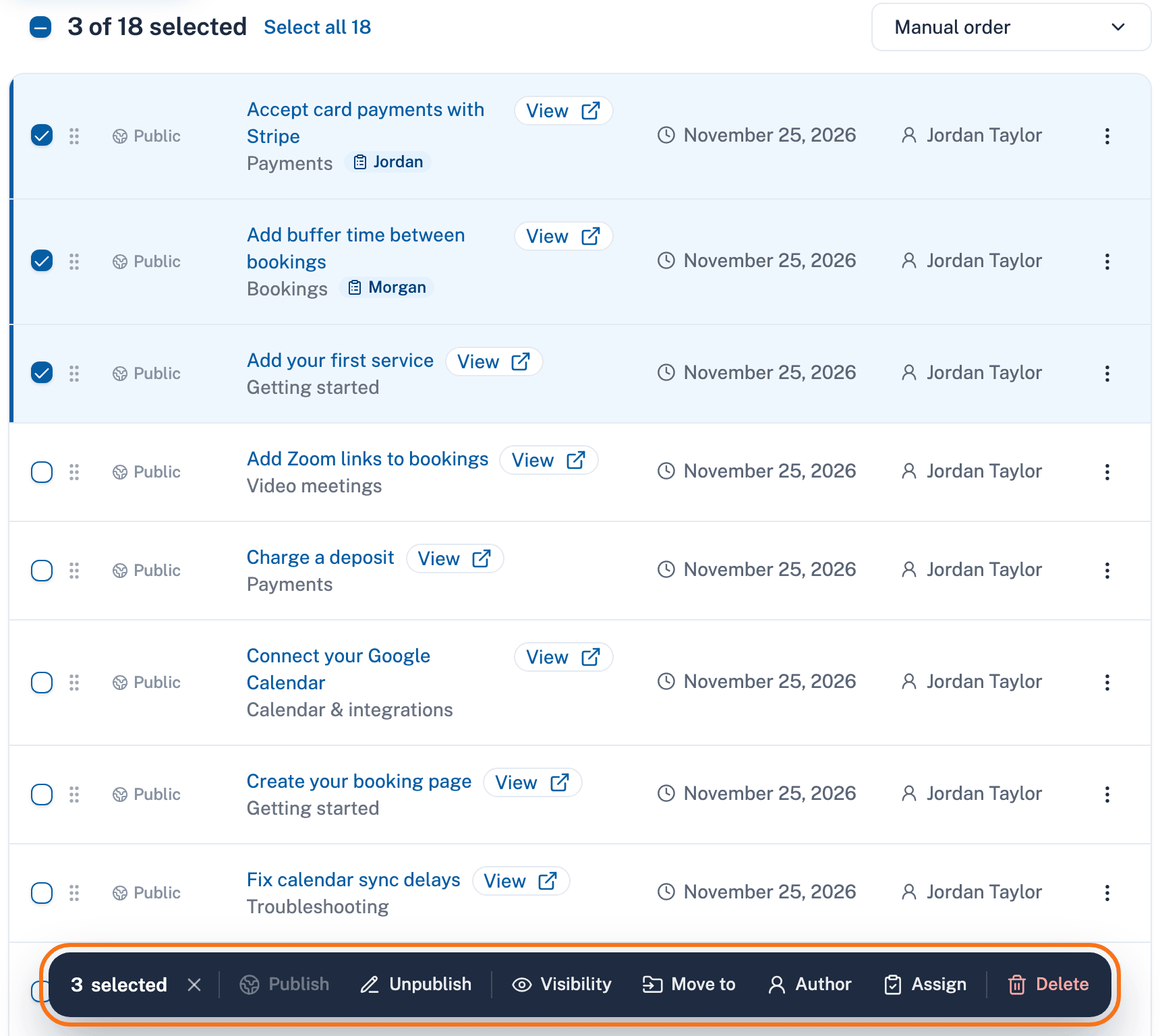
To clear the selection, press Esc or click the X at the left of the bar. Dragging is off while articles are selected.
Not every plan includes internal articles or assignments. See Pricing.
What does each article's menu do?
The ⋯ button at the end of each row opens Edit, Assign…, Duplicate, Unpublish (published articles only) and Delete. Duplicate makes a copy in the same category, and Unpublish takes the article off your help center and makes it a draft.
What happens when I delete articles?
Deleting permanently removes the articles, their unpublished drafts, version history and view stats. The confirmation lists the articles. With 10 or more selected, you type delete and the number, for example delete 12, to confirm.
Deleted articles can't be restored, and links to them stop working. If people link to an article, add a redirect first. See Set up redirects.